
Create a Banquet
Clubspot's Banquet Management tools allow clubs to manage private events, weddings, corporate functions, golf outings, galas, and other catered events from a single location. Each banquet event includes a Banquet Event Order (BEO), which serves as the central document for planning, pricing, invoicing, and communicating event details.
This guide walks through the process of creating a banquet event and building a Banquet Event Order.
Before You Begin: Setup
Step 1: Create the Event
Navigate to Banquets > Events and select + to create a new event. Enter the basic event information, including the event space, contact details, and service charge rate. Once saved, Clubspot creates the event and generates a Banquet Event Order (BEO).
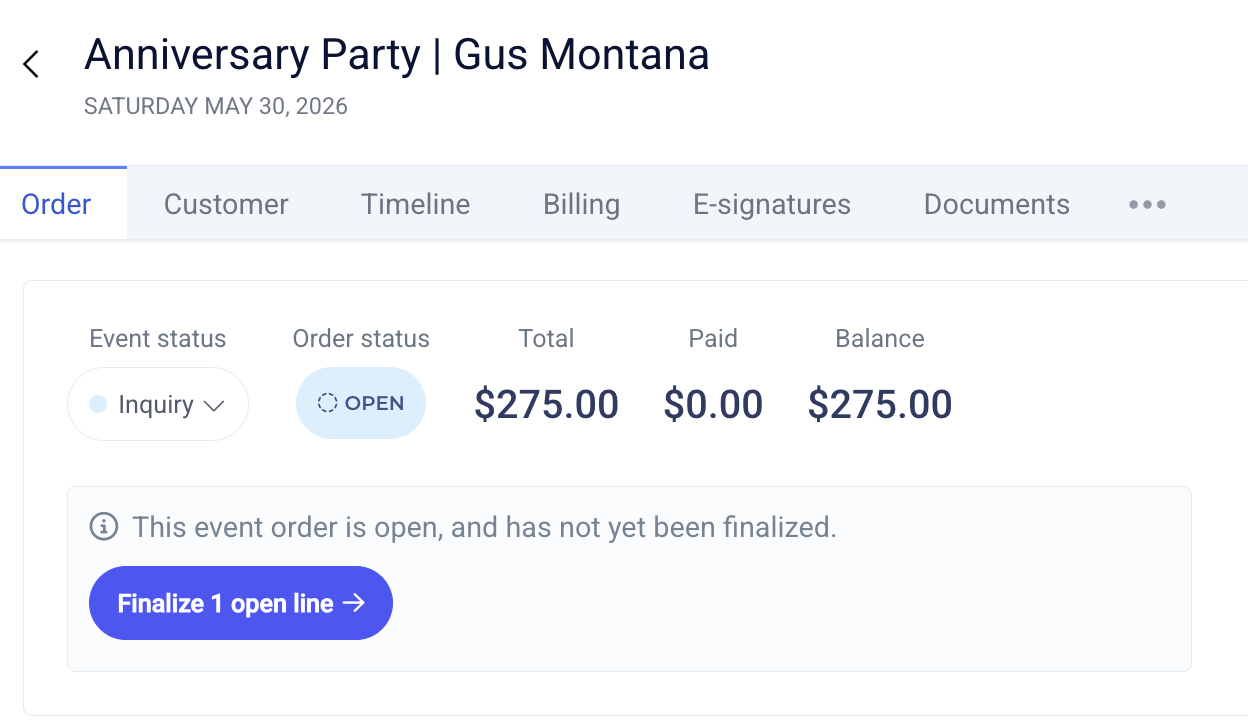
At the top of the BEO, you’ll see two statuses: the event status and the order status. The event status describes whether this banquet is a draft, tentative, inquiry, or confirmed event. The order status describes whether the invoice for this order is in draft or finalized. Once a BEO has been moved from draft to finalized, it is locked - you can no longer add or remove lines. You can still update notes, party size, timing, special requests, etc. You can also still issue ad hoc invoices or reversals from the Billing tab, if needed. The BEO should only be finalized after you are ready to send a final invoice to the customer, which we recommend would be after the event has concluded.
Step 2: Build the Banquet Event Order (BEO)
Products
To add a product to your event, click in to the appropriate section (Food, Bev, Other, or view together under ALL) and select the + button next to the Items heading. You’ll be able to choose a product from the club’s entire product library, following which you can adjust the price and quantity.
Products from Packages
The packages that your club has pre-arranged are listed below their respective sections. Packages are not limited to event type (for ex. a wedding food package will still be available for you to see and choose from when setting up a birthday party). Click on the package to see the items that it contains. Use the ‘ADD’ drop-down menu to choose the quantity of that item that you’d like to have at your event. Once added to the event, that item will jump up into your BEO’s section.
You can make edits via the ‘ADD’ drop-down menu to increase or decrease the quantity. Price adjustments are made in real-time in your BEO.
Option Groups
If the event type has been assigned any option groups, they will appear after the products on the BEO. If you need to limit the number of options available for selection, you can do so in the Products and Option Groups settings. The options in an option group do not have prices attached.
Notes
Internal Notes are visible only to the admin. Special requests are visible to the admin and the host customer.
Step 3: Choose a BEO Layout
BEO layouts for BEOs allow you to customize the way your event data is presented for both internal and customer-facing views. Your club may have a lot of layouts, so we don’t clutter your BEO by presenting them all in the layout dropdown. Instead, you’ll add the layouts you need to use for this event via the dropdown menu in the upper right-hand corner of your event. Then you’ll use the layout dropdown to alternate between the views:
Please note that all edits to your BEO (e.g., adding more Food items, making special notes, etc) will be performed on the Default Clubspot layout. But those changes will transfer across all BEO layouts, so when you flip to an alternate layout, all changes will be visible.
To learn more about Layouts, please see our guide HERE.
Step 4: Payment
Once the event is complete, finalize the order:
Payment requests
Staff can send a payment request for a specific amount, even if the event has not been finalized yet. A payment request is not an invoice. It does not create A/R and does not recognize revenue on its own. It is simply a request for the customer to pay a stated amount.
Banquets support two upfront payment types: deposits and prepayments. In practice, they behave the same way; the naming difference is mostly about club policy and how the payment is presented. These payments can be collected before the event is finalized.
Inquiry payments
If allow inquiry payments is enabled, and the BEO is shared with the customer, they can make a payment directly from the shared BEO link (like a statement). This supports more flexible payment behavior, but the team noted that many clubs will prefer directed payment requests with a specific amount instead.