
BEO Formatting
Banquet Event Orders (BEOs) are fully customizable in Clubspot! You can design BEO layouts that reflect your club’s unique needs — from the way information is grouped to the exact formatting of each section.
Layouts
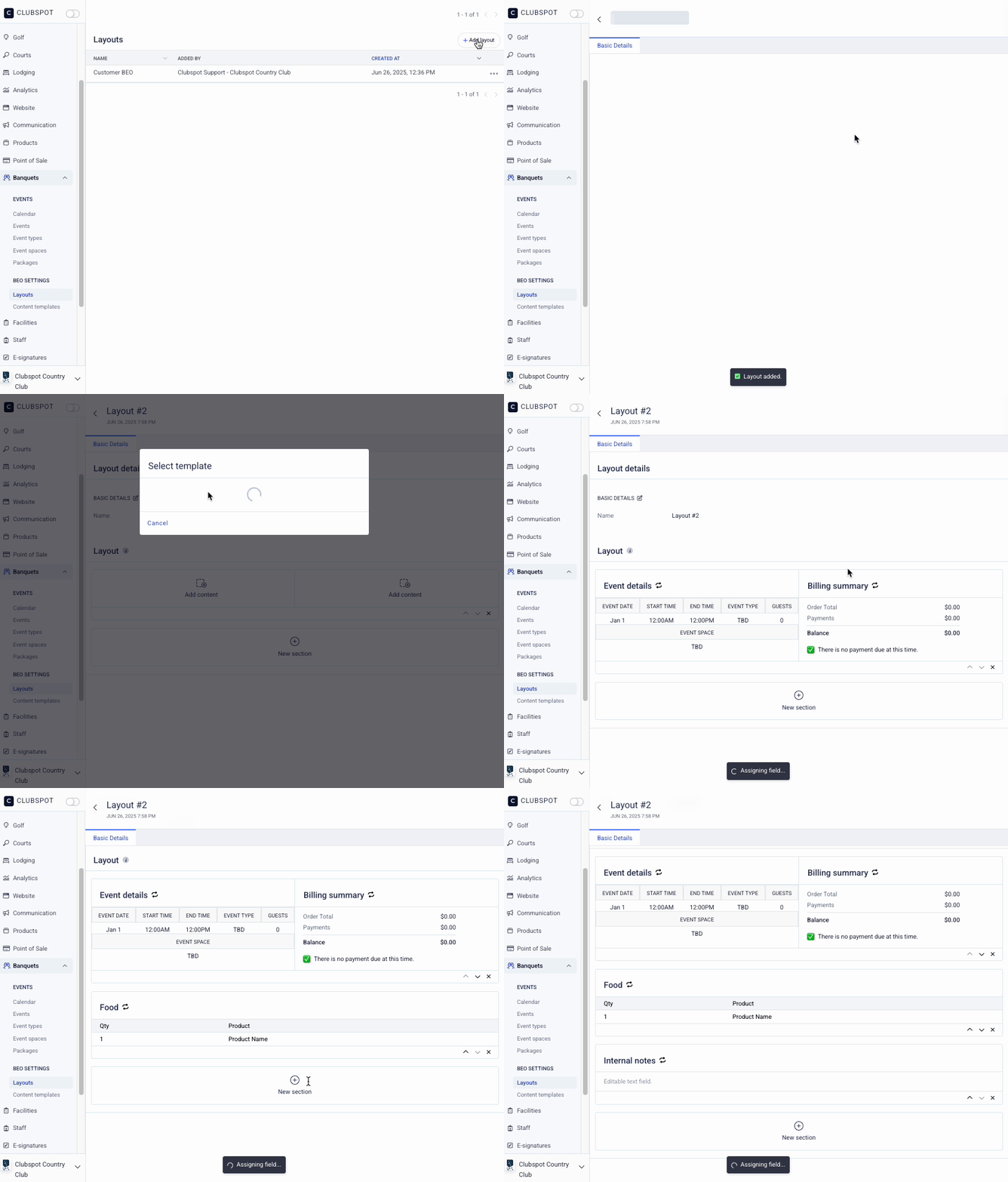
You can continue to use our default BEO layout, but if you’d like to create custom layouts with variable orientations, you can create them in the new Banquets > Layouts section of the dashboard. Just click + Add Layout and assign it a name. From there, you can add any number of page sections with either one or two columns. Those sections can then be populated with any of our default sections: Header, Customer Details, Order Details, Event Details, Products, Internal Notes, Special Instructions, Option Groups, Billing Summary, etc. You can also include custom content templates (see below) for even more flexibility.
Once you’ve created a layout, you can apply one or more of those layouts to each of your Events. Just click on the Event > click the + add template button in the upper right corner of the event > and then use the dropdown to re-format your event with that specific template. FYI, all edits made to a layout apply to every event using that layout.
Content Templates
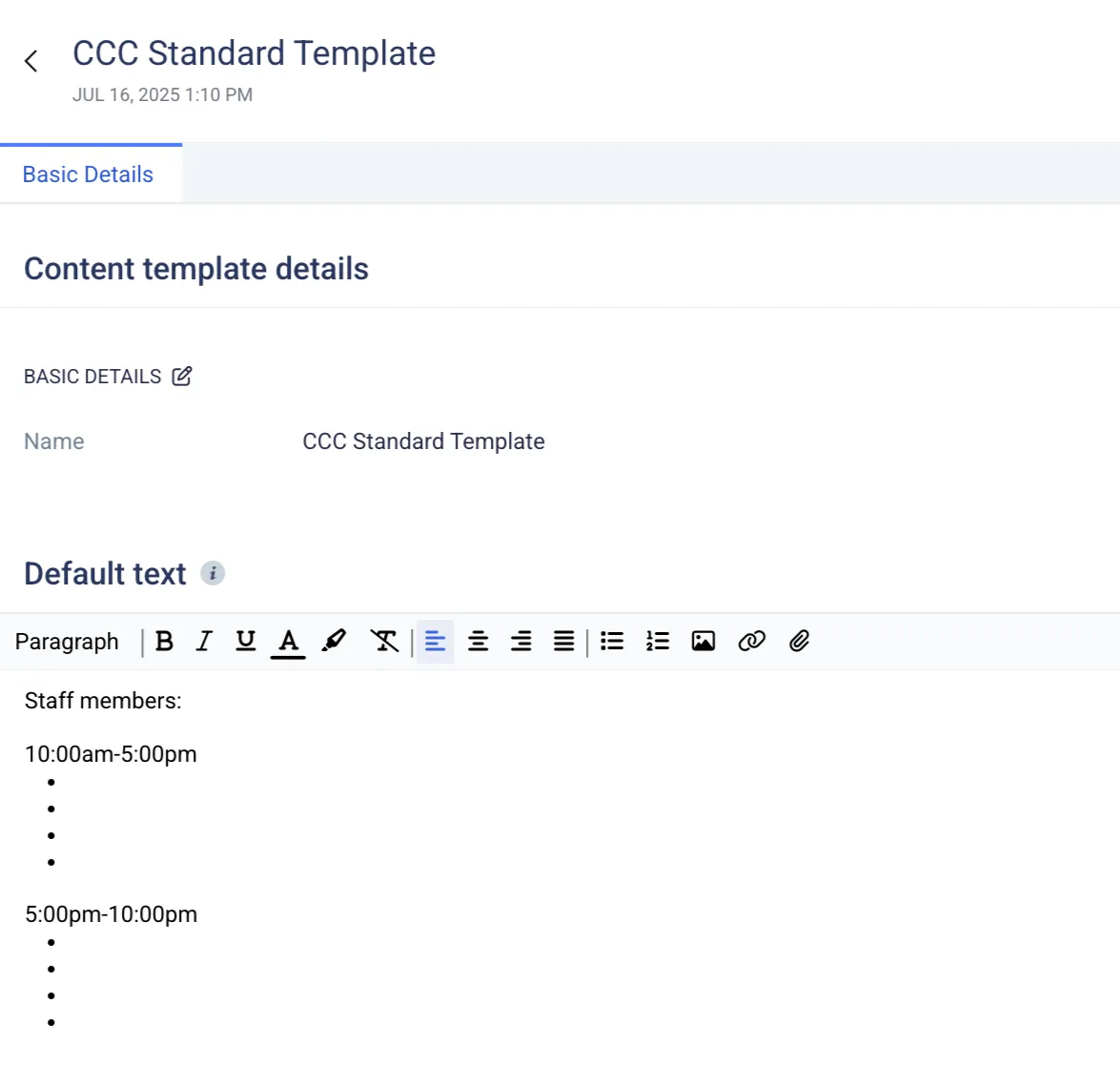
Content templates allow you to add customizable text fields to your BEO layouts. These fields are especially useful for including prewritten notes or instructions that can be edited for each event. When you create a content template, you can add default text that will pre-fill each event as a starting point. Once you make changes to a content template within a specific event, those changes become unique to that event and will not be overwritten by future updates to the template. Until then, the default content remains visible and will update automatically when changes are made to the original content template.
Sharing your BEO
You’ll still be able to download the default BEO with no changes to the formatting. You can also download each of your custom layouts.
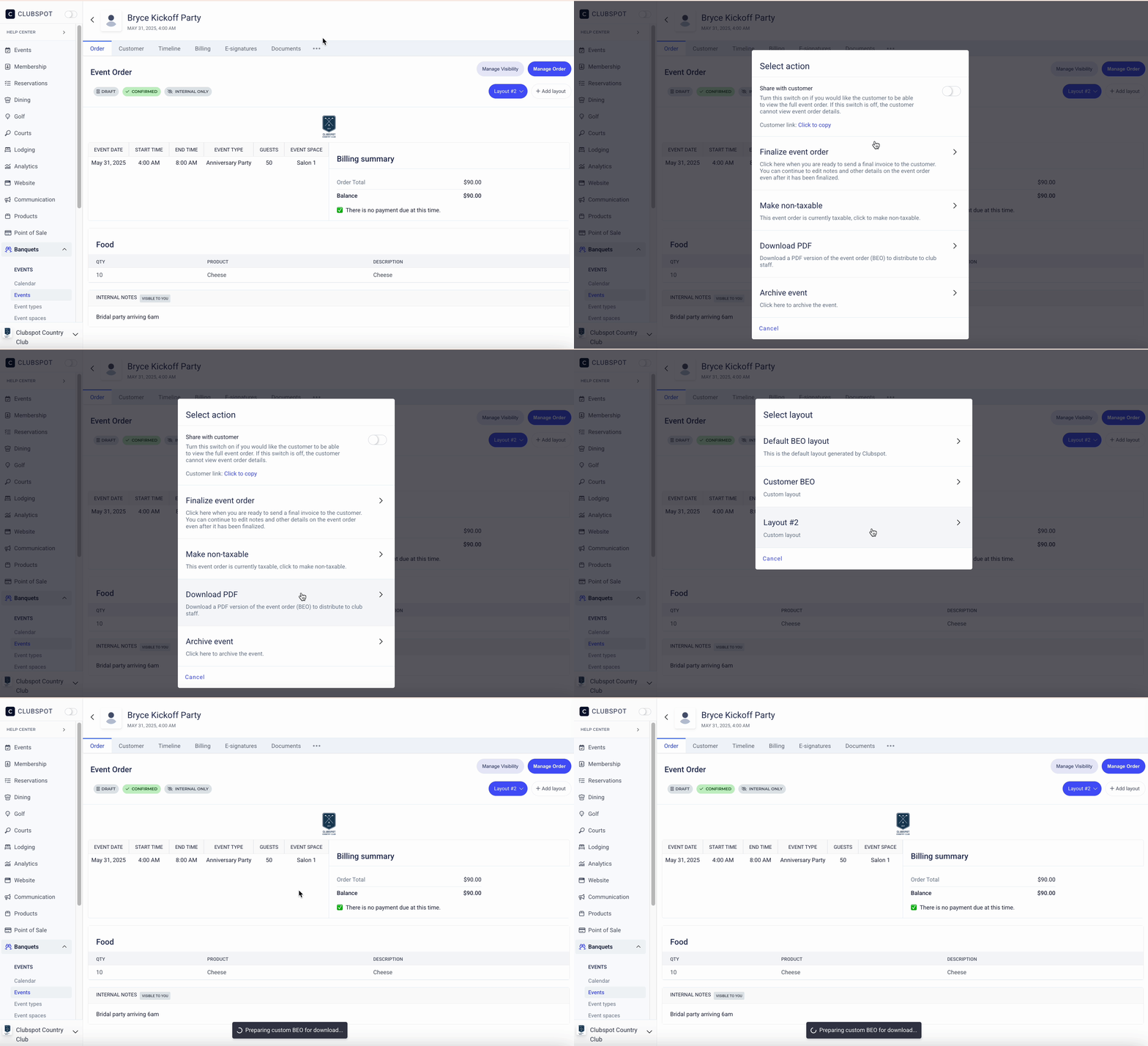
If your event is set to “share with customer”, you’ll have access to a link that you can share with the customer so they can follow along with changes to the BEO. You can now set a custom BEO layout that customers will see. The customer BEO link will render:
Existing inquiry submitted text if not shared with customer
Basic BEO if shared with customer and no customer BEO
Specific template if shared with customer and customer BEO set