
Waitlist Management
Learn how to set and manage entry caps to ensure that your events are not overbooked.
Getting started
From the event dashboard, navigate to Settings > Waitlist.
This view allows you to configure the entry caps for your event, simply by entering numbers in the input boxes.
Social events do not have waitlists. However, you can limit the number of registrants for each ticket and/or set a cumulative cap for the event. You can do this under Settings > Entry Caps.
Manual vs. automatic
You can optionally ask Clubspot to automatically recalculate the waitlist as you make changes (eg. removing a signup would automatically pull the first waitlisted participant into the event). The two options are:
Manual: Clubspot will assign an initial waitlist status at the time of registration, but will NOT automatically move participants on or off the waiting list when you add entries, remove entries, or update entry caps.
Automatic: Clubspot will assign an initial waitlist status at the time of registration, AND WILL automatically move participants on or off the waiting list when you add entries, remove entries, or update entry cap settings.
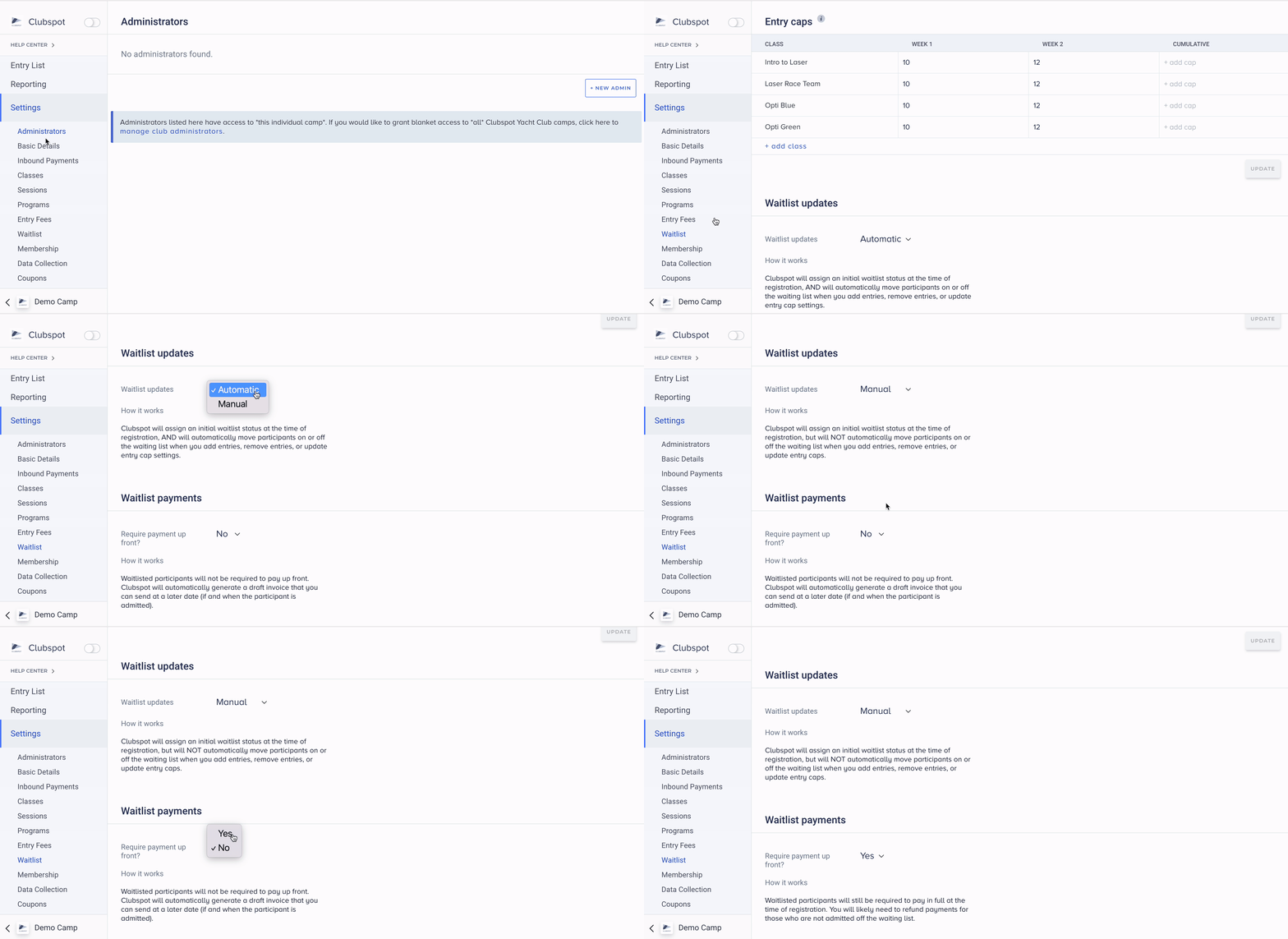
Waitlist payments
You can also dictate how payments are handled for waitlisted participants. There are two options:
Require payment up front: Waitlisted participants will still be required to pay in full at the time of registration. You will likely need to refund payments for those who are not admitted off the waiting list.
Do not require payment up front: Waitlisted participants will not be required to pay up front. Clubspot will automatically generate a draft invoice that you can send at a later date (if and when the participant is admitted).
We recommend not requiring payments up front if your program will be heavily oversubscribed. When you issue refunds, the payment processing fees are not returned to the club, so accepting payments from (and subsequently refunding) a large number of waitlisted participants can be more expensive for the club.
Move a Signup On/Off Waitlist
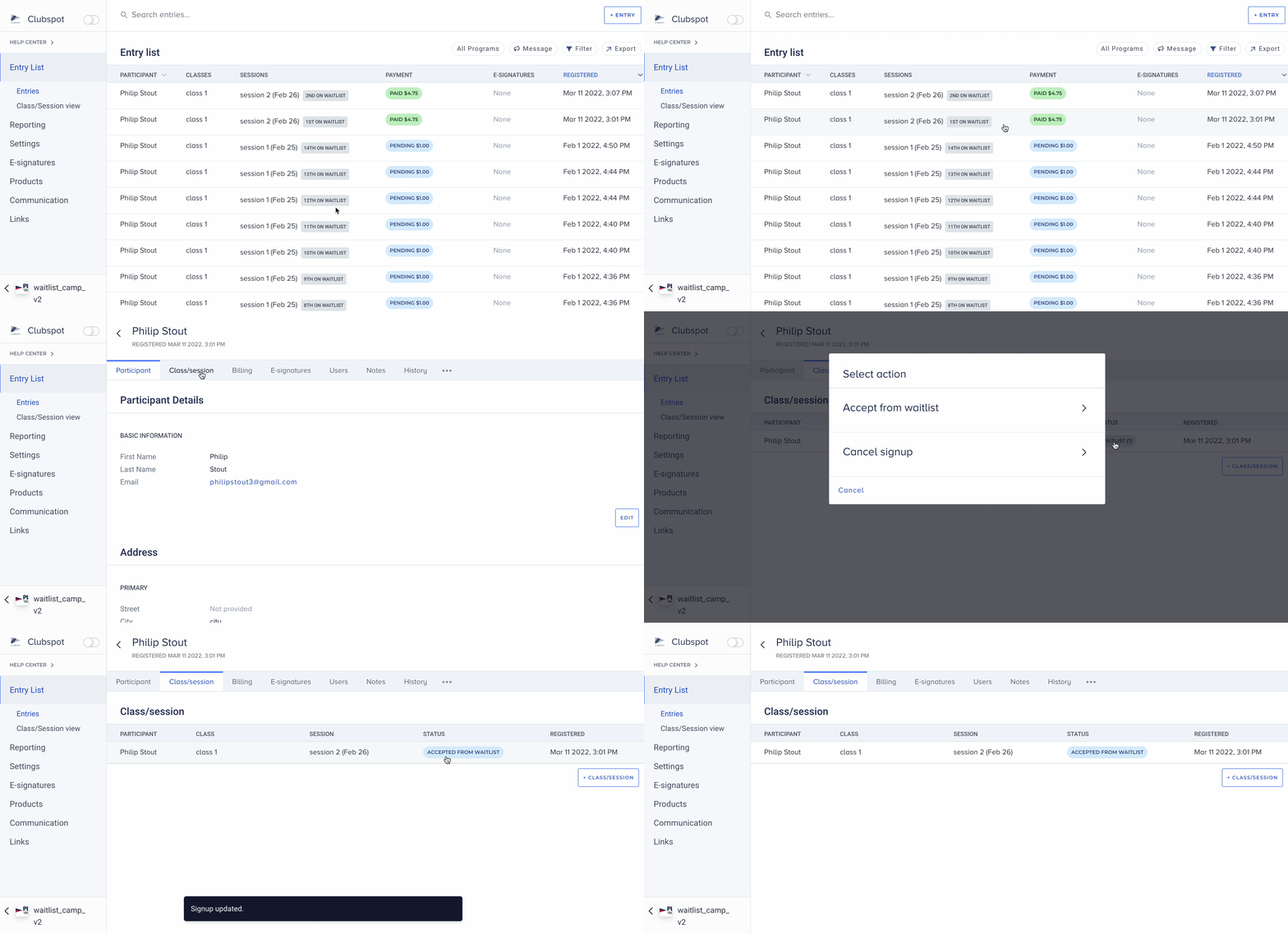
The Entry List will tell you the order of participants on the waitlist. You can even filter the entry list to see waitlisted vs. non-waitlisted participants.
In order to move a signup on/off the waitlist, click on the registration and then click on the Class tab on the top menu. Under Status you will see the same grey box with Waitlist and their number, click on this and choose either Accept from waitlist or cancel signup.
Waitlist invoicing
Clubspot does NOT automatically send invoices or charge participants when you accept someone from the waitlist. We leave this fully at your discretion so you can decide exactly who to bill, how much, and when.
Once you have accepted a signup from the waitlist you may want to invoice the participant.
Draft invoices
If you had Waitlist Payments set to “Do not require up front” then Clubspot will have created a draft invoice at the time of registration for you. This draft invoice is simply created as a convenience, so it’s easy to remember how much the participant should be billed if/when they come off the waitlist. You can click on that draft invoice, and then click to finalize it. This will send it to the participant for payment. If you want to edit the draft invoice (eg. add additional line items, or remove line items) you can do so before finalizing it by clicking on “View Invoice Details” and then “+new line item” in the bottom right corner. This will prompt you to search for the product you would like to invoice for (for example, an entry fee, or a merchandise item).
For a regatta, the entry fee products will have the name of the boat class, so you can search for that.
Once you select a product, you can then enter an amount and description, then click Next Step.
New invoices
You can always issue new invoices for any registration, straight from the Billing tab.
Please click here for our guide on issuing a new invoice.
Communications
Clubspot does NOT send an automatic email to participants that you accept from the waitlist. Instead, we leave you as an event administrator in full control of if, when, and how you communicate acceptance from the waitlist with participants.
If you choose to re-send a confirmation email after accepting a participant off the waitlist, the re-sent confirmation email will list the latest waitlist status (eg. not waitlisted, if you have accepted the participant off the waitlist prior to re-sending the confirmation email).