
Sending Emails to Event Participants
This guide will walk you through how to draft, send, and track communications within your regattas, camps, and social events!
1. Navigate to your Club Event (Camp, Regatta, Social Event)
The path to communicating with entrants always lives in the first tab you land on when you click on a camp, regatta, or social event. So if you click on the event, you’re already there!
2. Once looking at the Entry List, use the “Filter” function at the top left to select the group you want to reach out to. If you’re just trying to send a message to everyone — ignore this step!
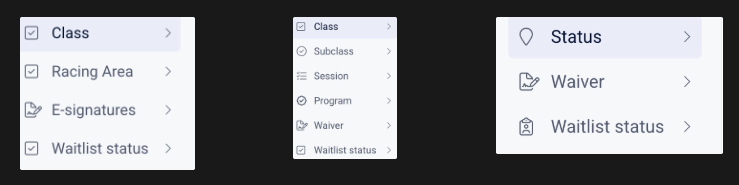
Our filter tool can separate entries by Class, Racing Area, E-signatures, and Waitlist status for Regattas (left); by Class, Subclass, Session, Program, Waiver, and Waitlist status for Camps (center); and by Status, Waiver, and Waitlist status for Social Events (right).
3. Once you have the list of people you’d like to contact, hit the “Message” button in the top right.
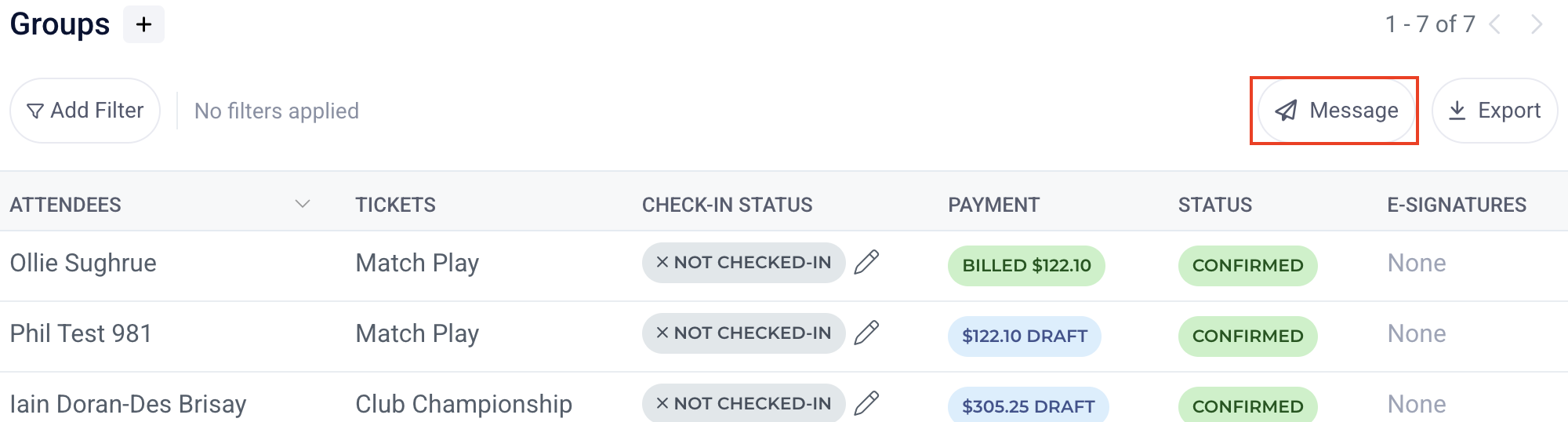
This will give you the option to send an Email or SMS.
4. Draft your message however you’d like:
SMS
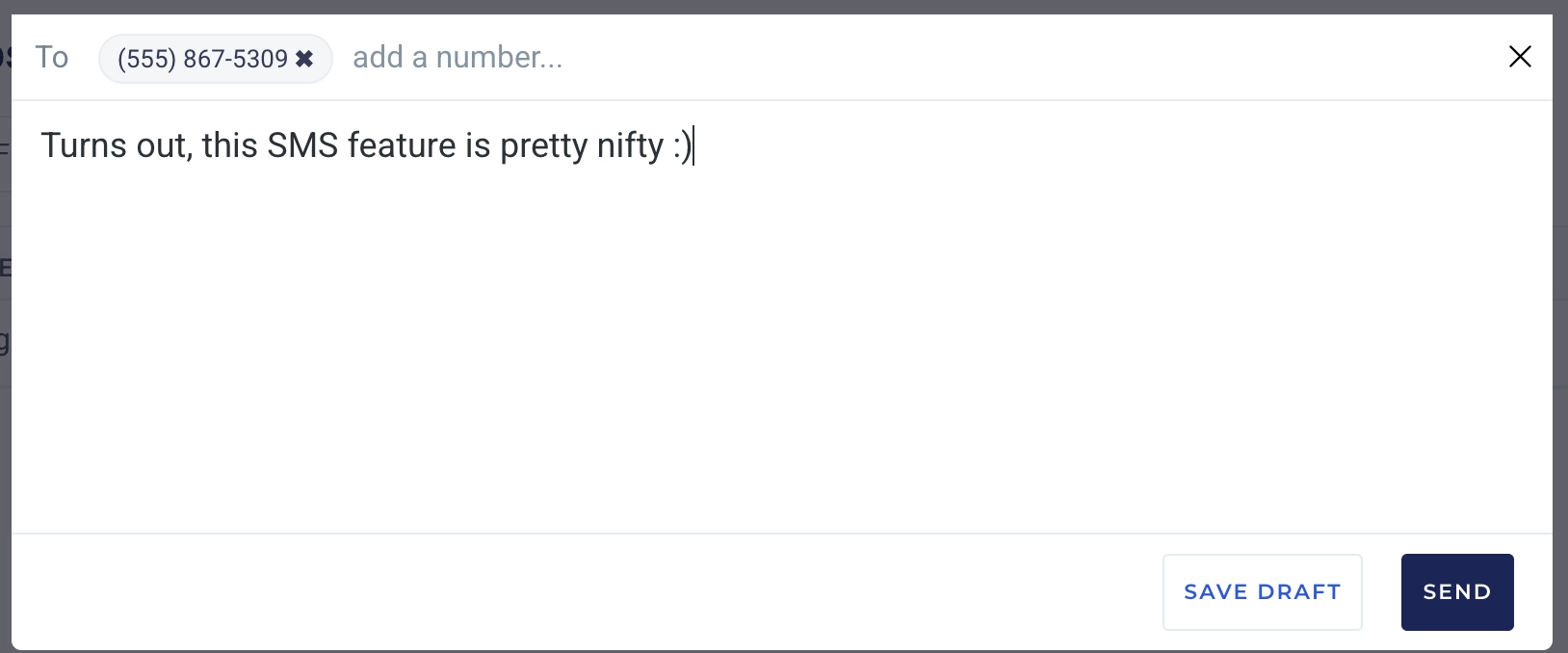
For an SMS, this part is pretty straight-forward. Just press “Send” once you’re done, or “Save Draft” to work on later. The numbers from the entries will auto-populate in the “To” row. The draft will live on in the event’s Communication tab under “Draft”
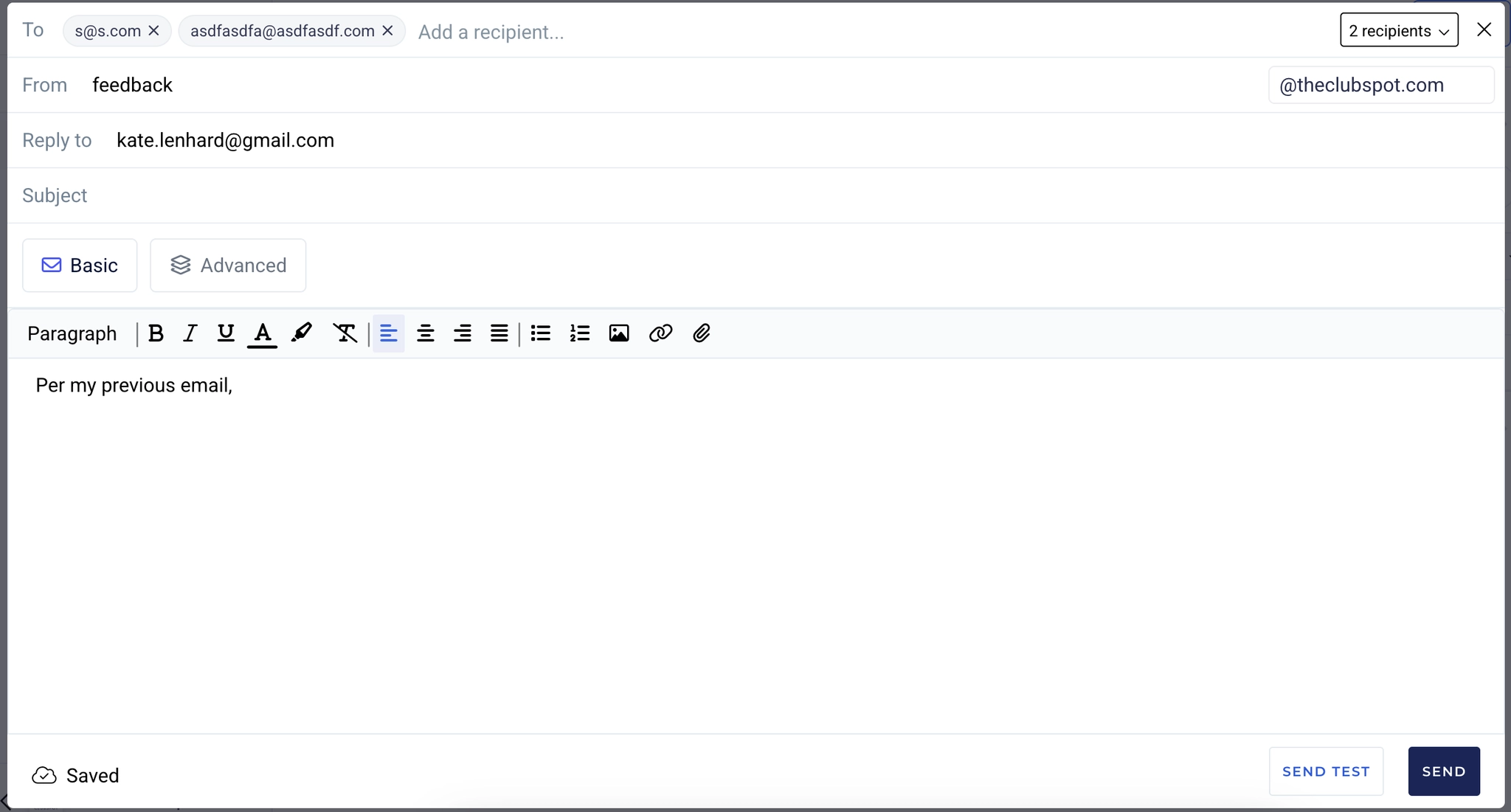
Emails offer some more configuration. Like SMS, the “To” row will populate automatically. Note that you can change the address the email is “From” and the email that replies are sent to.
Using the “Basic” option, you are able to draft an email however you’d like. The “Advanced” button allows you to use an existing template from the club’s communication tab or to create an email using Unlayer Editor. You can always “Send Test” to yourself to make sure you like the way the message presents.
5. Once you’ve pressed send, you can keep track of your messages in the “Sent” page under the “Communication” tab.
You can do some more filtering here, to see “Bulk” emails you sent to a group or “Transactional” messages sent out automatically from Clubspot.
You can build customized Confirmation Emails to participants in the “Confirmation Emails” tab and selecting “Custom.” It’s a great way to get specific information to participants right away on registration — you can even resend confirmation emails out to existing entrants!