
Lodging Setup
This guide walks through the initial setup process for on-site lodging in Clubspot, including configuring rooms, rates, availability, and booking settings before accepting reservations.
Setup: Creating a Room Type
1. Create a New Reservable Product
Navigate to the Products tab of your Clubspot account and click + to generate a new product. Enter the name and price of the Room Type and set the type of the product to a reservable item. You can leave the booking schedule set to “always available.” If each of your rooms is unique, you should create one reservable product for each room. If there are common ‘types’ of rooms, you should use step 3 below to designate options.
The name, description, and image on this product will appear on your booking page for members/guests to book on the website.
2. Contact Clubspot
Please reach out to support@theclubspot.com with the link to the reservable product you’d like us to designate as an option for lodging. Please let us know if there are any specific amenities you’d like us to highlight in your room.
3. Create Room
If your club asset has multiple instances of one room type (Suite #103, Suite #104, etc), then you’ll want to utilize the rooms settings. Navigate to the Rooms tab at the top of the Reservable Product page and add one option for each of the rooms available for booking. You can also designate a specific color for viewing on the calendar, and determine if members can pick between individual rooms when booking that room type.
Setup: Booking page
1. Enable your booking page
If you want guests to be able to book rooms or view availability, you can enable your booking page under the basic details tab.
2. Who can book rooms or view availability
You can customize booking rules for members and non-members of the club.
“Allow booking” —> The visitor can book rooms
“Inquiry only” —> The visitor will be prompted to “Call to inquire” when looking at room availability, and will NOT be able to book a room themselves. The phone number to call will be configured under your Lodging > Basic details page.
“Restricted” —> The visitor will not be able to access the booking page (e.g., bookings are for club members only, in which case guests should be restricted)
Limits can also be applied when administrators create a booking for a member or guest. The basic details page offers the ability to set the max/min for days and the length of bookings made by the admin.
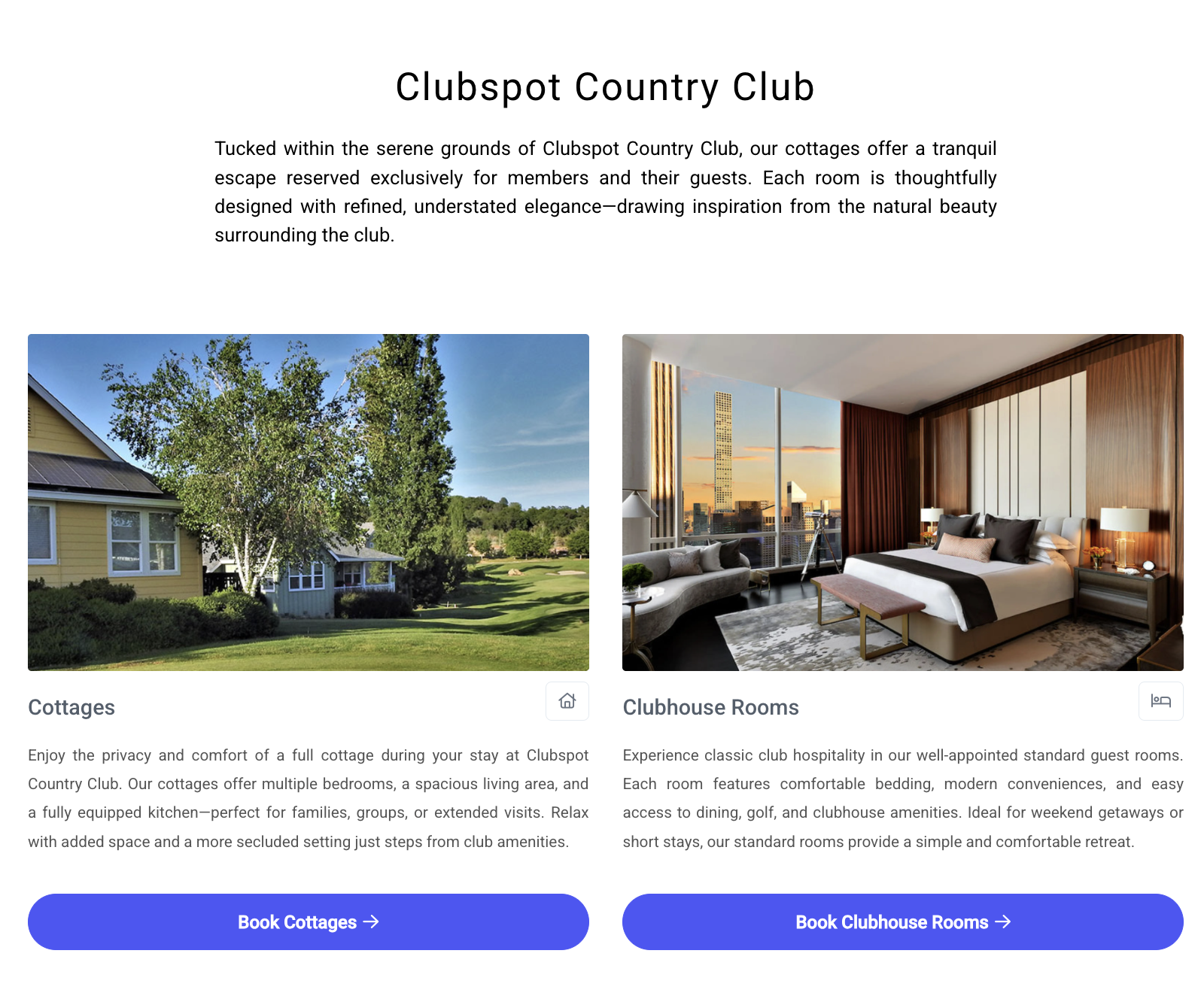
3. Design the booking page
Under lodging > basic details, you can assign a page description. This note will appear at the top of your booking page, allowing a high-level commentary on on-site stays. The individual room types
Under lodging > basic details, you can also (optionally) establish the concept of accommodation types. If you have two very distinct styles of room types (such as cottages or rooms), you might introduce this extra layer of differentiation to help visitors through the booking flow
4. Customize confirmation emails
If members or guests can book their own stay, they will receive a confirmation email after booking. By default, confirmation emails will include some basic details for their stay, including their dates, rooms, etc. You can also add additional custom text to these confirmation emails in the basic details.