Private Racquet Lessons
Booking a lesson with a pro directly in Clubspot has never been easier! This guide will walk through the steps required to establish pro availability and make court bookings with a pro for a private lesson
Set up Pros for online booking
Here are the steps to take to make your Pros available for private lessons:
1. Create a staff profile
Under the Courts section of your dashboard, you’ll find a page called Pros, where you can manage your court staff and their availability. If your pro is not yet established as a staff member, you'll first need to do so under the Staff > Staff Member section of the dashboard. From here, you can decide if the pro should be a club admin so they can log in to the dashboard and configure their own hours, or if this is something you want to manage on their behalf.
2. Create Lesson Products
In the product library, create a standard product for the cost of the private lesson. While it’s possible that all of your lessons cost a single flat rate, it’s likely that you’ll need to create a product for each pro and each duration. For example, you’d create a unique product and price for Head Pro 1-hour lesson, Head Pro 30-minute lesson, Assistant Pro 1-hour lesson, Assistant Pro 30-minute lesson, etc.
Similarly, you may need to create a product for a variable number of players. It’s common to charge a different rate for a private lesson vs a semi-private lesson. You may create a unique product for Head Pro 1-hour individual lesson, Head Pro 1-hour 2-player lesson, Head Pro 1-hour 3-player lesson, etc., if the rates vary.
3. Establish Pro Availability
Each pro can have a unique schedule of availability, and this is configured on their profile. Each schedule is associated with a certain day of the week, time of day, court, and product/duration/# players.
Once the various windows of availability for each pro are set, you can add any necessary time blocks. These are windows of unavailability that would otherwise be part of the pro’s availability. They can be added on an ad-hoc or recurring basis. This could be useful if a pro called out sick, or if a pro was regularly working with a clinic and unavailable for a private lesson.
As a note, an admin can override the pro’s availability to assign them to any court at any time!
4. Enforce a Booking Window
Head to Schedules > select the sport > and add a ‘court pro booking rule’ if you’d like to apply a window to buffer the time between when a member makes a booking and the time of the lesson. Here you can configure a minimum and maximum number of hours (or days) required to book a lesson in advance. This will help curb any last-minute bookings during windows of unavailability that have not been restricted by a time block. These restrictions are only for members, as admins can override and create lesson bookings at any time.
Book a Private Lesson
Both the admin and member-facing court reservation flows allow for the addition of a private or semi-private lesson. You’ll first have to indicate the allotted reservation length in order to confirm which pros are available for that amount of time. We’ll then show the name of the pro, the length, and the cost of the lesson. Both the member and the pro will then receive a confirmation email about the booking, so that all parties are aware.
Charge for Private Lessons
There are two places where you can charge a member for a reservation that they made online.
Lesson Booking view on each Pro profile. Clicking on any reservation, then ‘confirm’, will launch the checkout sidebar so that you can choose an appropriate payment method and close the order
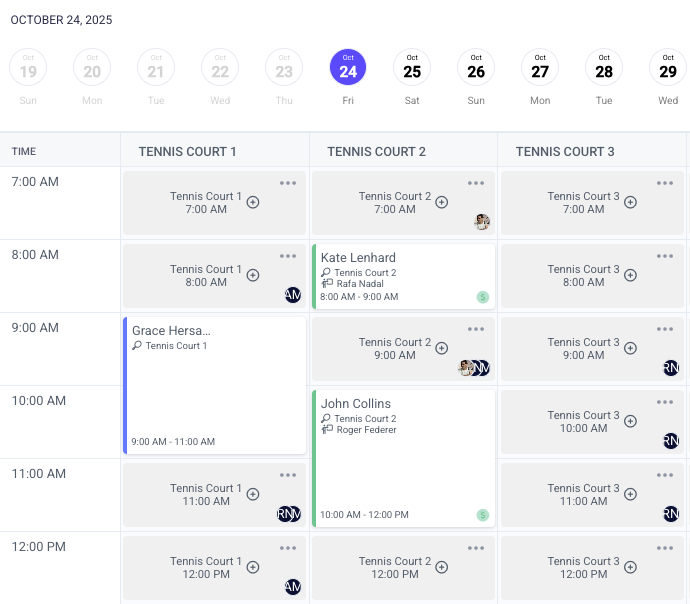
You’ll have the same capabilities from the court booking calendar. Orders that have already been closed will appear with a green ($) circle in the lower right hand corner to indicate that they’ve been paid.