
Simulator Bay
This guide walks through how to set up simulator bay booking in Clubspot, including configuring availability, booking rules, and the member-facing reservation experience for your simulator spaces.
To enable this capability, please first reach out to support@theclubspot.com
Setup
1. Create a Bay Type
Navigate to the Golf > Simulators > Bay types tab of your Clubspot account and click on the + icon at the top of the page. If there is going to be a cost associated with the bay rental, make sure to click on the stock, tax, and accounting tab to record the appropriate sales account.
2. Create Options
If your club has multiple instances of one bay type, you’ll want to utilize the Product Options settings. Navigate to the Options tab at the top of the Reservable Product page and add one option for each of the bays available for booking. These bays can be rearranged by dragging them up and down in the options list.
3. Create a Schedule
One or more schedules can be created for each type of bay. This allows you to support various booking rules based on the day of the week or the individual bay. Head to Golf > Simulators > Schedules to establish bay access rules. Just like when setting up your golf course, you'll use this interface to establish the various fees and restrictions associated with bay rental.
Using the Simulator Calendar
Reservation Calendar
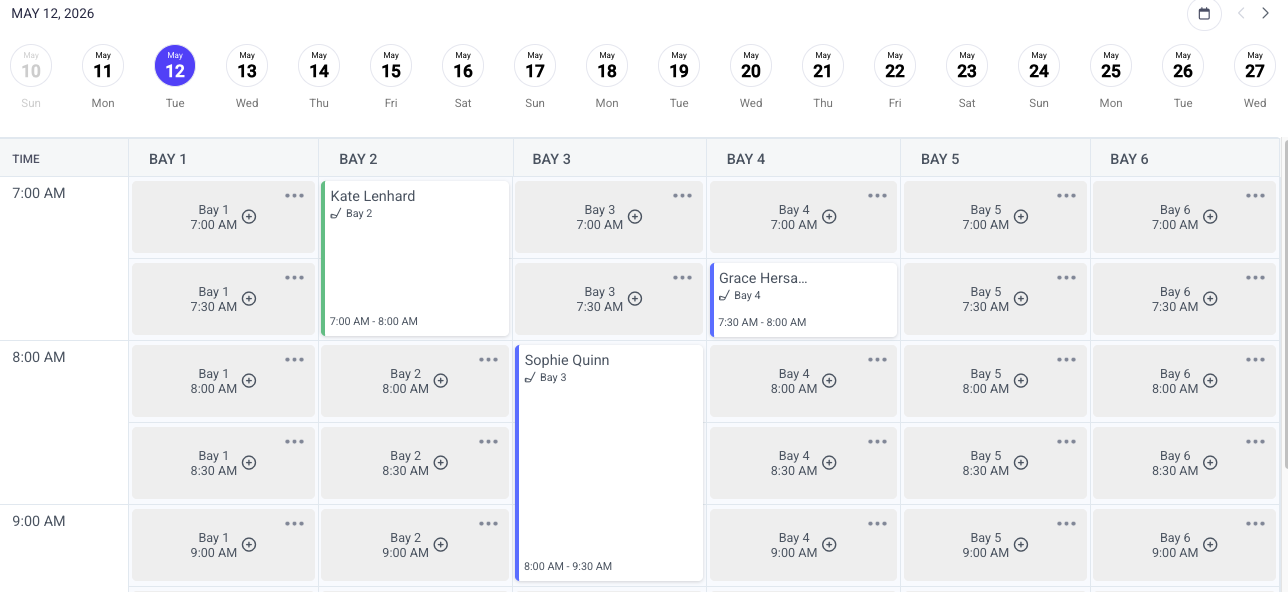
This calendar shows every simulator and its bookable time slots based on your predetermined schedule. If a bay is not included in a given schedule, it will appear with a blank block. If a time has a time block, it will appear as greyed out. The filter at the top of the page will allow you to simplify the view to see only select bay types.
Create a Booking
From the Simulator > Calendar section in your dashboard, you’ll find the visual representation of your bookings on the Calendar (a list version can be found and exported on the Simulator > Reservations tab of the dashboard). To book a sim, use the date circles or the calendar icon to select the right date. Then find the intersection of the right bay and date, and click on the empty tile. You’ll be prompted to select at least one guest or a member for the reservation.
Manage Reservation
Clicking on any booking will allow you to view registration details. This is where you can see the details of the booking, add notes, and check the player in. You’ll also find a Message icon on this page. This is used to send a message to the players specifically on this booking.
Time Blocks
Use the Time Block button in the upper right-hand corner of the screen to create a time block. The block can be applied to one or more options, regardless of the type of bay. Any simulators that are blocked will appear with a lock icon on the reservation calendar. If you need to block a single session, you can do so by clicking on the ellipsis
Billing
Pricing
Simulator bay schedules can be structured with per-player pricing (meaning each individual on the reservation will incur a fee) or per-simulator pricing (meaning there is a cost to rent the bay regardless of how many players will be using it).
Simulator bays are charged via deferred billing. As an admin, you’ll see that each reservation with a dollar value as a result of fees or add-ons will be signified by a little dollar sign icon. If the icon is blue, the order is unpaid, and it needs to be charged to a customer. To do so, click on the blue $ sign to open up a side panel and close the order out to a payment method. Once paid, the $ sign will turn green to signify that the order has been closed.