
Course Schedule
This guide walks through how to set up and manage golf course schedules for your tee sheet, including configuring available tee times, booking intervals, and course availability for members.
Fee types
Establish Greens Fees
Create the fee product: Navigate to the Products page and establish them as products in your library with the name/cost of each of your greens fees. Make sure to include a $0.00 greens fee product for members or other players who don’t pay greens fees. The subtype you select for this product will indicate the right accounting rules for these fees, but please double-check with your bookkeeper if you’re unsure where the revenue should be mapped. If you’d like to be able to sell these greens fees on the point of sale in addition to the tee sheet, make sure to add them to a product tag that appears on your Pro Shop POS.
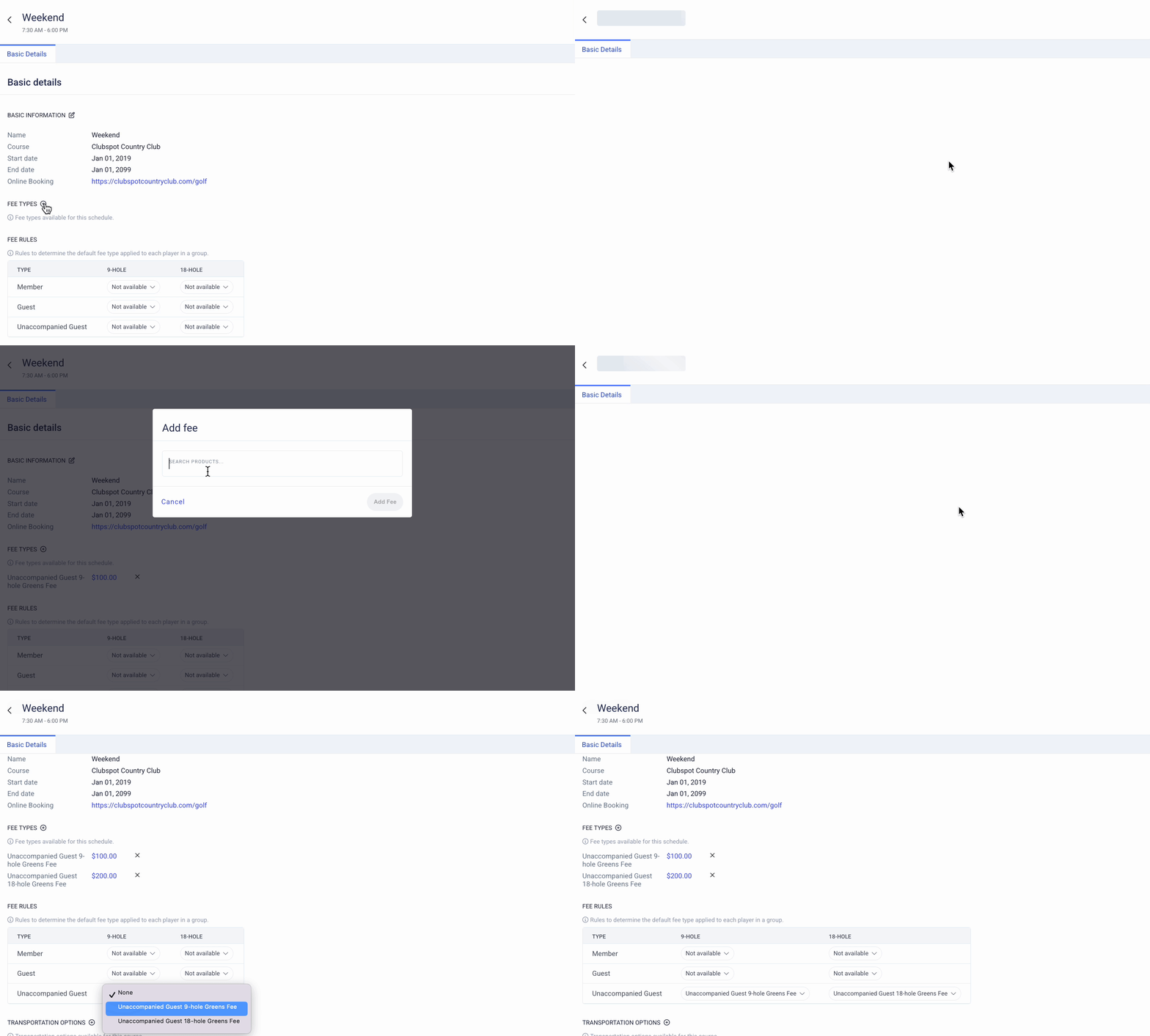
Add the fee to the schedule: Navigate to Golf > Schedules > and click on the schedule that you’d like to sell these greens fees on. You’ll see a plus button next to the word “Fee Types” where you’ll be able to search your product library to add any/all of your greens fees to this schedule.
Set the default fee: Below the Fee Types section on the schedule page, you’ll find a table that outlines the default fee rules. The fees can vary based on the player (a member, a guest, an unaccompanied guest, or a specific category of member) and the duration of play (9-hole and 18-hole). Click on each dropdown to indicate which of your connected fee types should be assigned as the default price when a player is added to the tee sheet. You may not have a default for every type of fee — that is okay, as you can always override the default selection with a different fee from your tee sheet.
Establish Transportation Fees
Create the transportation product: Navigate to the Products page and create a standard product with the name/cost of each of your transportation options. Make sure to include a $0.00 product for walking or other free transportation options. If you’d like to be able to sell these transportations on the point of sale in addition to the tee sheet, make sure to add them to a product tag that appears on your Pro Shop POS.
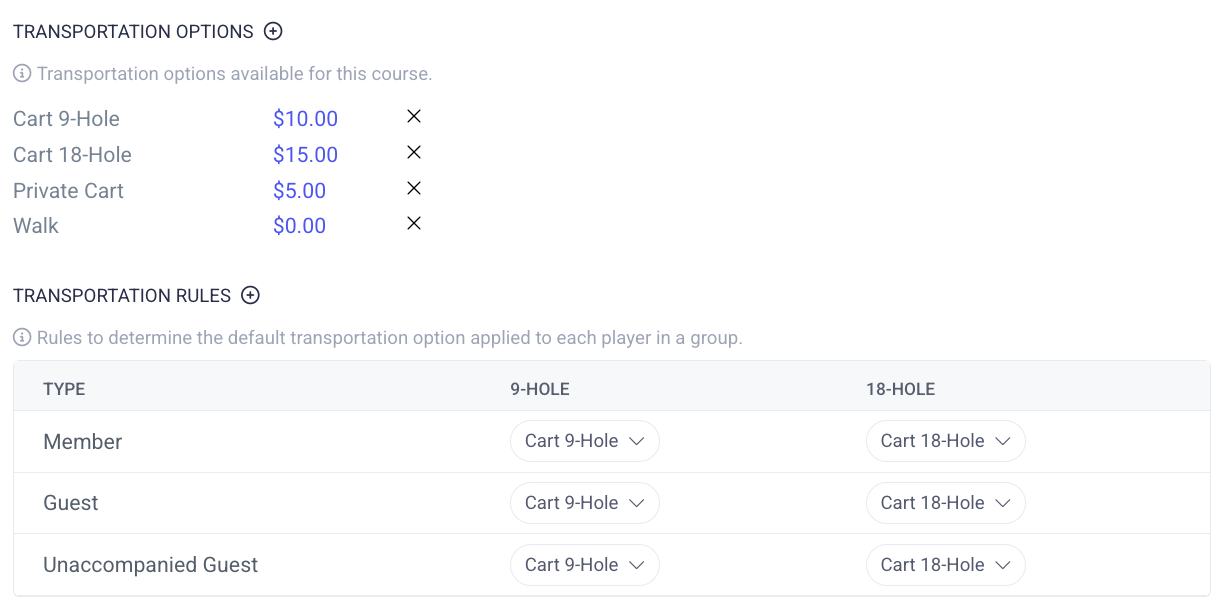
Add the fee to the schedule: Navigate to Golf > Schedules > and click on the schedule that you’d like to offer these transportation options. You’ll see a plus button next to the word “Transportation Rules” where you’ll be able to search your product library to add any/all of your transport modes to this schedule.
Set the default transport mode: Below the Transportations Options section on the schedule page, you’ll find a section to establish the default transportation selection. The options can vary based on the player (a member, a guest, an unaccompanied guest, or a specific category of member) and the duration of play (9-hole and 18-hole). Click on each dropdown to indicate which of your transportation modes should be assigned as the default option when a player is added to the tee sheet. You can expand the table to include defaults for membership add-ons by clicking the + icon next to the transportation rules heading. You’ll always be able to override the default with another one of the options from your chosen options.
Time Blocks
When tee times need to be blocked off for tournaments, course closure, etc., you can use a time block to do so. From the Tee Sheet, click Time Block in the top right. That will give you the option to select all or a subset of times for any given day and then apply a brief label that golfers can see to understand why that time was blocked. Recurring time blocks allow you to repeat on any cadence for any day of the week.
Use the Time Block button in the upper-right toolbar of the tee sheet to create a time block.
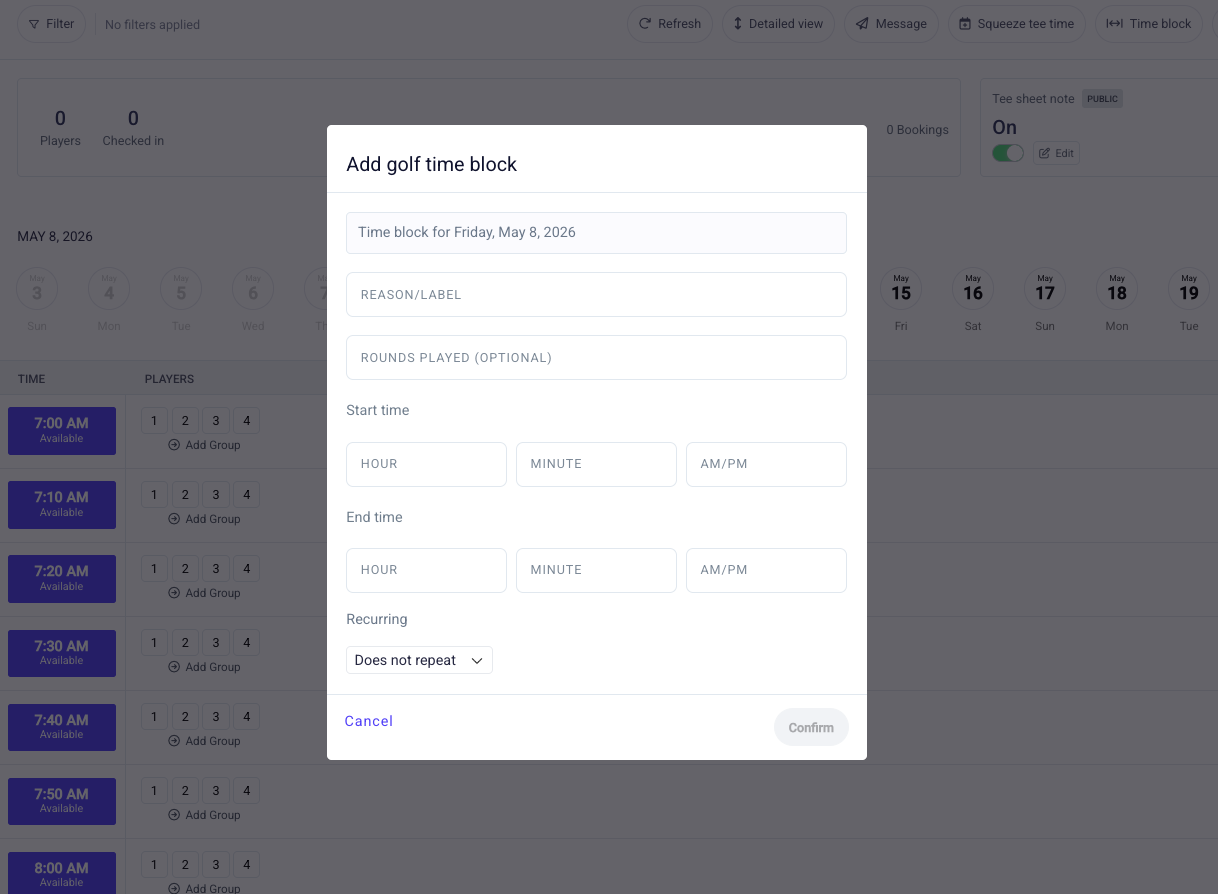
All time blocks can be viewed at once under the separate Golf > Time Blocks page.
Squeeze Tee Time
One of the settings you’ll find in your schedule is the ability to enable Squeeze Tee times. A squeeze tee time can be manually created to accommodate golfers teeing off between established tee time intervals. If enabled, click on the “Squeeze Tee Time” button on the upper right hand corner of your tee sheet and enter the time and number of players. Please note, you must choose a tee time that is within the limits of an existing golf course schedule.

Options and Settings
Each course dashboard can be configured to allow only member booking or only specific categories of member booking. Other settings include the number of players per tee time, pairing tee times, TBD players, etc.
Clubspot supports configurable booking windows for your Tee Sheet schedule, as well as restrictions on the number of rounds in a particular period for members. The system, by default, displays the membership category of each member, but it can also display specific membership add-ons that you would want, for example, to see if a member pays for their cart annually versus per round. The Clubspot support team is happy to chat through and enable these options and settings if they are helpful to your operation. Don’t hesitate to reach out to support@theclubspot.com if you would like any of these options enabled.