Tee Sheet
The Clubspot Tee Sheet allows staff and members to easily book, pay for, and track Tee Times. This article walks through setting up a schedule, managing your Tee Sheet, and communicating with golfers, and the flow for check-ins and billing.
Managing your Tee Sheet
Once your schedules are setup you are ready to start taking tee times. Tee times can either be entered by club staff or they can be directly reserved by members. Members can see all of their booked tee times from within their member portal. The member or guest's view for booking a tee time can be found at your club's website /golf.
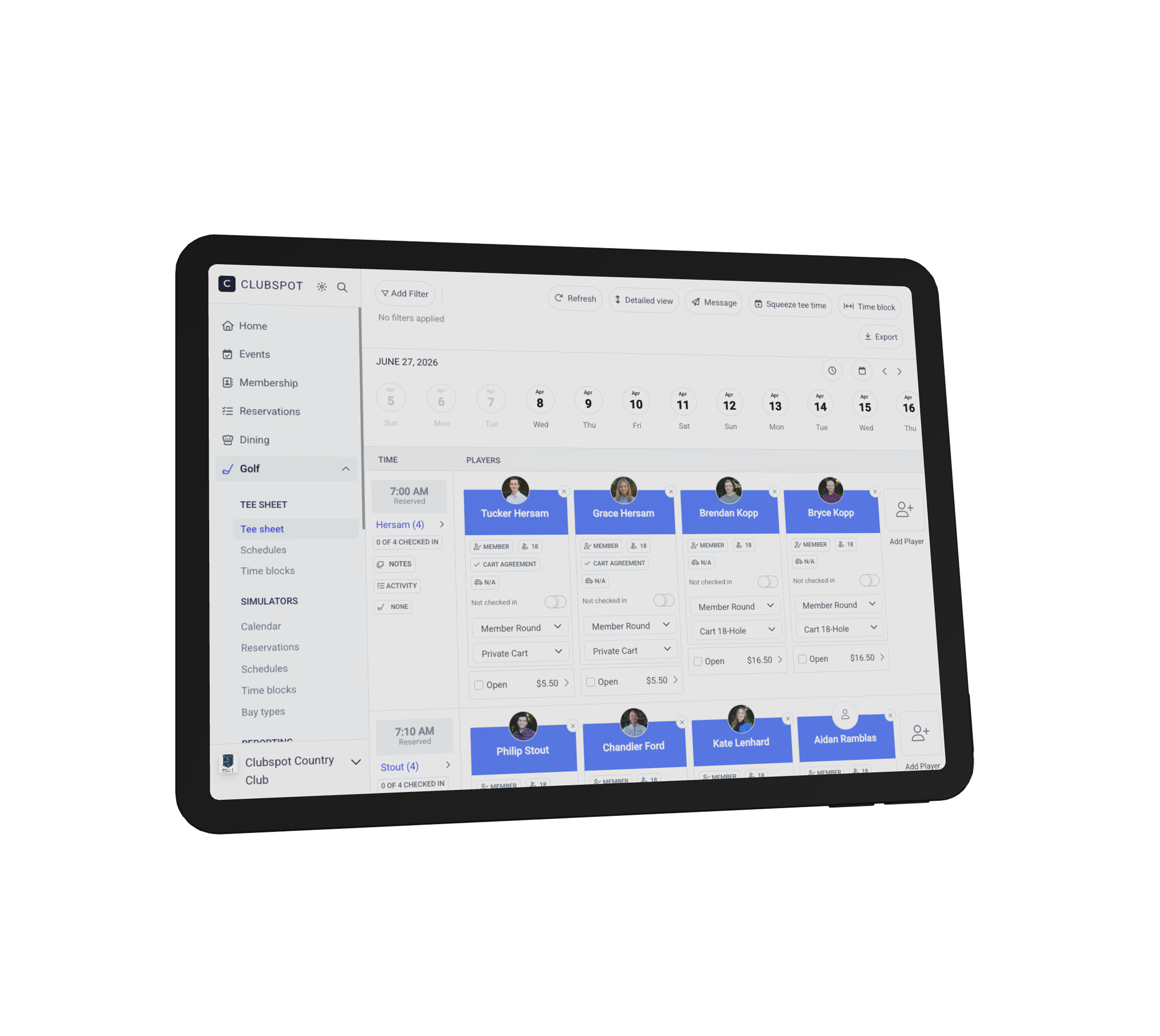
Club Staff can also directly enter members and guests into the Tee Sheet. To do so, click into an available time from the Tee Sheet, select the number of players, and enter that player's details.
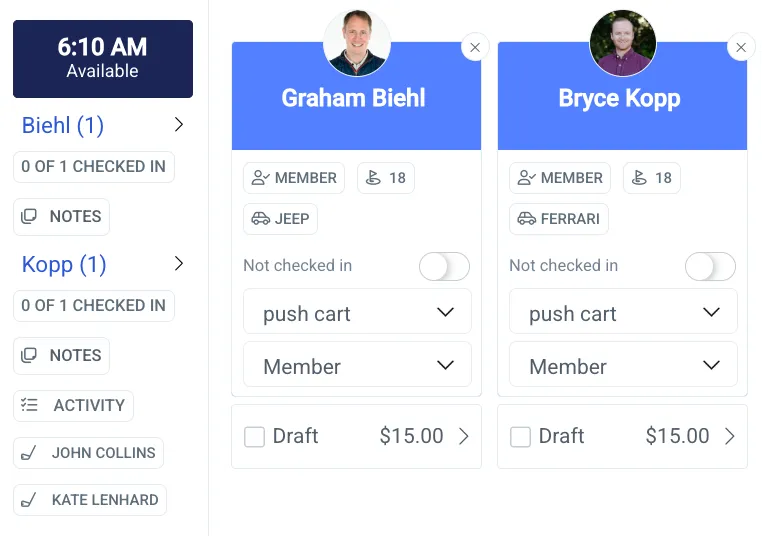
Once golfers are entered into the Tee Sheet, you have the ability to check them in, bill them, adjust their details, assign a caddie, add vehicle details, and pull up the POS to add any other items to their order.
Golfers are able to cancel their own tee times, but by default, they cannot edit the timing. If you’d like to unlock that capability, click on any golf schedule and flip the toggle to allow member edits under the Booking Rules. They’ll be able to make updates up to 24 hours in advance of their tee time.
Tee Sheet Controls
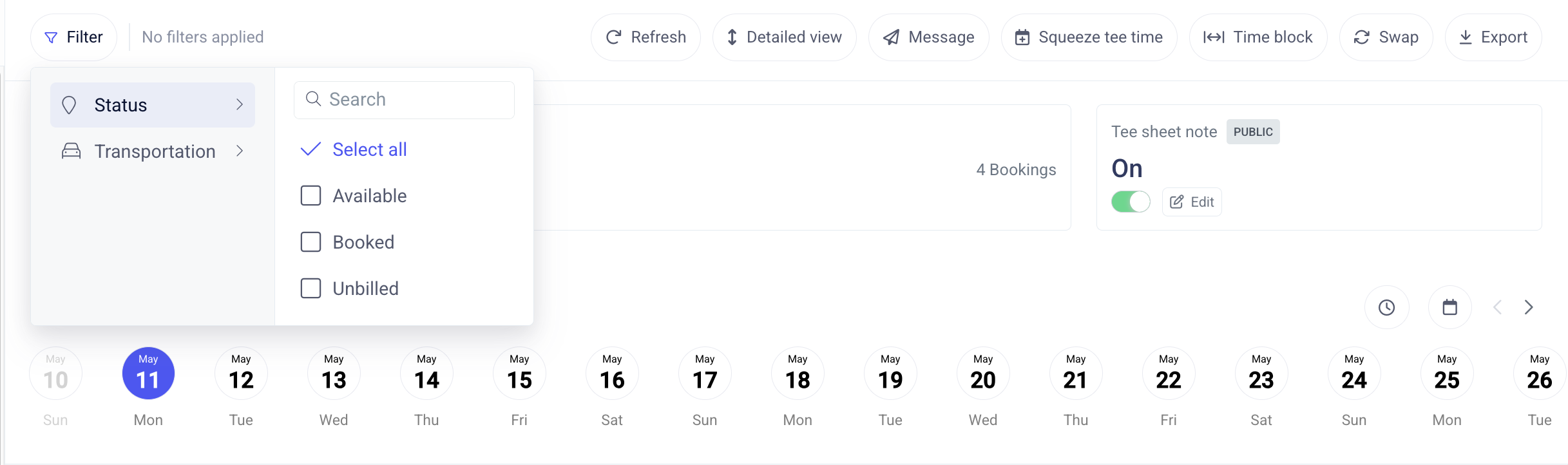
The toolbar at the top of the Tee Sheet allows the admin additional controls and filters. This includes the ability to filter to unbilled tee times (to ensure all orders have been closed by EOD), to switch between detailed and condensed views (to maximize the number of tee times visible at once), and to swap tee times (moving an entire party to a new tee time in one action).
Time Blocks
Time blocks are a tool used to prevent a tee-time from being booked. Time blocks can be ad-hoc or recurring on a specific cadence. Create a time block from the top of the tee sheet or from the dedicated time blocks page.
Caddies
To manage caddie assignments, you’ll first need to create profiles for each of the caddies at the club. Navigate to Golf > Caddies to choose a staff member to employ as a caddy. If you need to create this person as a new employee, first do so under Staff > Staff members.
As an admin, you can assign a caddie to a group by clicking on the golf club icon on the left side of their party details and selecting the preferred caddie from the dropdown list. Click on the caddie assigned to edit it later.
Vehicle Assignments
If your club would like to track the vehicle of the player, please reach out to support@theclubspot.com to enable vehicle tracking. Ex: