
Discounts
Discounts allow your team to reduce pricing for specific items or entire orders during POS checkout. Whether you’re applying staff discounts, member perks, promotions, or complimentary items, discounts help your club manage pricing adjustments consistently and accurately.
Discounting Individual Items
Discounts on a one-time basis
To discount a specific item on a one-time basis, first add the item to the order. Then click on the item you have just added. You will then see a pop-up menu where you can choose to add/edit the discount. You can choose from a list of preset percentage discounts or type in a dollar amount to discount the product. We will display the original price with the discount to show you the new total cost for this item. If necessary, we can require a manager code to apply a line-item level discount.
Please note that this discount will only apply to the singular item you have added to the bill. If you increase the quantity of that product, you will need to apply the discount again.
Discounts on a recurring basis
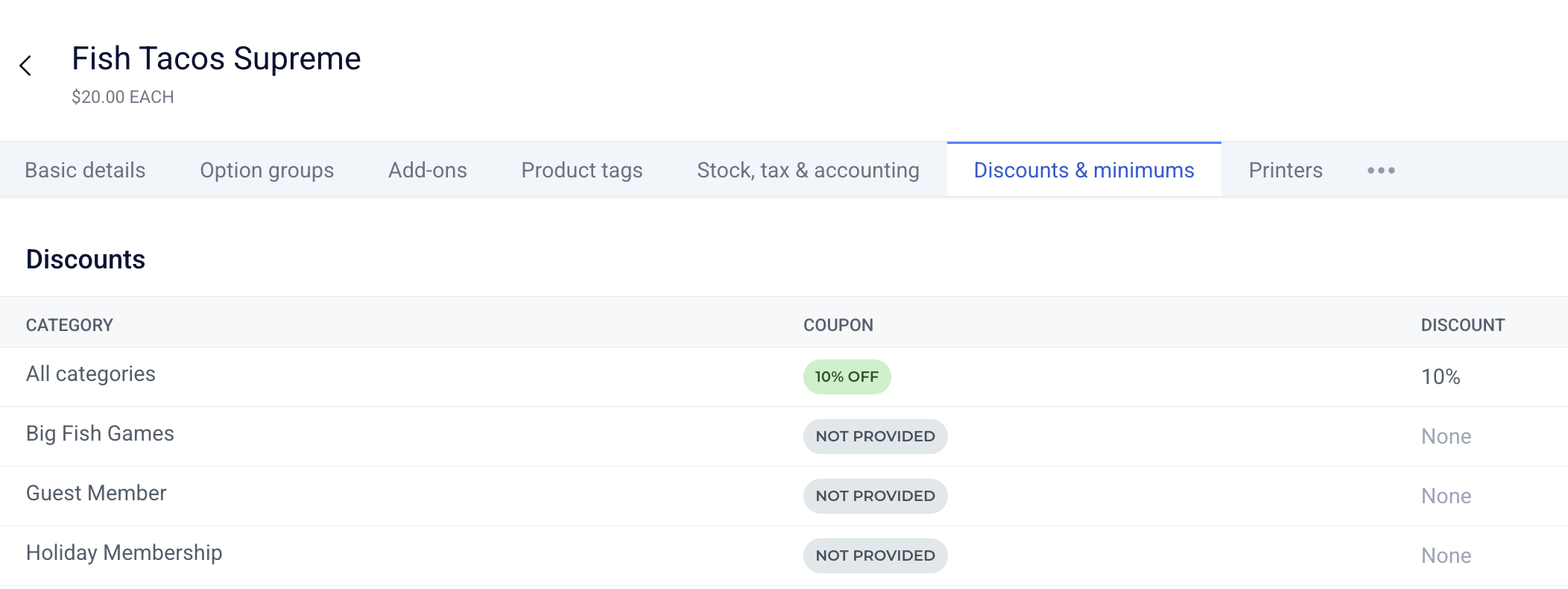
Individual products can be assigned a discount when purchased by specific membership categories. This will ensure that anytime a product is purchased by someone in that category, the discount will automatically be applied. To configure a discount for a product, click into the product details and navigate to the ‘Discounts & Minimums’ tab. Here you’ll see a list of membership categories. Click onto a category to add or update the discount. You can select from an existing coupon, or create a new custom discount.
Discounts on a schedule
Happy hour and other recurring promotions can be established via a price schedule.
Discounting Entire Orders
To discount an order, start by adding all of the items to the bill. Then click the blue Ready to Pay button to visit the payment screen. At the top of the screen under Summary, you will see the current total. The Discount button will launch a pop-up menu where you can either enter a fixed dollar amount or choose from preset percentages to apply a discount to the entire order. If necessary, we can require a manager code in order to apply an order-level discount.
Please note that because an order may be comprised of products that are mapped to multiple different income accounts, an ‘order level discount’ will reduce your general sales account by default. Please reach out to support@theclubspot.com for help setting a location-specific GL for those order-level discounts.
FYI: If the order-level discount is a full comp, where the order becomes completely free, Clubspot will produce no accounting entries at all.
Discount Reasons
You may find it helpful to identify the reason that a discount is being applied. To create a discount reason, head to the Products section of the dashboard and select Discount reasons. The + button to create a new reason. Please note that the discount reason will appear on the customer-facing receipt, so please pick a name for your discount that can be interpreted by the member without confusion. The ‘account’ option provides the ability to tie a discount reason to a CoA expense account. When a discount reason is selected, the discounted amount will be debited from this account (rather than your 4000 sales account, or the POS location’s sales account).
On the point of sale, the discount reason can be applied to any order-level discount by selecting Discount from the ‘ready to pay’ screen. Please note that if you do not have more than one discount reason, you will not be prompted to make a selection as to the reason for the discount.
Discount Reasons and Classes
If you’d like to include an Accounting Class on your Discount Reason, just make sure that the Class is set up (you can do so in Reporting → Classes), then reach out to support@theclubspot.com.