Price Schedules & Happy Hour
This feature allows you to automatically adjust prices for selected items during specific time windows — perfect for happy hours, daily specials, or limited-time promotions.
Create a Price Schedule
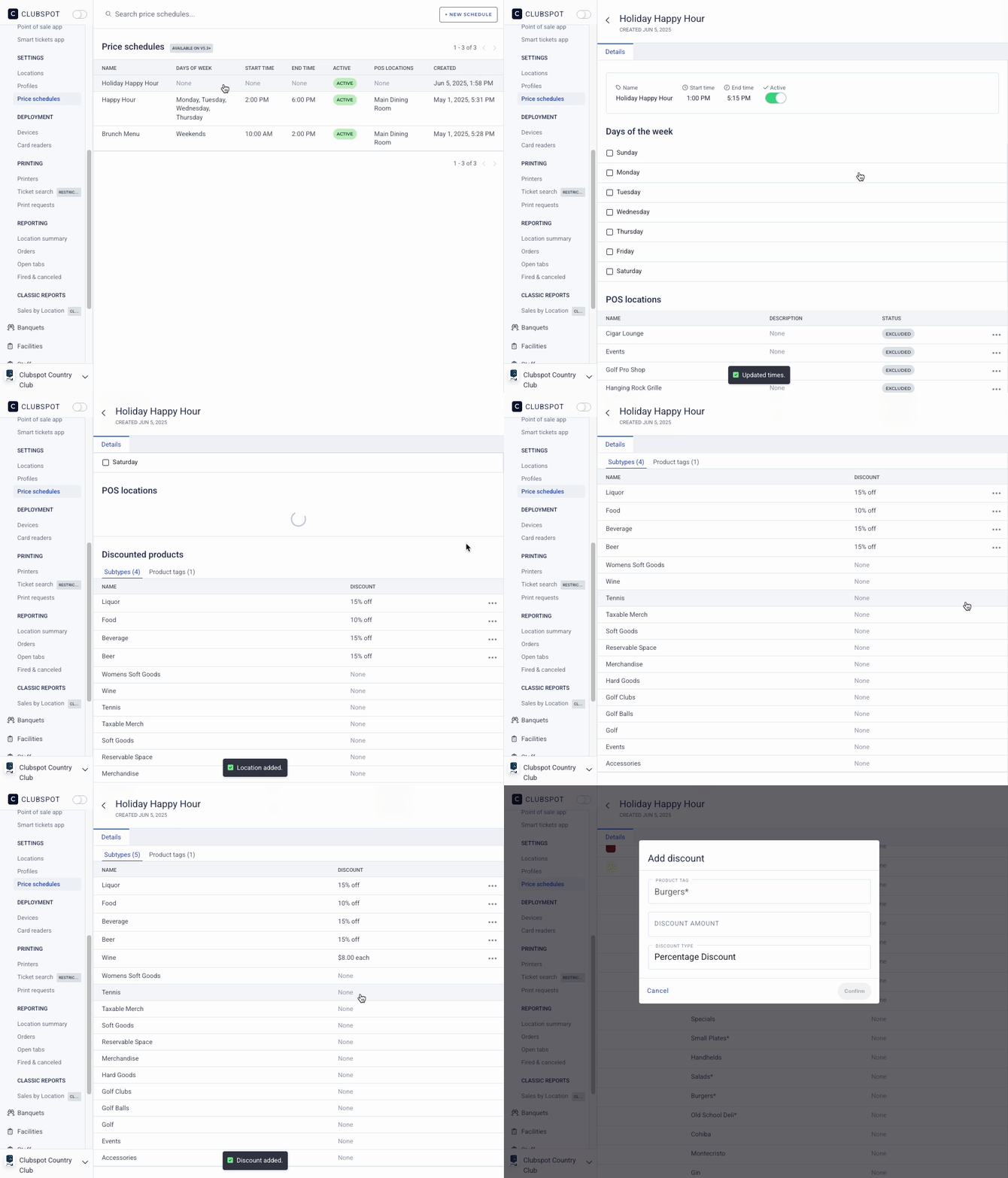
Navigate to Point of Sale > Price Schedules on your dashboard. Click the + New Schedule button in the upper right-hand corner of your screen to establish a new schedule. Assign it a name, then choose a start and end time as well as the days of the week that these discounts are available. The POS locations allow you to choose the areas of the club where these alternate rates should apply.
Scroll down to decide which products, within those locations, should be eligible for the discount. You can assign discounts to certain subtypes or certain product tags by clicking the ‘…’ and including them:
Discount rates can be set in one of three formats:
Fixed Dollar Amount Reduction
Percentage Reduction
Override on Price
Redeem on the POS
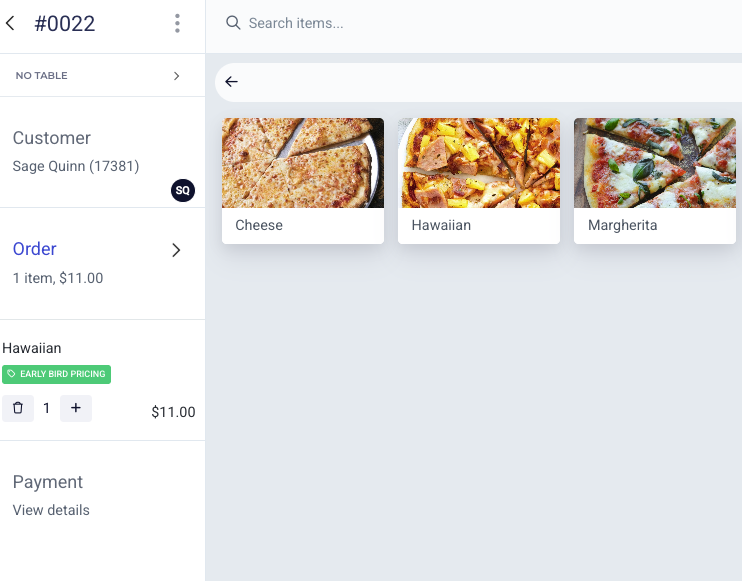
During an active price schedule window, the item appears with a sale tag to remind the server that this item is being discounted.