
Configuring a Card Reader
Clubspot supports the use of S700 S710 (and until Feb 2028, BBPOS WisePOS E) countertop card readers with the POS application. This article walks you through the steps to set up the card reader and begin taking transactions.
Getting Started
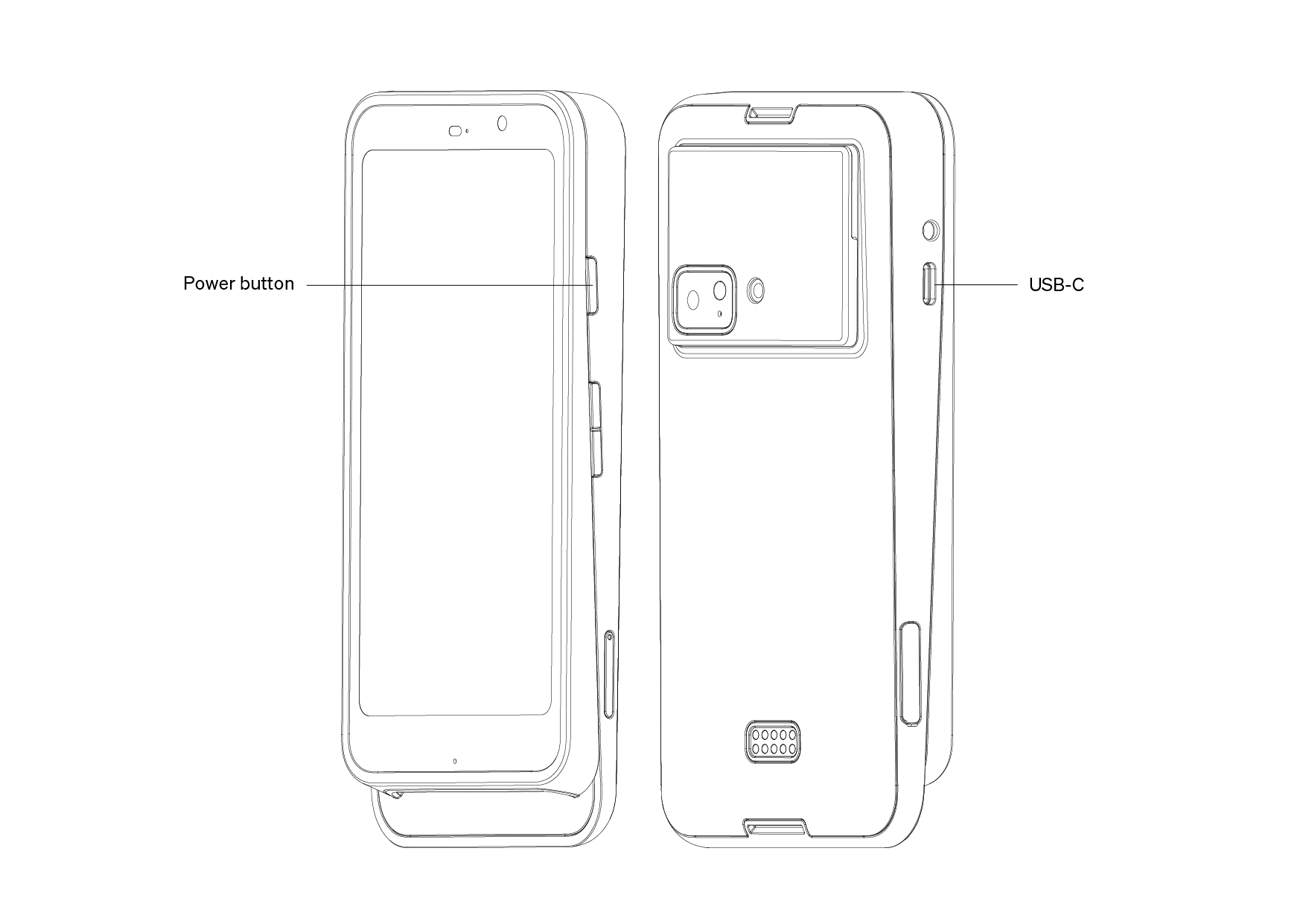
Connect the reader to power by plugging the USB-C cable into the port on the left side of the reader and connecting to a power outlet.
Connect to wifi
To open the settings menu, swipe right from the left edge of the reader screen. Tap Settings and enter the admin passcode 07139. From here, you can update your WiFi settings.
Connect to Cellular
If you're operating an S710 card reader, it can be connected to a cellular network for use outside of wifi range. Reach out to support@theclubspot.com if you'd like to enable this access.
Generate a Pairing Code
The pairing code is three words separated by dashes, which will be plugged into Clubspot to establish the pairing. If the reader does not display the code automatically, swipe right from the left edge of the reader screen. Tap Settings and enter the admin passcode 07139. Then follow the prompts to generate a pairing code.
Connecting the Card Reader to Clubspot:
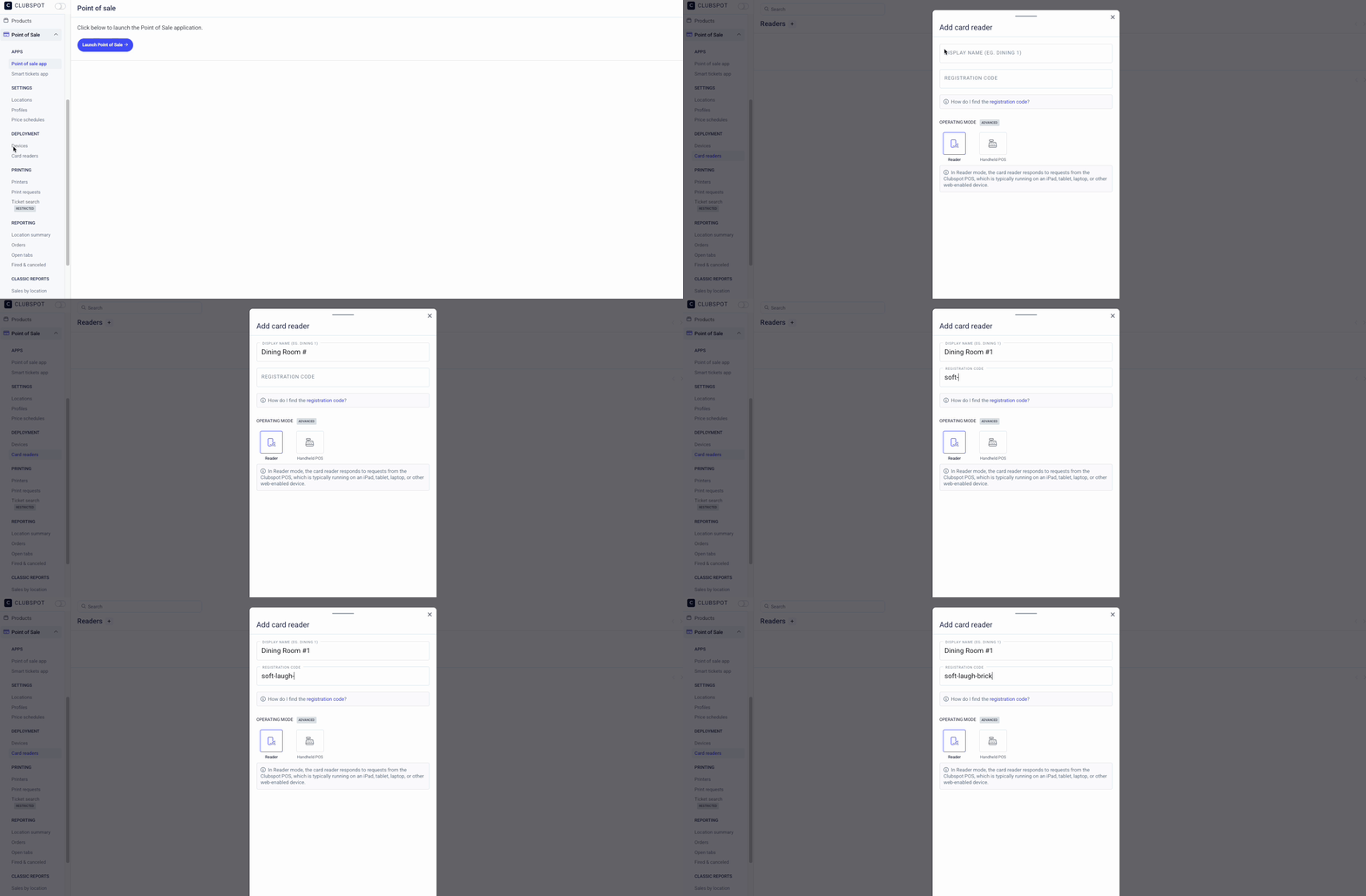
In the Clubspot dashboard, go to Point of Sale > Card readers. Click on '+' to add a new device. Enter a name for the new reader.
Based on the intended use of this device, you'll need to choose the operating mode. In Reader mode, the card reader responds to requests from the Clubspot POS, which is typically running on an iPad, tablet, laptop, or other web-enabled device. In Handheld POS mode, the Clubspot POS app runs directly on the card reader, for an all-in-one mobile experience.
Enter the registration code (including the dashes) and hit Done. Once paired, the reader may go through a round of firmware updates for several minutes and land on the home page when ready.
We strongly recommend physically labelling your card readers to match the name entered into Clubspot. That ensures you can easily identify which physical card reader you are sending transactions to.
Using the Card Reader:
When checking out in the POS app, select “Card Reader,” and hit “Connect Now” or “Switch Readers” to begin using the new card reader! The last used card reader will default to the reader for that POS user.
Stripe also has a handy article here that provides further instructions on various card reader settings if there is a need to troubleshoot any errors.