Locations
Locations are used to organize your Point of Sale operations across different areas at the club. In most situations, you will want a separate location for each distinct “menu” (or “product list”) you offer. Read below to learn how to add your own locations, manage the products that appear on the POS device for each location, and report on location-specific sales.
Adding POS Locations
To add a POS location, navigate to the Point of Sale and select Locations.
Click '+' above the table to generate a new location.
Give your location a name and description, then tap the done button to save your new location.
The newly created location will now appear in the table of locations and can be edited by clicking on the desired location.
If your club uses minimums, make sure you adjust the minimum settings under Reporting → Minimums to include the newly created POS location.
Adding Tags to a POS location
By default, a location will have no products, and you’ll need to add products to your location via Product Tags.
To add tags to your location, you'll first need to click on the desired location, which will bring you to the location details view.
To tag a location and pull the products from that tag into our POS location, simply click on the three dots to the right of our tag row and click on Add to location. Afterward, if you load the POS for this location, it will display all of the products that are linked to the tag you've added.
Location Settings
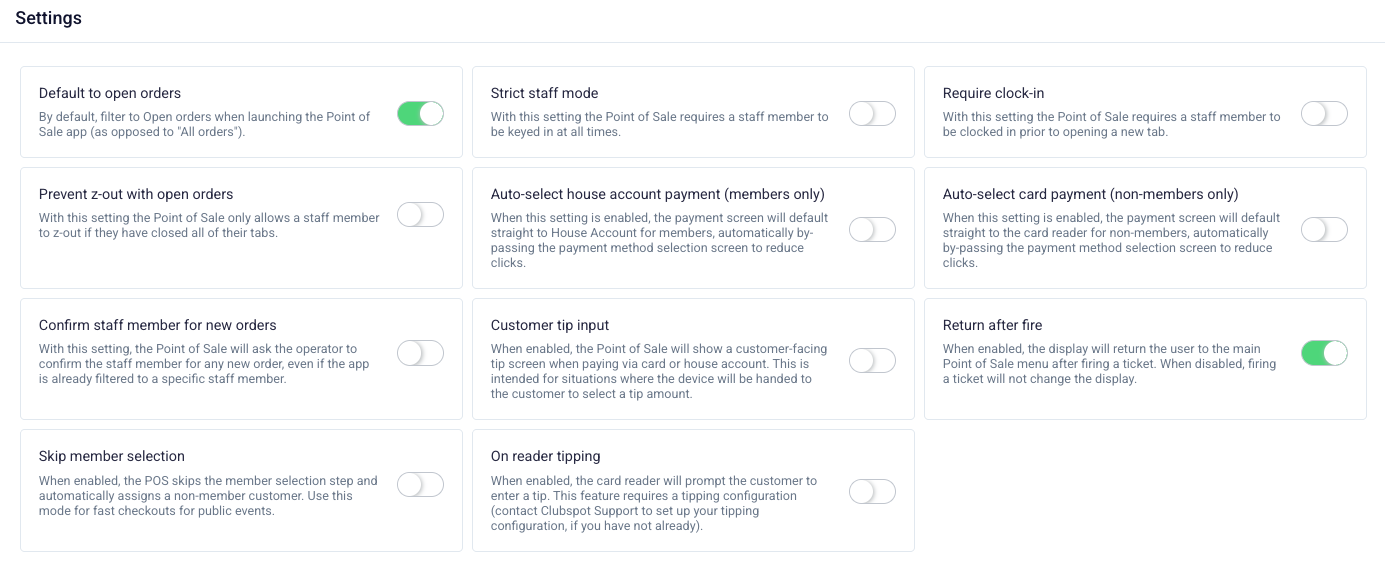
Each location can be configured with a selection of settings that will affect POS behavior across all devices operating in that location:
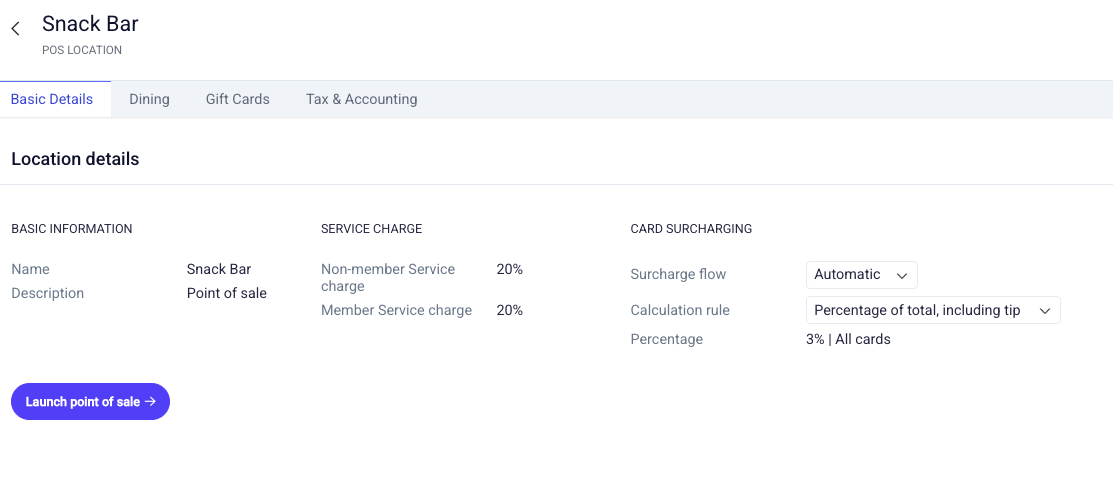
Automatic Gratuity (Service charge)
Automatic gratuity is a setting that can be enabled for members and/or non-members to collect a specific tip amount on every order. If you'd like to re-label the term 'auto gratuity', reach out to support@theclubspot.com with your preferred language.
Card Surcharging
If you'd like to assess a surcharge to recoup the processing charges incurred during in-person card transactions, you can set them up with these instructions.
Mobile Ordering
If you'd like for members to be able to make purchases from this POS location, enable mobile ordering with these instructions.
Misc Settings
Location-specific Accounting
To assign a default accounting behavior to our location, you can click on the “Tax and Accounting” header within the location details view.
Click on the applicable row for the account you'd want to set
Accounting rules set at the location level, like this, will be overwritten by an account set at the product level or the subtype level. So if the sales account on a product is set to a non-default, that will be the credited account when this product is sold.
Sales Reports
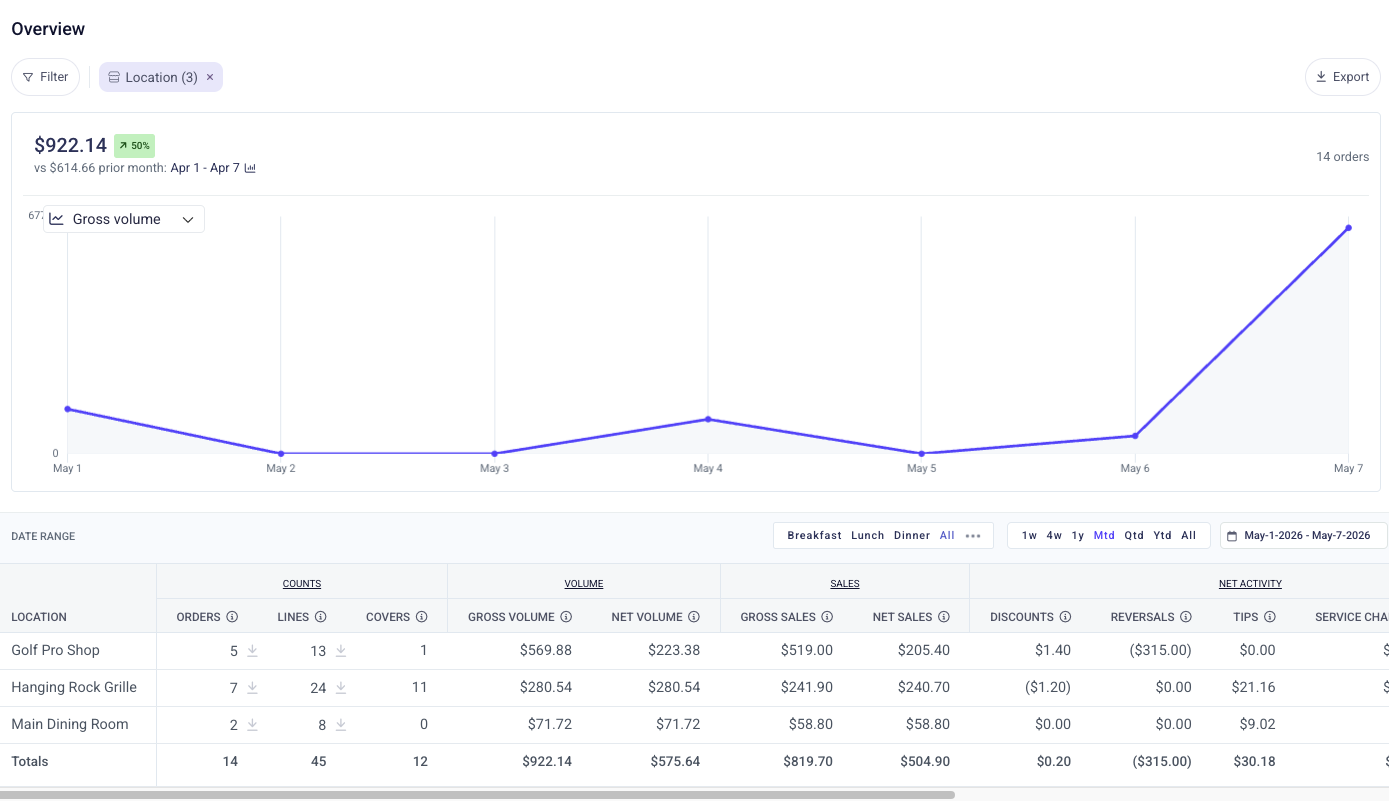
The Location Summary report provides a high-level view of sales performance across each area of your club, including orders, revenue, and key metrics like average order value. It helps you compare how different locations are performing over a selected time period.