POS Surcharge
Our POS offers maximum flexibility for surcharging at the terminal. Please check out the configuration options to collect a payment processing surcharge for in-person orders.
1. Indicate Surcharge Amount
The first step is to reach out to support@theclubspot.com to let us know the percentage you’d like to establish as your POS Surcharge amount. Please let us know if you’d like to surcharge credit cards, debit cards, or both. You’ll see this amount listed in your dashboard as well as the applicable payment methods. If you try to proceed with step 2 before step 1, you’ll see a warning in your Clubspot dashboard.
2. Indicate Surcharge Settings
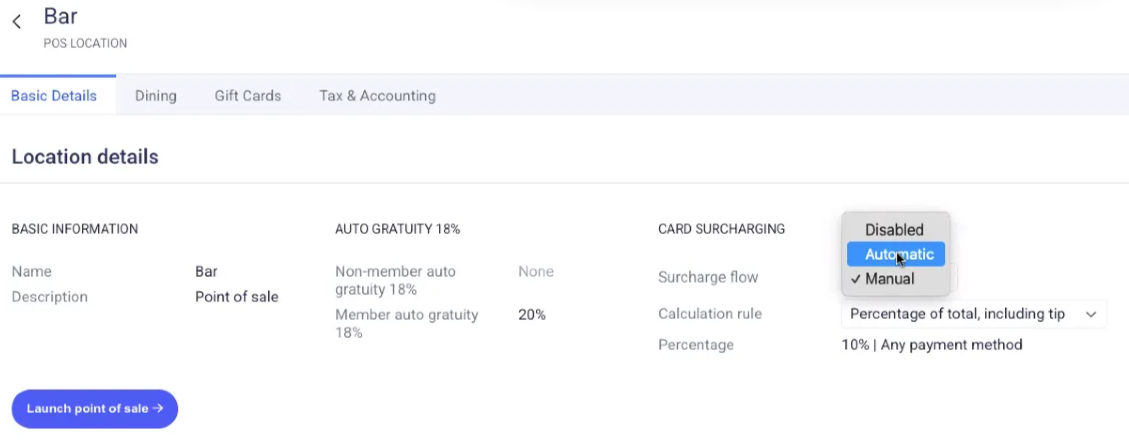
Each point of sale location can have its own rules about card surcharging. Indicate your preference for each specific location at the “surcharge flow” dropdown menu:
Disabled: No surcharging
Automatic: Surcharge automatically applied based on the payment method type. Supports credit and debit cards
Manual: POS operator decides if and when to apply a surcharge
Indicate your preference for the surcharge calculation at the “calculation rule” dropdown:
Percentage of total, including tip
Percentage of total excluding tip
3. Apply the Surcharge
If you’ve selected Automatic surcharging, no further action is required. Please note that the surcharge is not applied until the end of the transaction, so the surcharge will not appear on any printed receipt that can be shared with the customer before the payment is captured. It will only be printed on the receipt that prints after the transaction is closed.
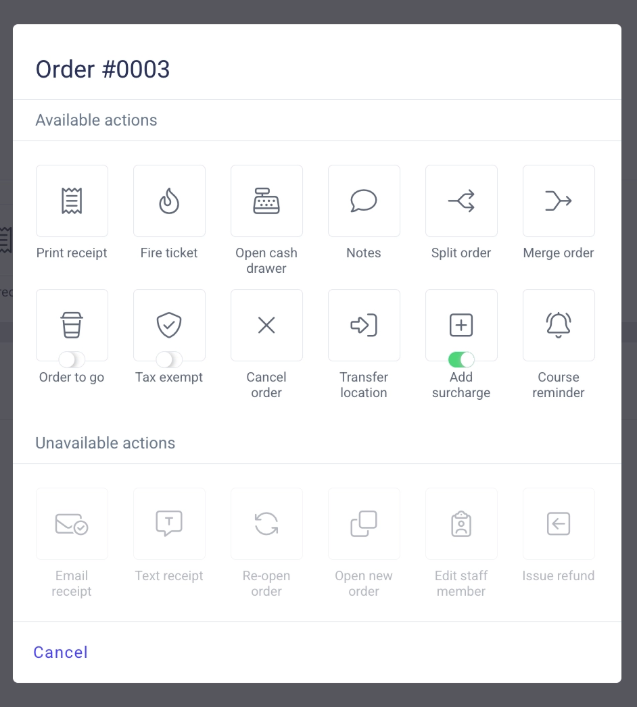
If you’ve selected Manual surcharging, you’ll need to open the menu and toggle on the “add surcharge” option in order to add the surcharge to your order total. Please note, this flow will allow you to add the surcharge, print a receipt, show it to the customer, and then capture the full amount.