Creating a Calendar Event
Calendar events allow you to put updates on your member-facing calendar that are independent of any camps, regattas, social events, group classes, etc. These calendar events are highly customizable and can be programmed as recurring events that require no RSVP.
Creating Your Event
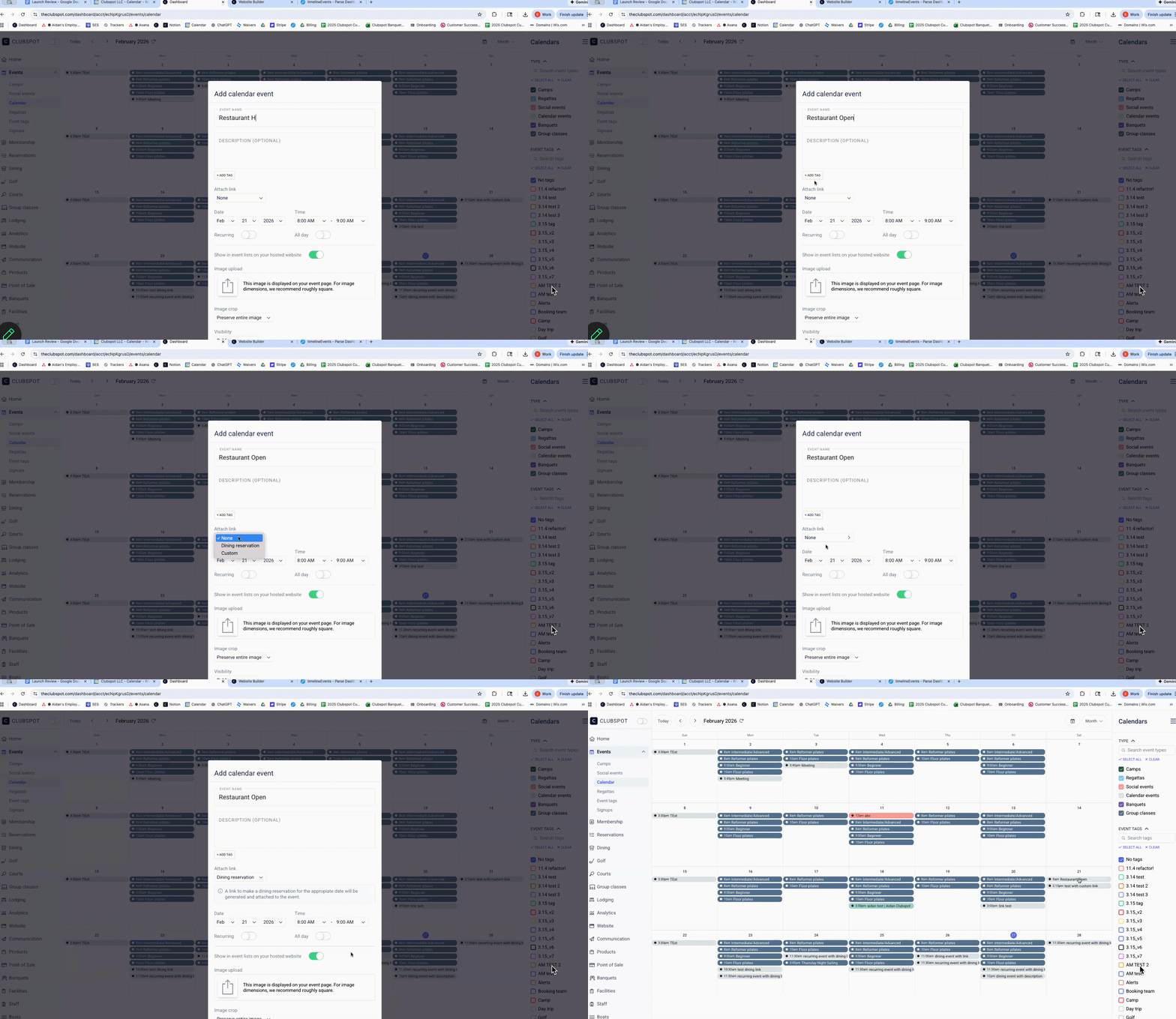
Navigate to your Clubspot dashboard, then go to Events > Calendar. Click on the day you’d like to add an event to. This will then prompt you to fill in the basic details (event name, a link if applicable, an optional description, and any event tags).
Under ‘date’, you can set the date and time for the event. If your event does not have a start/end time, you can toggle on the “All Day” option. If your event is recurring, use the toggle to select ‘recurring’ and then enter the cadence and duration of your event.
You can also customize the visibility of your calendar event. If you‘d like to hide it from the club events, toggle off the option to ‘show in event lists on hosted website.’ If your calendar is on a public page of your hosted website, but you’d like this event to remain hidden from the public, change the visibility dropdown to ‘members only.’
Event Tags
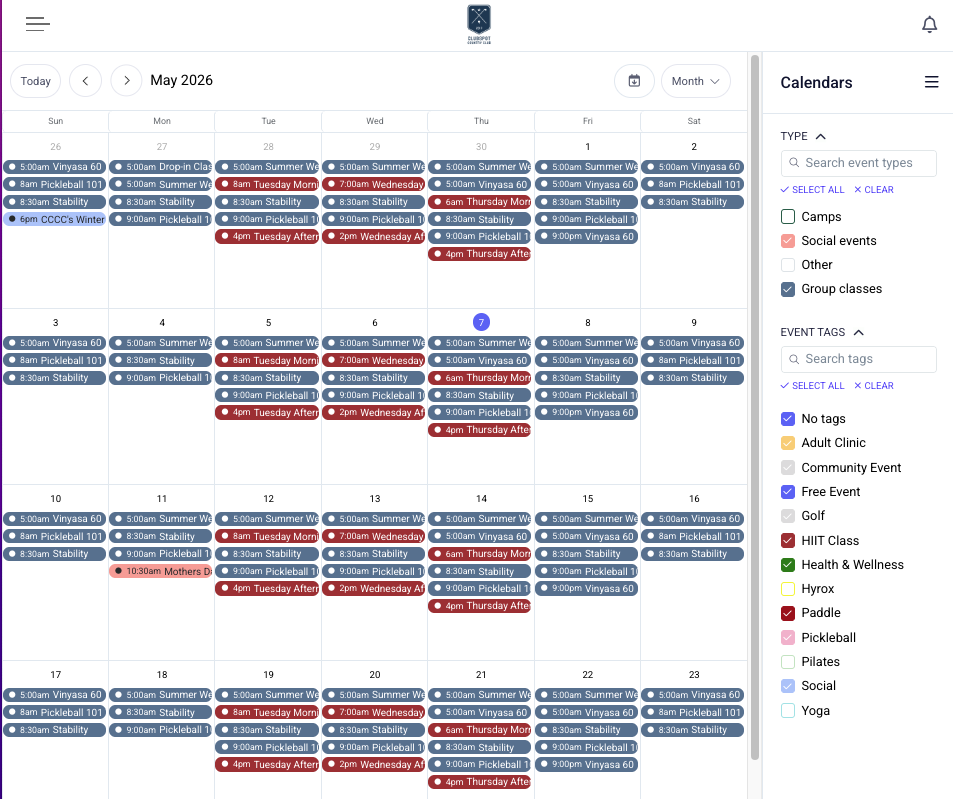
Our calendar can be sorted by event tags to help members better view a busy club calendar. Event tags can be customized by name and color. To set up a new tag, go to Events > Event Tags in the dashboard and select the '+' button to assign a name, and optionally a color.
Members will be able to use the 'event tag' filter on the right-hand side of their calendar to refine the results. Event tags that are designated as internal-only will not appear as filter options on member-facing calendars.
Link dining reservations to calendar events
It’s possible to link a calendar-only event to your /dining page at a specific date and time. That way, when the member clicks on the calendar even they are redirected directly to the correct booking page.