
Regatta Scoring
Racing and Regatta management are close to Clubspot's core. If you ever need regatta advice or just have a few questions, we speak the same language - reach out anytime! Click the sections below to quickly jump to the help section you’re looking for.
Scoring Setup
Clubspot scoring supports the following types of popular scoring methods:
One Design
One Design with Fleets (Including Round Robin and Qualifying/Finals)
Handicap Scoring (Including ORC, PHRF, Portsmouth, IRC, Laser Masters, & Pursuit)
External scoring options
Link to a Google sheet or other URL
Upload a PDF with results
To get to the scoring settings for each Class, go to Scoring, then Classes, then click into the class you need to edit.
Scoring method
The first selection you’ll make is the scoring method. From the class page, select the dropdown for scoring method to change the scoring method for that class.
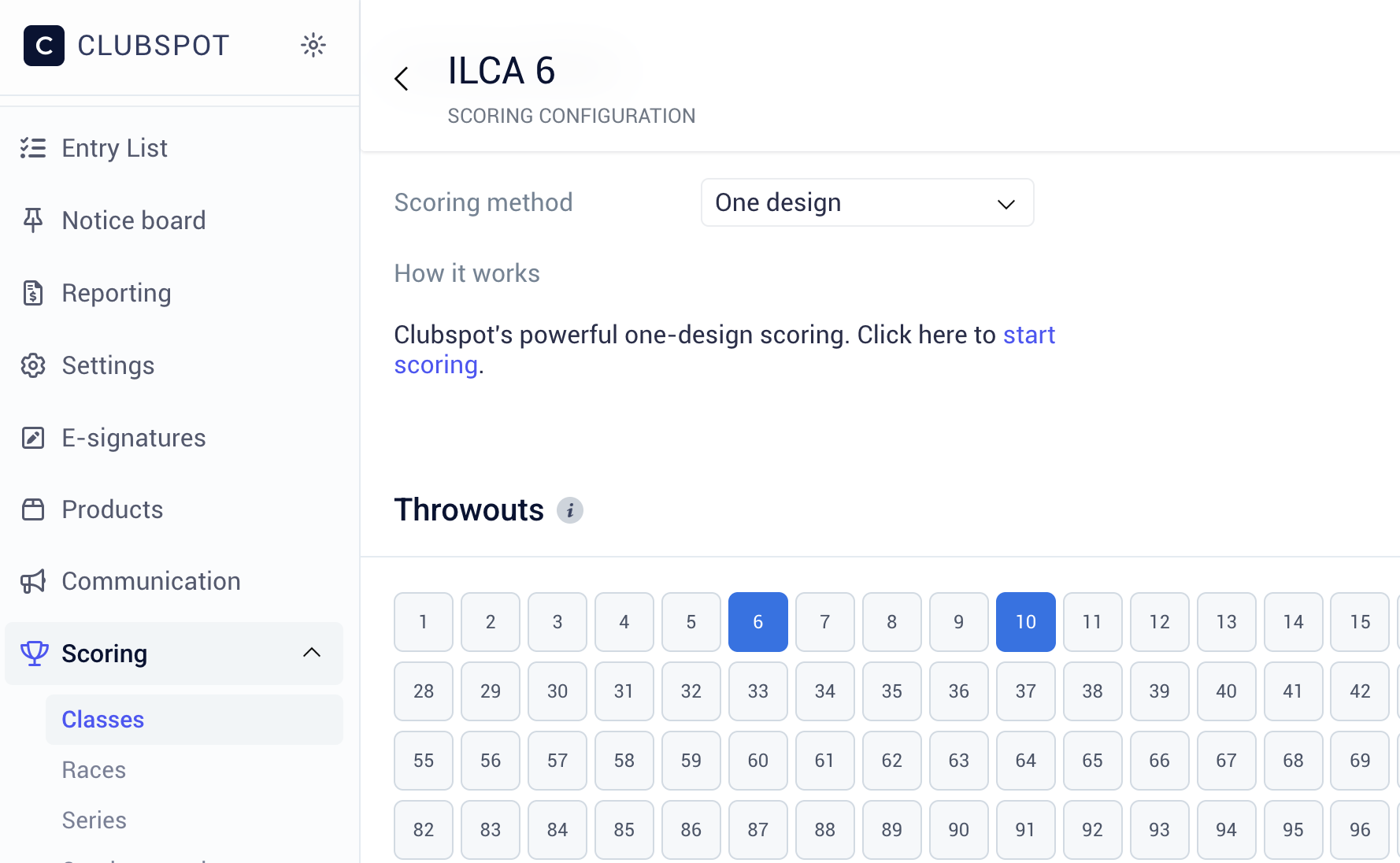
One Design
One Design scoring is the most common method used and follows the RRS Appendix A rules for scoring and tie breaks.
Included in One Design scoring is also the use of Division scoring if configured in the Boat Class Settings. Division scoring does not require any additional configuration.
A common use case for Division scoring is the Optimist Class, in which the Optimist Champs race as a single boat class, but also receive additional results for age-related breaks referred to as Red, White, and Blue in this case.
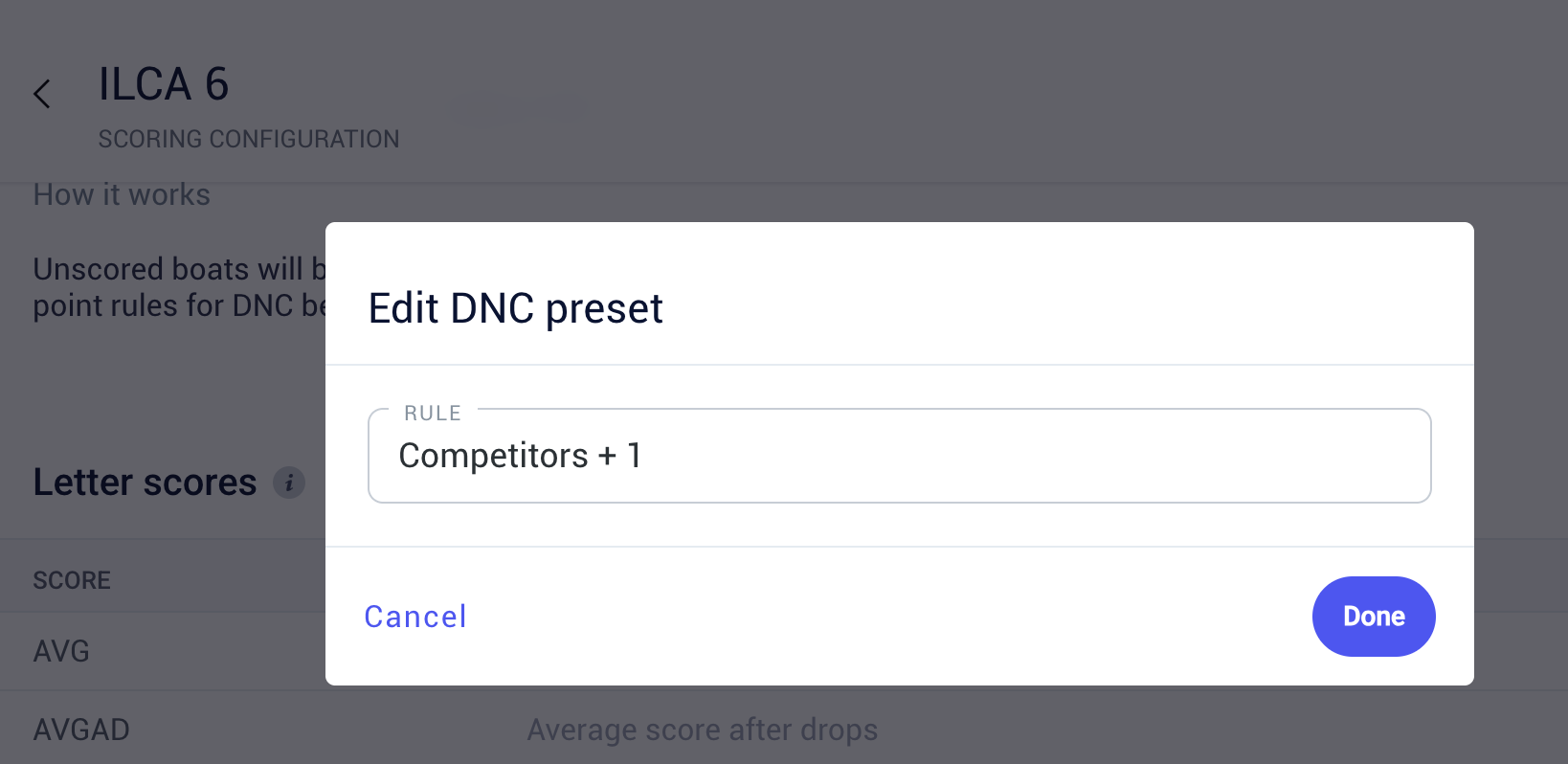
If you are using a Qualifying & Finals format, be sure to set the Competitors value in the Qualifying & Finals Settings, which determines how letter scores should be determined
One Design, with Fleets
One Design with Fleets expands on the common One Design scoring and adds capabilities for a Round Robin format, or a Qualification and Finals format. These formats are recommended if your event uses one of the described scenarios below or if you have a racing scenario in which multiple boats may be scored 1st, 2nd, 3rd, etc for a given race, but must still be scored overall against each other.
We'll provide some additional descriptions below and how to go about setting them up.
Score recorders on the finish boat should record finishes in the exact order that boats cross the line, regardless of what fleet a boat is in. If you try to record the scores by fleet color, it will make it significantly more difficult for the scorers on land.
Assignments and Qualifying
Round Robin
A Round Robin is the situation in which you might have 100 boats and split them up into 4 Fleets of 25, each with their own ribbon color. Your racing format pairs each color against each other over a 2 or 3 day period.
Qualifying and Finals
Qualifying and Finals is when you intend to have a qualifying round over a series of races and then intend to separate the results into different Finals Fleets (Gold, Silver, Bronze) or 1/3 and 2/3, or any other Finals combination. In this scenario, your qualifying series may be round robin, or new assignments each day. Clubspot provides automated fleet allocation based on the popular 1-2-2-1, 1-2-3-3-2-1 or 1,2,3,4,4,3,2,1 method. When you select One Design with Fleets as a scoring option, you'll have a few new settings appear. These new settings are important to the setup and scoring of your event, and advise not to be changed during the event.
Assignments
Static
Each boat is assigned to a specific fleet for the entire regatta. Boats do not change their fleet (streamer color) from race to race, or day to day. This option is best used for Round Robin racing.
Dynamic
Boats are shuffled between fleets as the regatta progresses. They may be assigned a different fleet (streamer color) for each day of racing. This option is best used for any type of Qualifying and Finals racing.
Qualifying & Finals
If your event will use a Qualifying & Finals format, you should switch the setting to Enabled. Additional settings will appear upon doing this.
For some events including USODA sanctioned regattas, the sailing instructions may split the finals into a 1/3 Gold and 2/3 Silver. In this situation, its possible that the 2/3 Silver may be split into A and B Fleets to continue a Qualifying like format throughout the finals. To enable this scoring method, you will want to set the Subdivision option to YES.
Fleet assignments can be made during the Creating a Race process.
Competitors
Allows you to set how Letter Scores should be calculated for Qualifying and Finals format depending on what your sailing instructions specify. There are two common scenarios we accommodate:
Number in Largest Start
The number of competitors factored into letter score calculations is determined by the number of competitors in the LARGEST start. For example, if there are 50 boats in Start 1, and 49 boats in Start 2, a letter score of "Competitors + 1" always results in a score of 51, regardless of which start the boat was in.
Number in a Specific Start
The number of competitors factored into letter score calculations is determined by the number of competitors in a SPECIFIC start. For example, if there are 50 boats in Start 1, and 49 boats in Start 2, a letter score of "Competitors + 1" for a boat racing in Start 1 will result in a score of 51, while the same letter score of "Competitors + 1" for a boat racing in Start 2 will result in a score of 50.
Re-setting scores in the finals
If you would like to treat the qualifying and finals as two separate series (and not transfer points from qualifying to finals) please follow this guide:
Re-setting scores in the finals
Handicap Scoring
For handicap scoring, simply select your desired handicap method for that class. Please see our guide on ORC scoring for more details!
To change the scoring method between Time on Time or Time on Distance scoring you'll need to follow these steps:
Create a Race
Create one or more Starts for that race
Click to edit the start. This is where you'll enter details like start time, and scoring method (tod vs. tot)
Pursuit Scoring
For Pursuit scoring, Clubspot will produce the start times for all of your competitors, and then will allow you to score them over the line as you might for a one-design race.
To set this up, select “Pursuit” as the scoring method for the class. Then navigate to the races section, create a race, and a start. When you enter the details for the start, you will be able to export the start times to provide to the competitors.
Throwouts
Use the throwouts section to configure when discards should occur. The Race # that you click on will apply a throwout after the selected race is completed. If your event uses Series scoring, you can decide if the throwouts apply to the entire series or if they apply to the sub-events.
Unscored Boats
This setting allows you to configure how you'd like to treat unscored boats.
Assign Zero Points
Will leave any unscored boat with 0 points in the Results designated with a "-" under the Race
Assign a DNC
Will automatically treat any unsecured boat as DNC and assign the appropriate point value as defined in your Letter Score settings.
Assign a BYE
Will automatically score any unsecured boat as BYE and assign the appropriate point value defined in your Letter Score settings.
Letter Scores
The Letter Scores section defines how Clubspot should handle letter score calculations for this boat class. All letter scores come with a default calculation rule. You can override any or all of these settings with custom calculation rules by clicking on any letter score you would like to change.
Setting a value to Custom will prompt the scorer to enter a custom point value when they assign that letter score. If you do not see a standard letter score option in the preset list, it will be automatically set to Custom when you assign that letter score in the Scoring Panel.
Abbreviations
TIE: You can assign the letter score TIE to apply a custom point value for boats that have tied. The points for the place for which the boats have tied and for the place(s) immediately below shall be added together and divided equally, as stated by the RRS, Appendix A, A7.
AVG: Average points given. Average points as calculated by all boats in all races for this regatta.
TLE: Time Limit Expired
DCT: Disqualified after causing a tangle in an incident (Kiteboarding Racing Rules)
UFD: The scoring abbreviation for a flag “U” disqualification (Kiteboarding Racing Rules)
SCP: Scoring penalty +20% or Scoring penalty + 30%
Public Results
The Public Results section gives you an extra level of control over how your results will appear online. Flipping any of these switches will disable or enable the column on the public results page.
Divisions
If your Boat Class is using Divisions, you also have the option to choose how you'd like those Divisions to be scored within the Regatta. Clubspot offers two popular options
Use Actual Scores
This is the DEFAULT setting for most racing scenarios. Competitors will receive points according to their finish in the race, with all divisions racing together. For example, a boat that finishes 5th (but 1st in the Masters division) will receive 5 points.
Recalculate Scores
This setting allows viewers to filter down to a specific division to calculate division-specific results. For example, a boat that finishes 5th (but 1st in the Masters division) will receive 1 point when filtering down to the Masters division on public results.
Optimist Red, White, Blue divisions
Clubspot supports automatic age sorting for an Opti/Optimist class with Red, White, Blue divisions configured at the time of entry. We do have a button on the Divisions page that allows regatta administrators to trigger a re-sort at any point in time. This is especially useful if the host forgot to add Red, White, Blue divisions prior to opening up online registration.
Managing Races
To begin scoring your regatta, you will need to create a Race.
To add a race, click + Race in the Scoring > Races section. Races will be added sequentially.
You may need to add additional settings for the Race if one or more of your boat classes are using Fleet scoring or a handicapping format.
After adding a race, you can click on the race row to show options for Settings, Starts, or Fleet Assignments.
Basic settings
Basic Settings gives you the ability to publish (or unpublish) the race, a quick link to start scoring that race, and the ability to assign a nickname to the race.
Assigning a nickname will rename the Race on public results. The default naming convention is R1, R2, R3, etc. A common use case for renaming a race is to include race dates on public results (eg. R1, July 4), or indicate that a race is part of the qualifying vs. finals series (eg. Q1, Q2, F1, F2).
Starts
Starts are important for the following scoring methods:
One design with fleets
Handicap scoring
If you are not using one of the scoring methods listed above, you do not need to create any starts, and you can skip this step entirely.
To add a Start, click on the Start link in the Race dropdown, or from the Race Settings main menu.
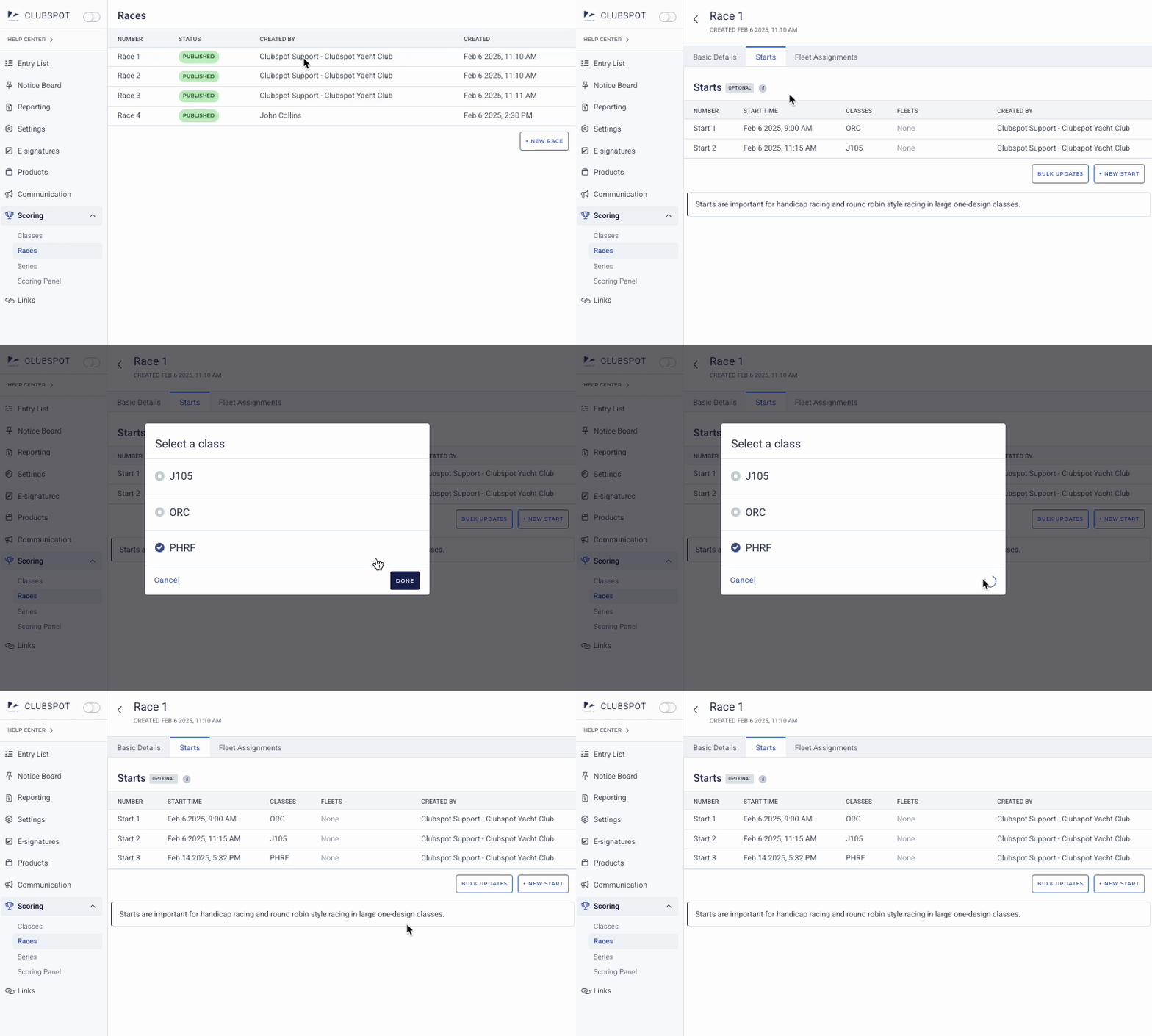
Managing starts - One design with fleets
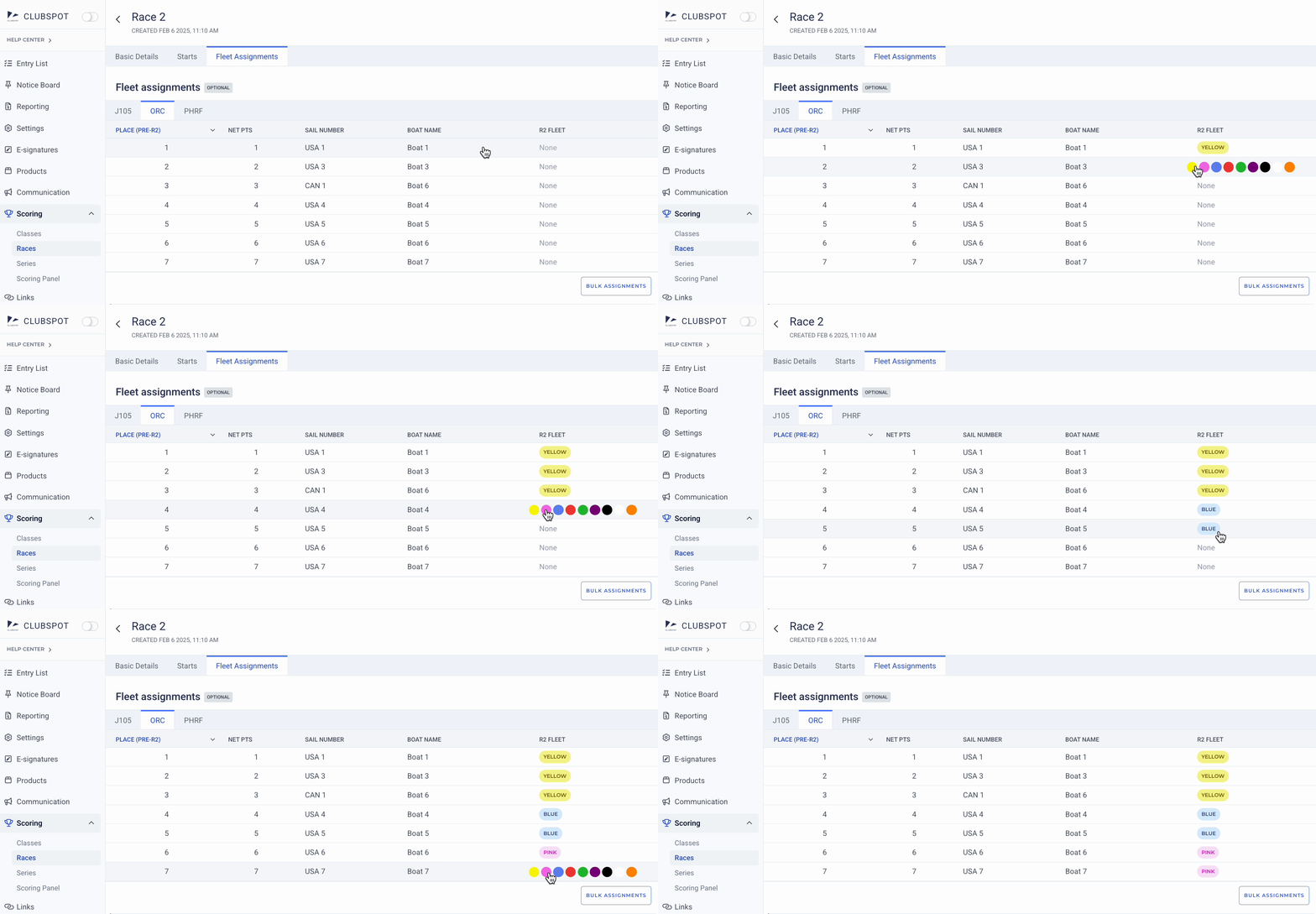
Assigning fleets to starts
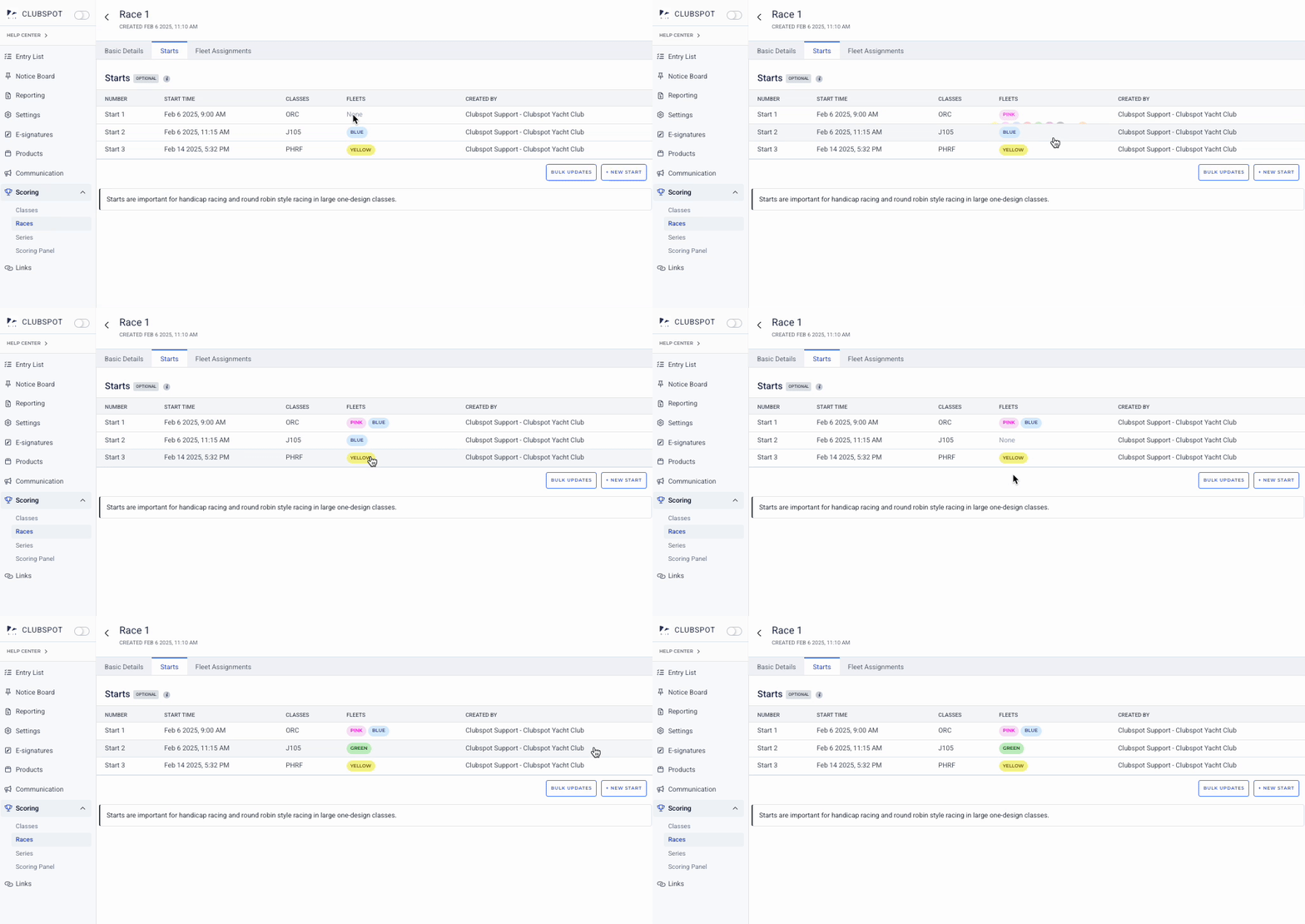
For a Qualifying and Finals format, you will want to rollover the column titled Fleets where it says 'None,' to select the appropriate color for that Start.
You will need to add a 2nd Start for Blue, and a 3rd Start for red, etc if all Fleets are racing separately.
For a Round Robin format, you can rollover the area again to add another color Fleet to the same Start. For example, if Yellow and Blue are starting together in Race 5, you will first select Yellow, then click on Blue.
If you need to remove a color from a Start, you can rollover the section again and click on the color to remove it.
Assigning boats to fleets
After you've added colors to the correct Starts, it’s now time to make the fleet assignments.
If its the first time you are assigning Fleets, such as before Race 1, you can either manually assign fleets however you like by following over the R# Fleet Column and clicking on the desired color, or by clicking on the BULK ASSIGNMENTS button located at the bottom of the table to view the automatic assignments. Selecting Random will assign fleets based on the international standard of 1-2-2-1, 1-2-3-3-2-1, 1-2-3-4-4-3-2-1, etc.
If you are scoring subsequent races, you'll see an option to Copy from R#. This will directly copy from the previous race assignment for Race formats that might have sailors in Yellow or Blue all day for qualifying, and 2-3 races are scheduled.
If your Fleet assignments will change for the following days' racing, you can use the column located to the left letting you know what place the boat is in to help with verifying Fleet Assignments or making the break between Finals Fleets.
Finals
Once you've reached the Finals stage of your event, Clubspot will automatically show Gold, Silver, etc. based on how many Starts you've created. If in your Scoring Settings you defined that you will further subdivide your Silver Fleet, Clubspot will show two Silver colors, one with an A and another with a B.
💡 Once you assign Finals colors, you will not have to copy them for any subsequent races, their colors are "locked in" for the remainder of the Regatta.
Managing starts - Handicap racing
Starts
You will need to create a separate Start for each handicap Boat Class. This step is required in order to calculate corrected times using the appropriate scoring method, start times, and additional handicapping factors.
To set up Race parameters, click on Race to access the options. You'll be presented with the basic settings, where you can click on EDIT to modify the event nickname. To make further changes, select the STARTS tab at the top of the page. Select a start, and you'll see the advanced settings. Click on EDIT to make any necessary changes to the start date or time, define the scoring method (Time on Time or Time on Distance), add relevant course information, or adjust the A/B Factors.
The start number does not have any effect on scoring or results.
PHRF Formula: For Time-on-Time racing, Corrected Time= (Elapsed Time x A Factor) / ( B Factor + PHRF Handicap )
Scoring
Overview
Clubspot Scoring is fully web-based and compatible with all devices, including desktop, tablet, and mobile. To access the Scoring Panel, click on the Scoring tab on the left, then click Scoring Panel, and click the blue box to “Start Scoring.”
The Scoring panel will launch in a new browser tab, so if you don't see anything happen after clicking START SCORING or Scoring Panel from the menu, please check your pop-up blocker settings, or look for a small icon in your browser URL bar, and click on it to open the Scoring Panel.
The Scoring Panel is split into a left/right view on desktop and tablet, and for mobile, it changes to a Scored/Unscored, which you can switch at the bottom of the screen.
Using the Scoring Panel
Views
The Scoring Panel has controls for moving to other Races and a few Views you can play with to help you be more efficient with scoring. The Views can be turned on/off anytime during scoring, and will remain as a user-specific preference until the user changes it.
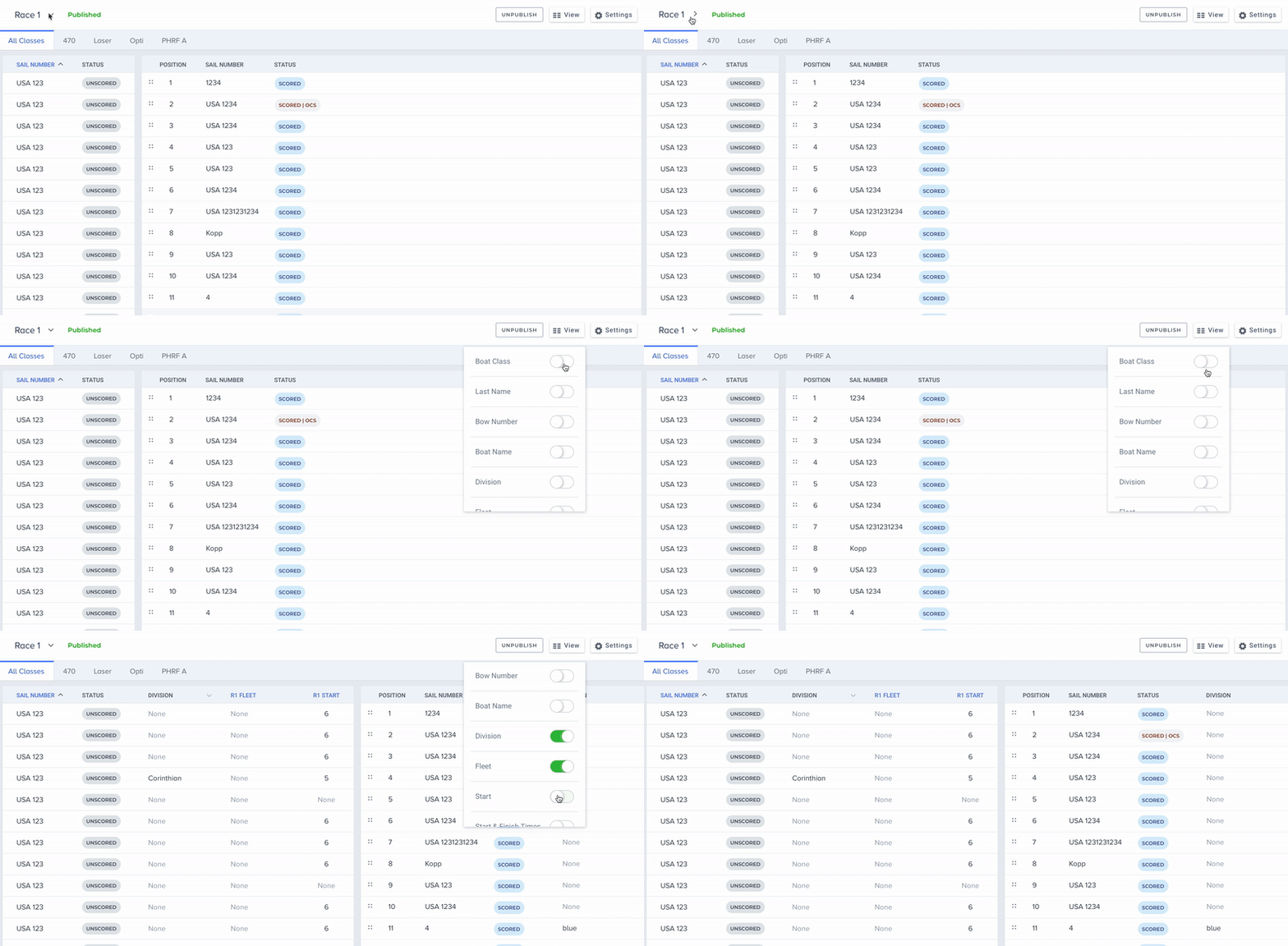
Classes
You can also use the Classes listed to multi-select what you need for scoring. The default is All Classes but you can click to change the view.
The Position will update automatically based on which Class(es) you are viewing, but do not reflect the finish position as displayed on the public results. Clubspot's scoring logic will automatically place boats into the appropriate positions after factoring Classes, Fleets, and Letter Scores.
Racing Areas
You can also use the Racing Areas filter to multi-select the groups you need for scoring. The default is All Race Areas but you can click to change the view.
Scoring Races
To Score, all you need to do is click on the Boat in the left column. It will move to the right 'Scored' column automatically and be placed in the correct order.
You can also use the search bar to look up based on Sail Number, Country Code, or Boat Name to quickly find a boat and press “Enter” on your keyboard to score.
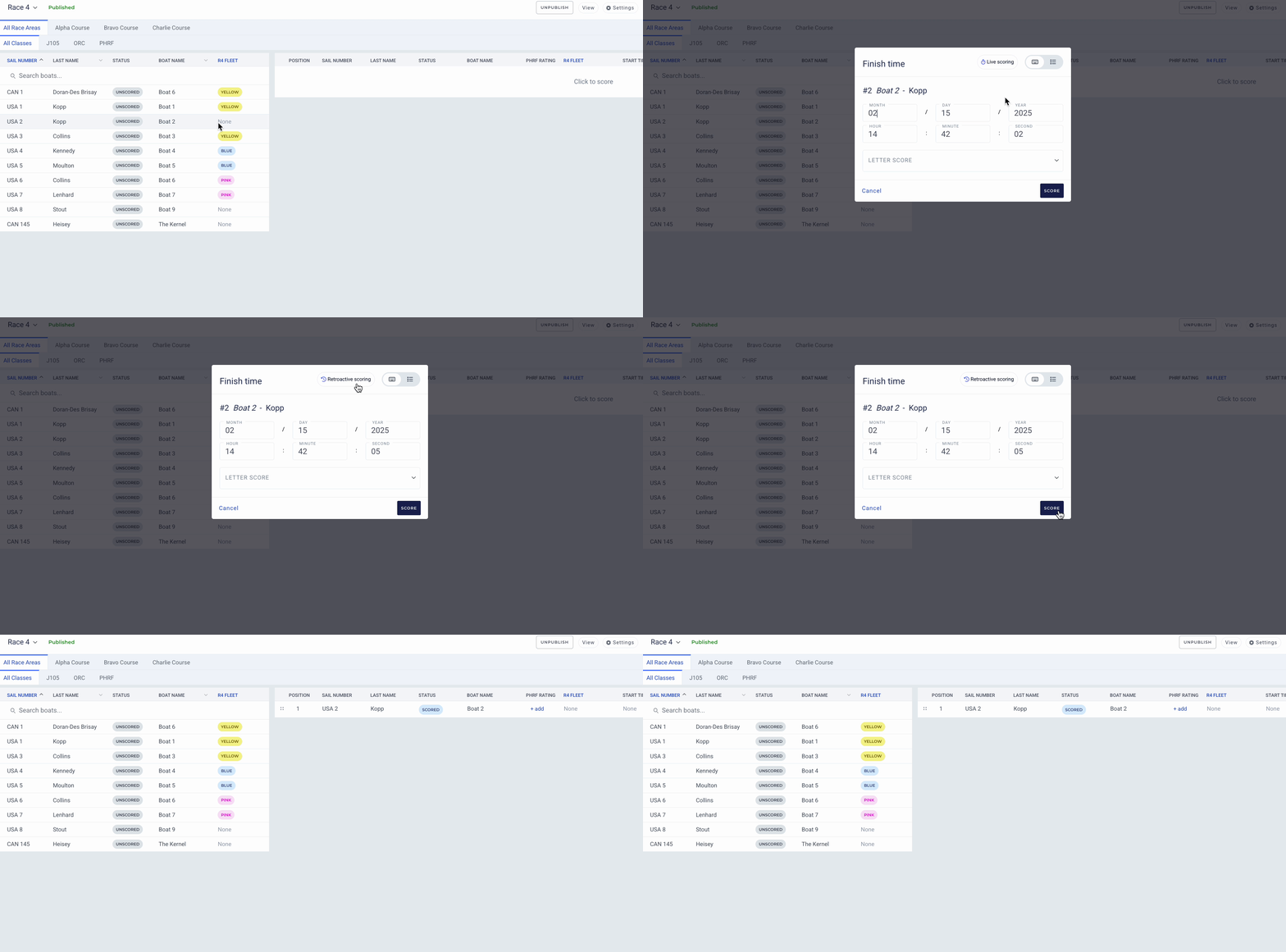
For handicap boat classes you will see a popup asking for finish time. The system pre-selects the current date/time in case you’d like to do live scoring on the finish line. You’ll see an option in the upper right corner to allow you to either use a dropdown style entry or switch to keyboard style entry to type in the data and tab through the fields. You’ll also see the option for live or retroactive score timing. Live scoring will populate the date and time with the current time — this is best used for real-time scoring on the water. Retroactive scoring will populate the date and time of the last score entered — this is best used when you’re scoring after the race, so only the minutes and seconds need to be adjusted.
If you'd like to check your corrected times, be sure to enable Start & Finish Time from the View menu, and then scroll right after scoring.
Reordering Boat Finishes
If you need to reorder any scored boats due to a scoring error or protest decision, you can click on the 4 dots to the left of the Position to drag-and-drop the Boat to a new Position.
Letter Scores
To assign a letter score, click on any scored boat in the scoring panel and then select the letter score you wish to assign. Some letter scores are calculated, while others will ask for a custom point value to be entered.
Calculated letter scores
Most letter scores have a default point calculation based on the RRS. You can optionally adjust the calculation for any given letter score. To do so, navigate to Scoring > Classes, and click on the boat class you’d like to manage. Scroll down to the Letter Scores section, and click on the score you’d like to change the calculation for. You’ll see a list of alternative calculations that you can apply for that score. If you don’t see the specific calculation you’re looking for, select Custom. This will prompt the Scoring app to ask for a custom point value when you apply that letter score.
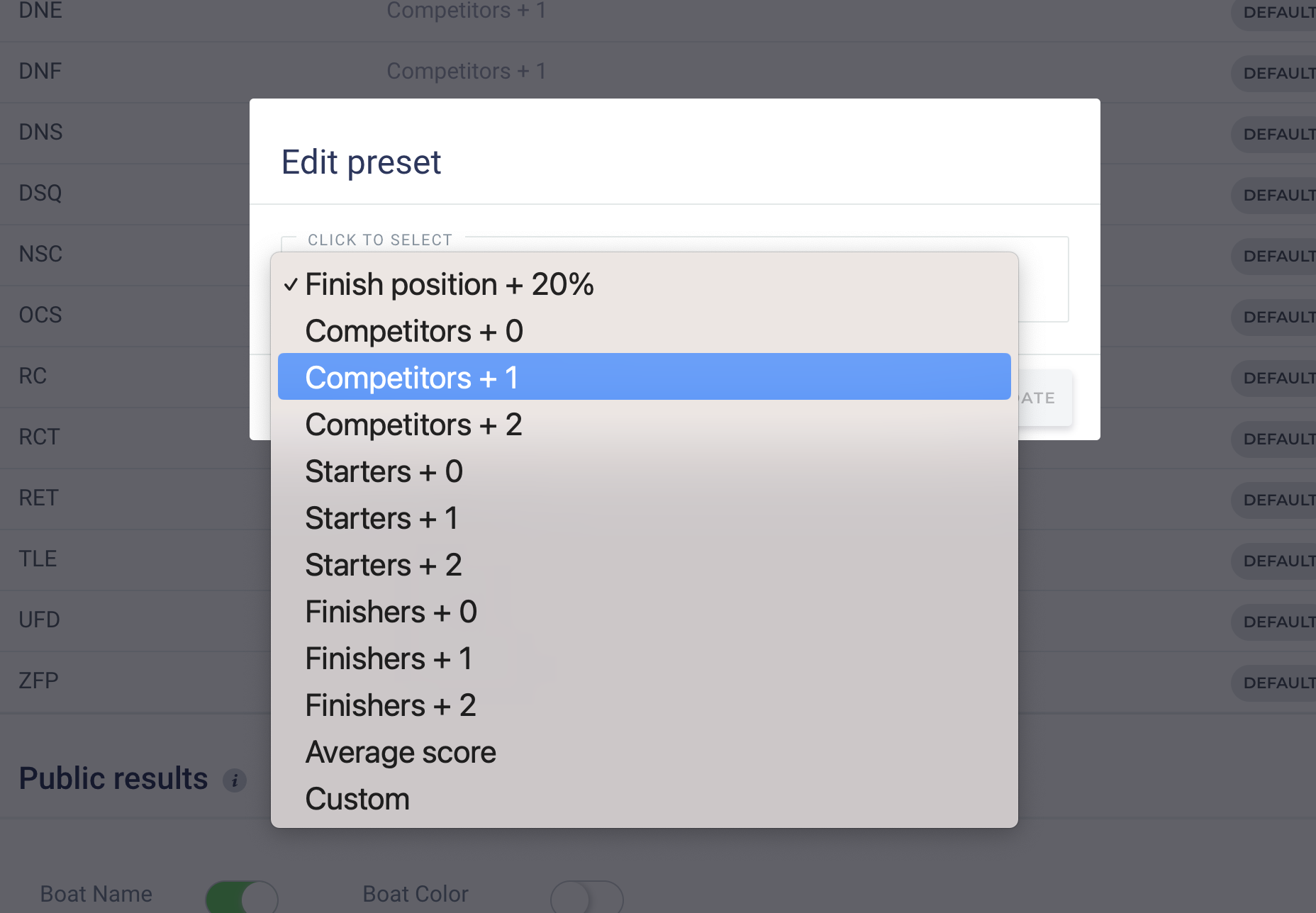
Not all letter scores are listed under the Letter Scores section. Please see below for additional letter scores that appear in the Scoring app.
Non-calculated letter scores
Other letter scores do not have a standard calculation, but will instead ask for a raw point value. Examples include:
BYE
DPI
RDG
SCP
Special
TIE
Plus, any letter score where you change the pre-set calculation to Custom
These letter score options appear in the Scoring app only, since you cannot apply a calculation to them. You can make any letter score behave like a non-calculated letter score by changing the preset calculation to Custom. Once you do this, the Scoring app will likewise ask for a raw point value input.
Publishing and un-publishing
Once you have scored all boats in all classes for a race, click PUBLISH in the upper right side of the scoring panel. Clicking Publish will publish results for all scored boats. Un-publishing the Race will temporarily hide the race from the public results, until you publish again. Technically you do not need to un-publish a race to make subsequent changes. Clubspot recalculates the scores automatically as you go. However, if you plan to make a large number of changes to a race that has already been published it is a best practice to un-publish, make the changes, and then re-publish the race.
PHRF Rating Adjustments
While you can always adjust a boat’s PHRF rating by clicking Entry List > Sailor > Boat > Edit > PHRF Rating, you may need to change the PHRF rating between sub-series. This is possible from the scoring panel:
Launch the scoring panel (where you enter scores)
Score the race. The option to change the PHRF is only available once the boats have been scored.
Scroll to the far right of the screen. Depending on your settings and your window size, there may be additional information hiding off-screen that you’ll need to scroll to find. There, you should see the PHRF Rating category.
If you don’t see the PHRF Rating, click the “view” button at the top of the screen. This is where you can customize which information is displayed on your scoring panel. Toggle on “PHRF Rating.”
Now, from the scoring panel you can click the hyperlinked handicap number for any boat.
You'll see an option to set the new handicap as the new default for all races OR to set it only for the race you're currently scoring. This change will not impact any previous races.

Preview
Use the 'preview' icon in the lower right corner of the scoring panel to look at how the results will be sorted, before publishing them for view by the sailors.
Managing Results
Overview
When you score and publish races in the Scoring Panel the results are automatically displayed on the public results page. The user can decide to view the score sheet in responsive or full-screen mode.
How to auto-scroll results
Open your results in list view and click the ‘more’ icon in the upper right hand corner. You’ll see the option to auto-scroll. Clicking here will begin a loop so that you can display your scores on a monitor. (Ability to pass fullscreen view through url) Ex: Rolex Big Boat Series
How to print results
From the public results page, just click "More" and then click "Print Results". We've prioritized visibility when it comes to printing results over trying to fit as many results rows as possible on a single page. We recommend printing results in Landscape format for posting paper results on the Official Notice Board.
How to Copy/Paste results (eg. into Excel)
Copy and pasting results is very useful when you want to view results in a different format. For example, you might want to manipulate the results in a spreadsheet (like Google Sheets). All you need to do is click to copy the results, and then paste them into the spreadsheet.
Viewing Corrected Times for PHRF
If you'd like to view Corrected Times on results, or if your competitors are asking how to view Corrected Times, you can click on the Race # header which will bring up Corrected Times. You can then print those Corrected Times if you wish.
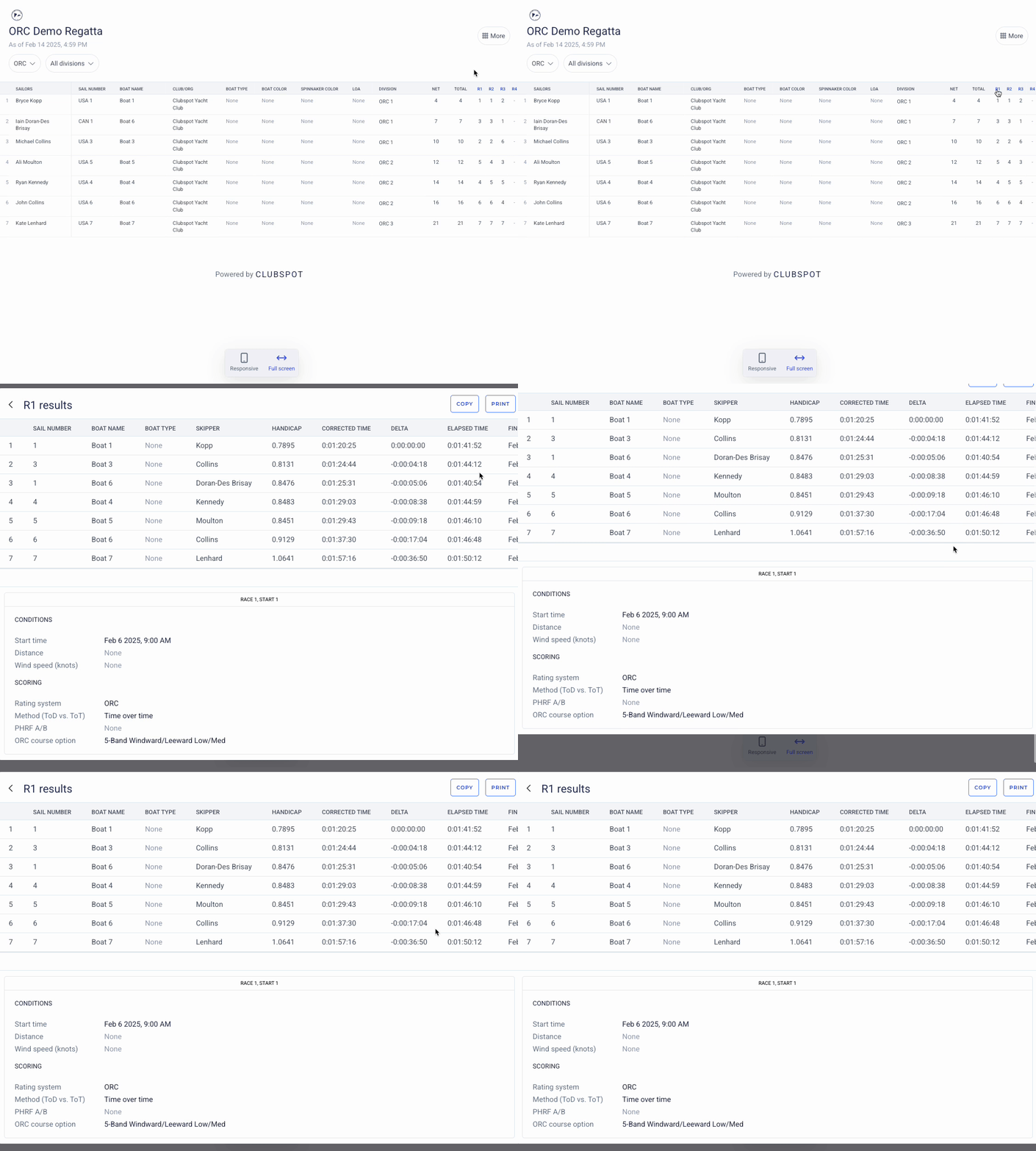
Viewing All Classes on a single Page
By default, Clubspot shows results for one class at a time to reduce the amount of scrolling required. If you would like to view results for all classes together on a single page click More > List view in the upper right. As an administrator you may choose to post or share that link directly.