Data Collection
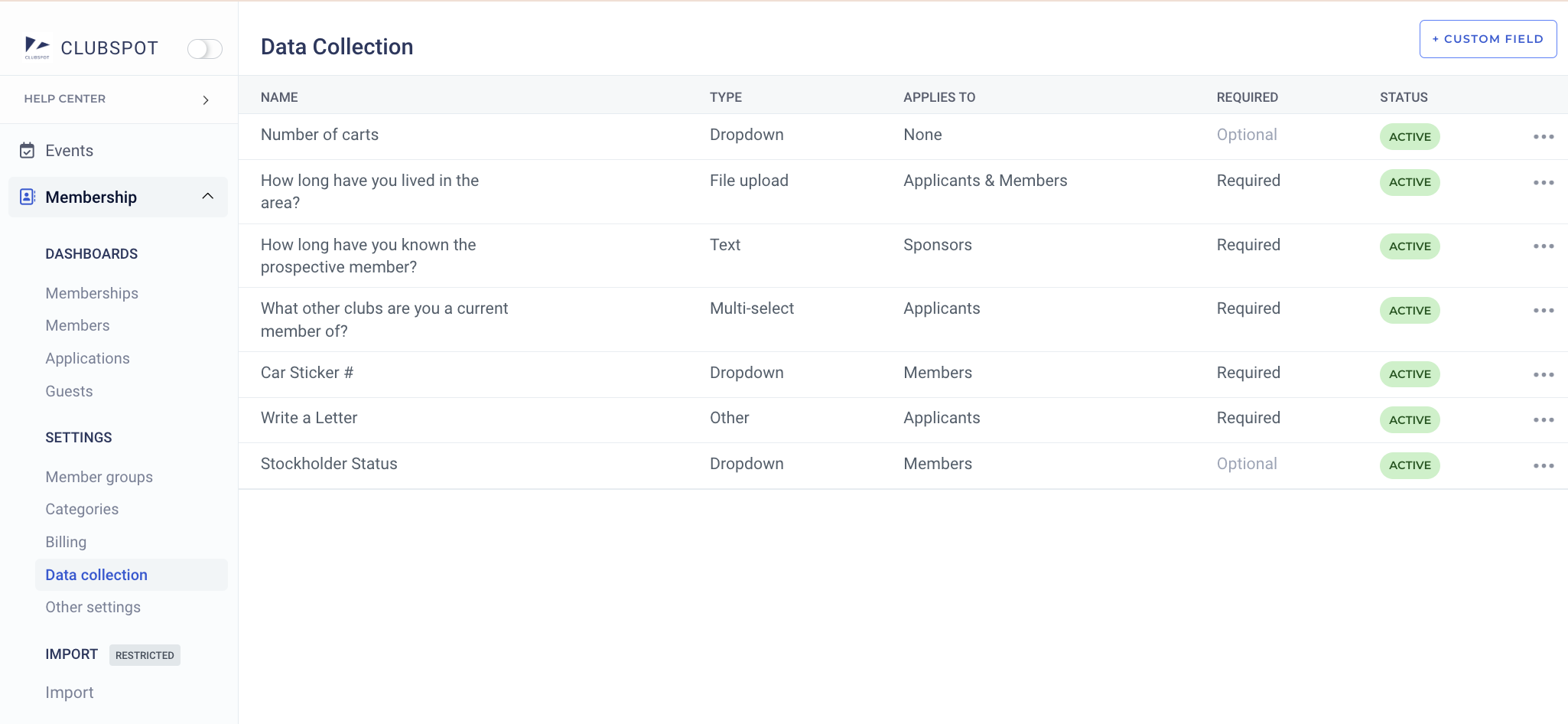
The Data Collection section of the Membership module allows you to create custom fields for storing information specific to your organization’s members. These questions can apply to Members, Applicants, and/or Sponsors.
Once you’ve created a custom field, click into the row to open the settings for that field. Optional configurations are as follows:
Required: if this field is present on a membership application, the applicant will be forced to respond in order to submit their form.
Disallow edits: if this toggle is turned on, a member will not be able to update the response to this field. This is best used for fields that require admins management, such as ‘stock number’.’
Hide from Members: if this toggle is turned on, a member will not be able to see or edit this field.
It is important to note that "Hide from Members" will also hide a question from applicants. This can cause problems with a question is both hidden from and required of an applicant and they are unable to submit their materials.
Applies to:
Members: This field and response will be visible in the member’s basic details
Applicants: This field will be prompted on a membership application
Applicants & Members: This field will be prompted on the application, and it will carry over to the membership should the applicant be accepted.
Primary Member Only: This field will only be shown for the primary member, on either the application or membership.
Data Type: We can support a number of response-types including number, paragraph, text, dropdown, multi-select and file upload. If your custom field is a dropdown or multi-select, you’ll need to use the ‘options’ tab to configure the pre-set responses.
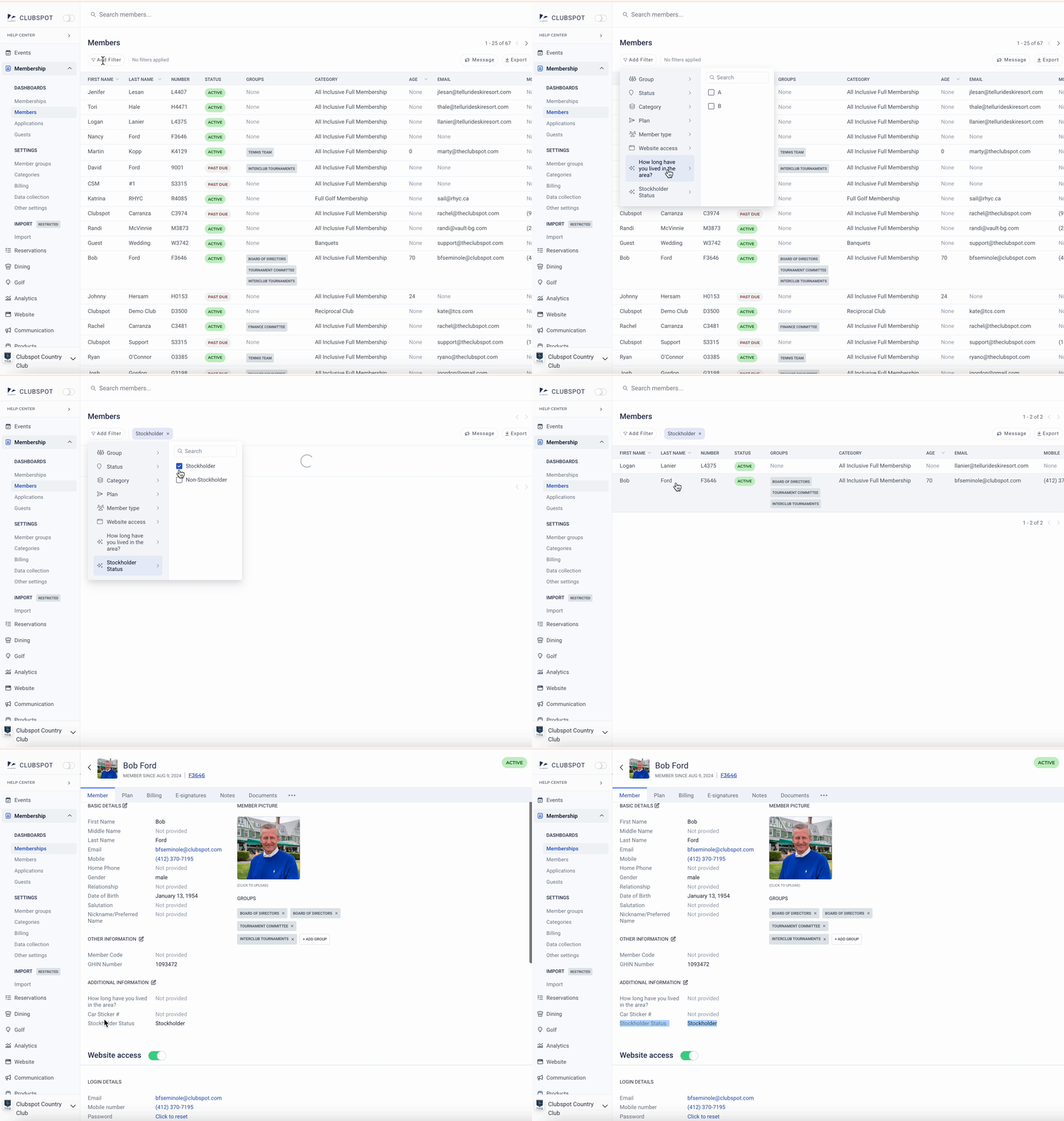
If your custom field is classified as a dropdown or a multi-select type that applies to members, you’ll be able to filter your members based on their responses. Because the responses are stored at the individual level, you’ll need to navigate to the Members table > filter > choose your custom field > and select the responses you’d like to filter to: