
Membership Details
The memberships dashboard allows you to manage all of your club’s membership accounts. This can include multiple individual members in a single membership (for example, a single family membership with children).
Members
Members are the individual people who are part of a membership. Any given membership will have one or more individual members. The Members tab allows you to view (and edit) all the personal details for each member on a membership.
From this page you can toggle on/off a member's website access or reset their password, print their member card, or add them to a Member Group. When you're looking at a secondary member, you can click below the member picture to make them the primary or note that they are a "dependent."
Members have the same ability to edit their own information directly from the member portal, if the club has that setting turned on. This access can be revoked or added.
You can also add additional family members (or remove existing family members) from this view. If you do not see "+ add member" next to the list of members, then the member is in an "Individual" Billing Plan.
Plan
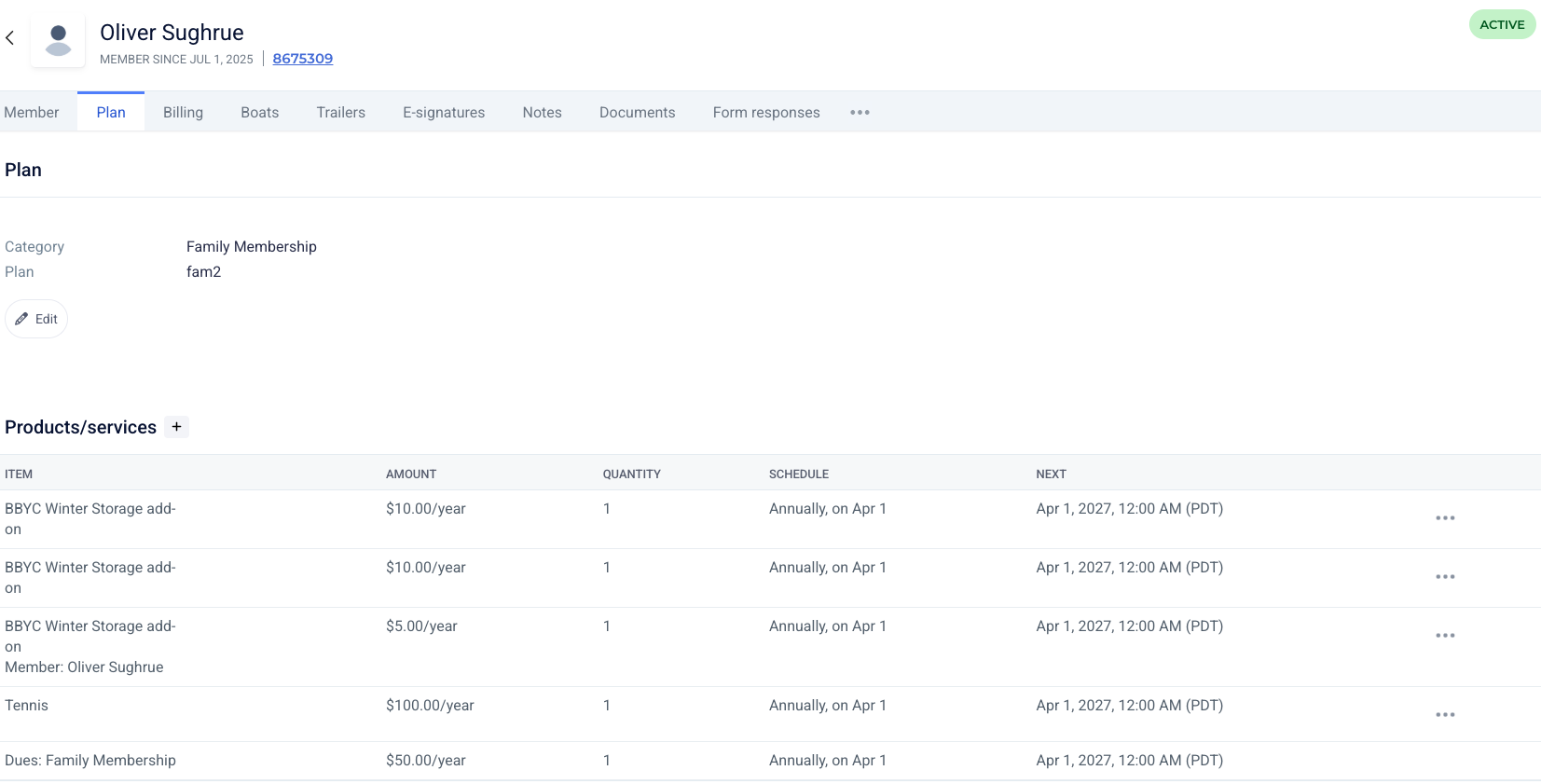
The Plan tab allows you to make changes to the specific invoice items which are present on the Membership Dues invoice. Some examples of what you can edit on this page include:
Membership category and plan
“Membership Add-ons” (e.g. Capital Assessment fees, Launch Fees, etc)
Facilities assigned to this membership (e.g. club lockers, boat slips, parking passes, etc.)
Billing
The membership billing tab is where you can manage all aspects of billing relating to a specific membership. Please click here for more on Member Billing.
Other Tabs
Boats
Review and add Member Boat Data
E-signatures
Send and review previously sent waiver requests.
Notes
Visible to admins only, this is helpful for private reminders about Member preferences or information that might help the staff.
Documents
Attach any member-specific documents you might need here.
Form Responses
This is a library of all the member's responses to forms created by the club.
Three Dots
If you'd like to Cancel, Schedule the End Date, or Pause Payment Collection a membership, click on the three dots at the far right of the tab bar. If the member was an applicant within the Clubspot system, then you'll have a fourth option: view original application. This can be helpful if there is information you'd like to review from the member's application.