Facility Waitlist
If your facility options have all been assigned and you need to open a waitlist, our facility waitlist feature can help manage it in Clubspot instead of a separate spreadsheet.
Add to the waitlist
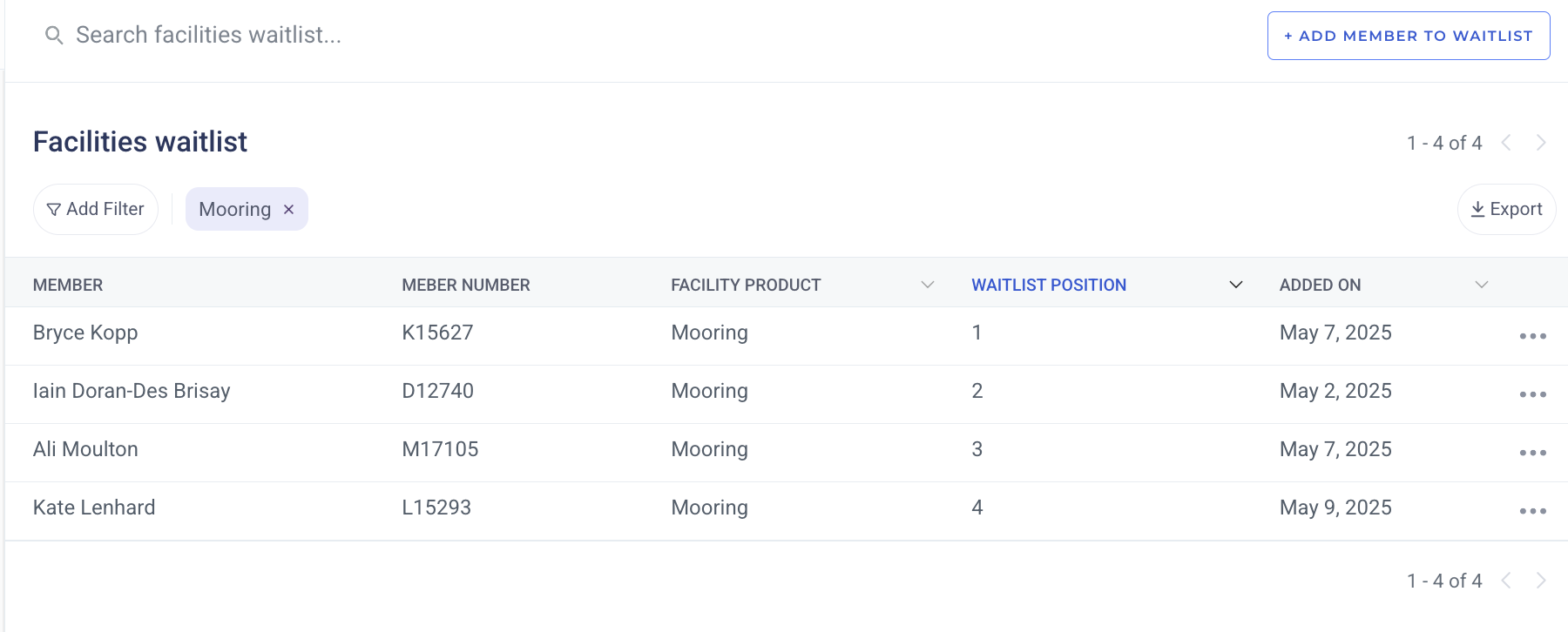
Navigate to the Facilities > Facility Waitlist section of the dashboard. Click the + add member to waitlist button in the upper right hand corner. You’ll be prompted to choose a member and a product to waitlist them for. Only an admin can add a member to the waitlist at this time, so you may choose to create a custom form to collect waitlist interest or applications.
Update the waitlist
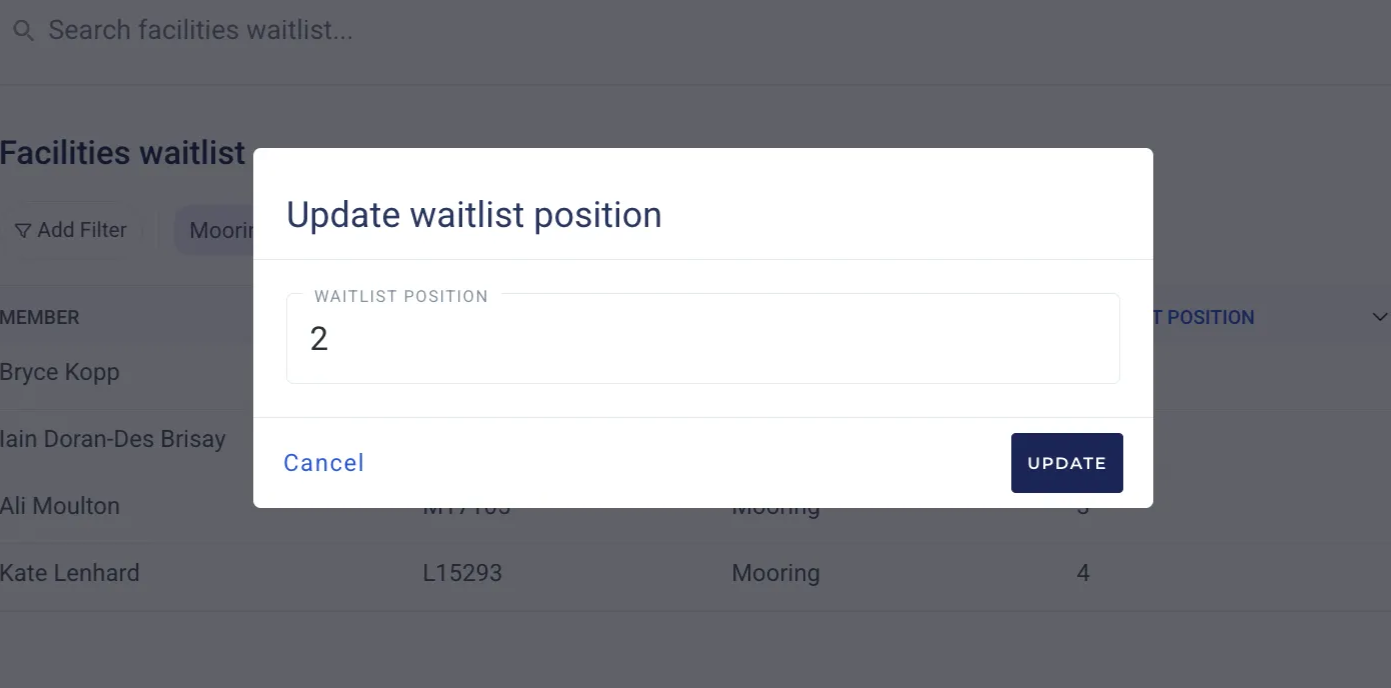
Click on any waitlist entry to update their wait list position. If you choose a value higher than the last waitlisted member (ex. position 11 when there are only 7 members on the waitlist), we’ll assign them to the last spot (ex. #8). When you’re ready to move someone off of the waitlist, just use the three dots on the right to archive the waitlist entry. Then head over to the Current Assignments page to assign this person to their new product option.
Member Visibility
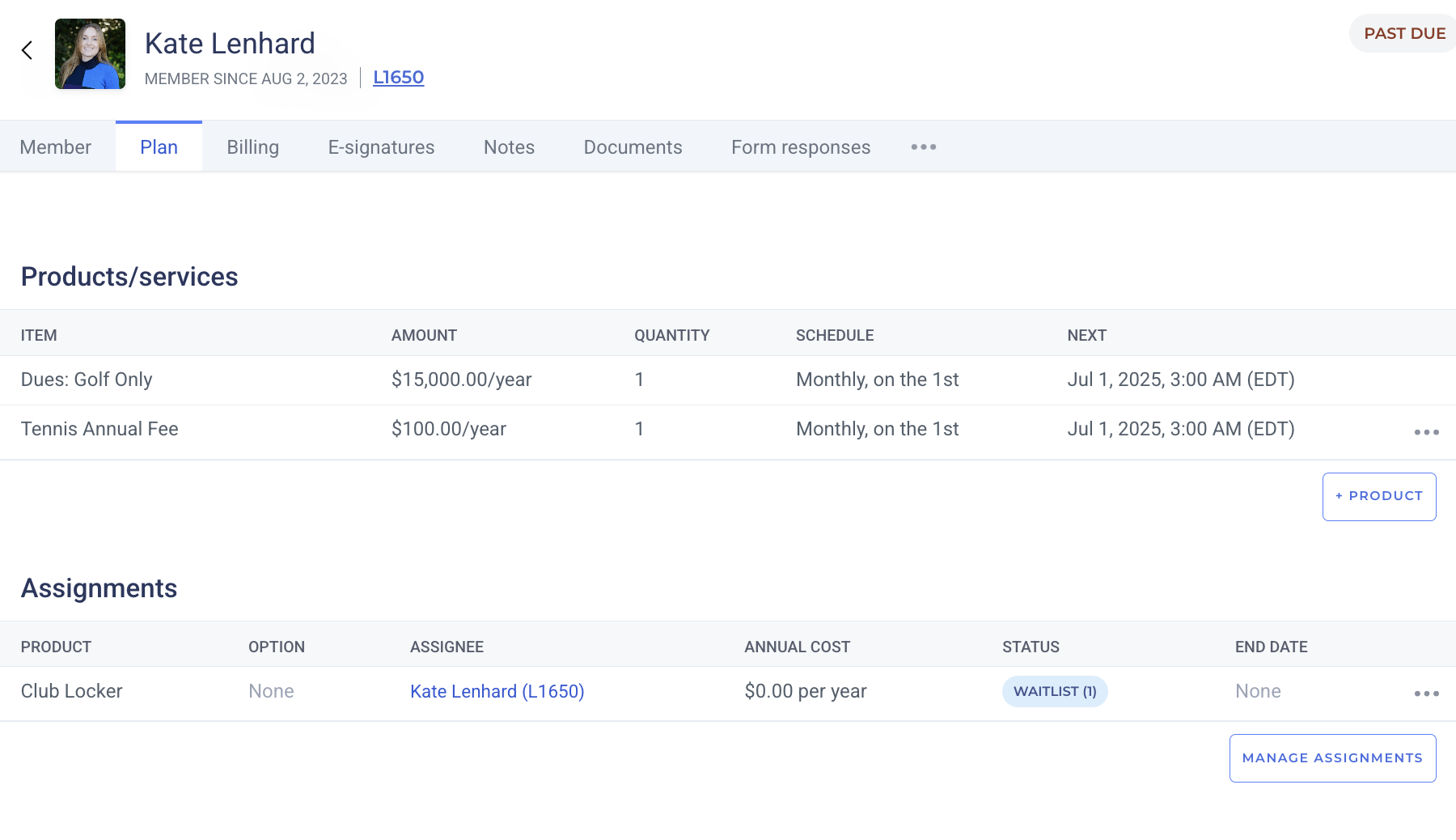
The waitlist status is included on the Plan page of any membership under their Assignment section: