
Reservable Products
Reservable products are an easy way to manage the member booking of club assets through a custom schedule. If members can rent amenities such as a poolside cabana, conference room, kayak/SUP, etc, we'll allow them to do so through the reservable product tool. If you'd like members to be able to book swim lanes, courts, tee times, or staff services, you can use a dedicated feature for this purpose instead of a reservable product.
Creating a Reservable Product
1. Create a New Product
Navigate to the Products tab of your Clubspot account and click the + button to create a new item. Enter the name and price of the reservable product and set the type of the product to “Reservable item.”
2. Add Product Options
If your club asset has multiple instances of one product (i.e., boat #1, boat #2, boat #3), then you’ll want to utilize the Product Options settings. Navigate to the booking rules tab at the top of the Reservable Product page. Click on the + button to add a new option.
3. Set Up Booking Schedule
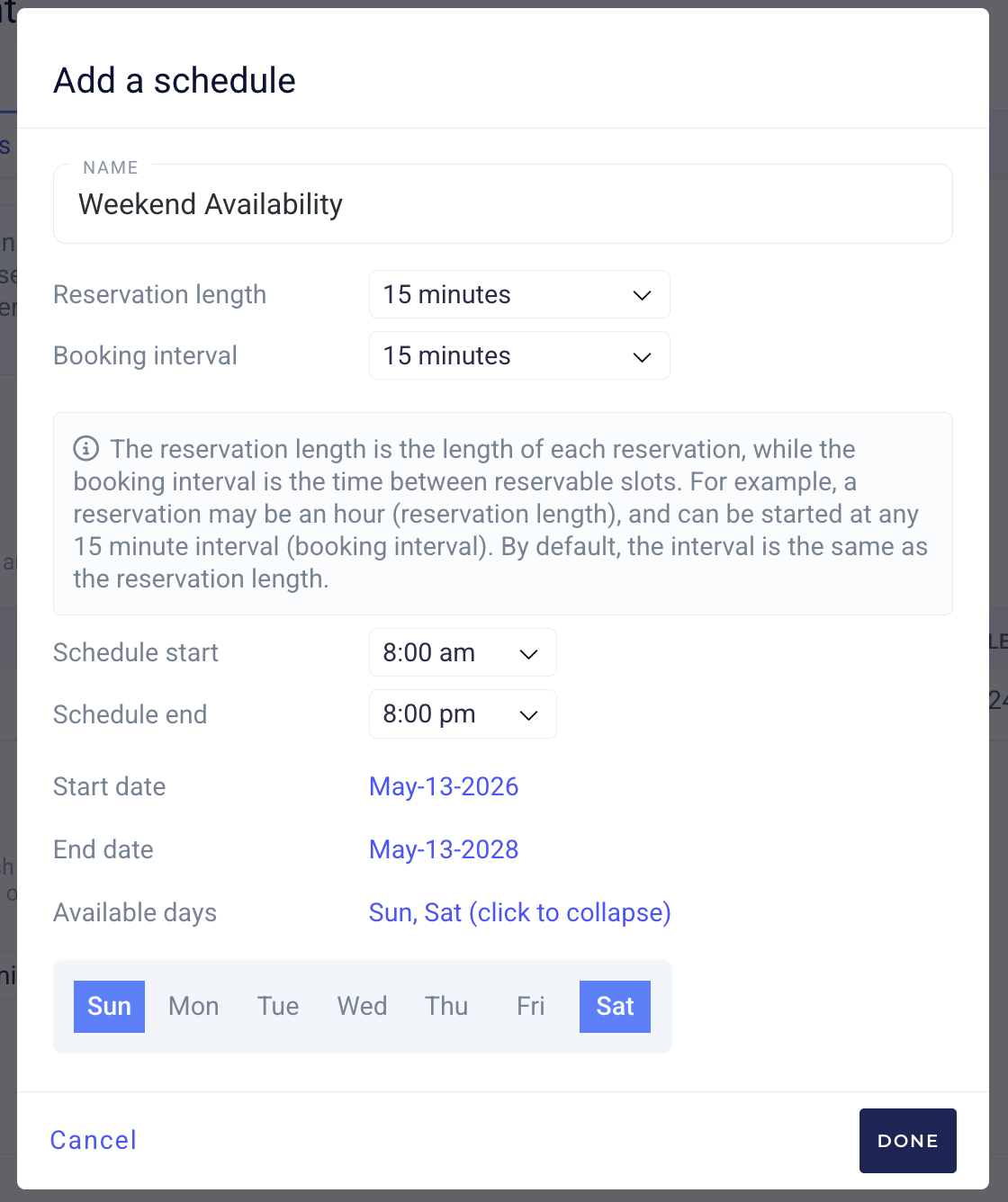
Next, set the booking schedule(s). Select the time slots toggle and then click to add a shift. When configuring your shift, you can set your reservation length, the interval for available reservations, your start and end dates, as well as the available days. You can create any number of non-conflicting shifts to accommodate your desired schedule.
4. Open up Reservations!
Once you have configured these settings, you’re ready to go! The final step is to share the reservation link with members. The link to your reservable product is accessible on the “Basic Details Page.
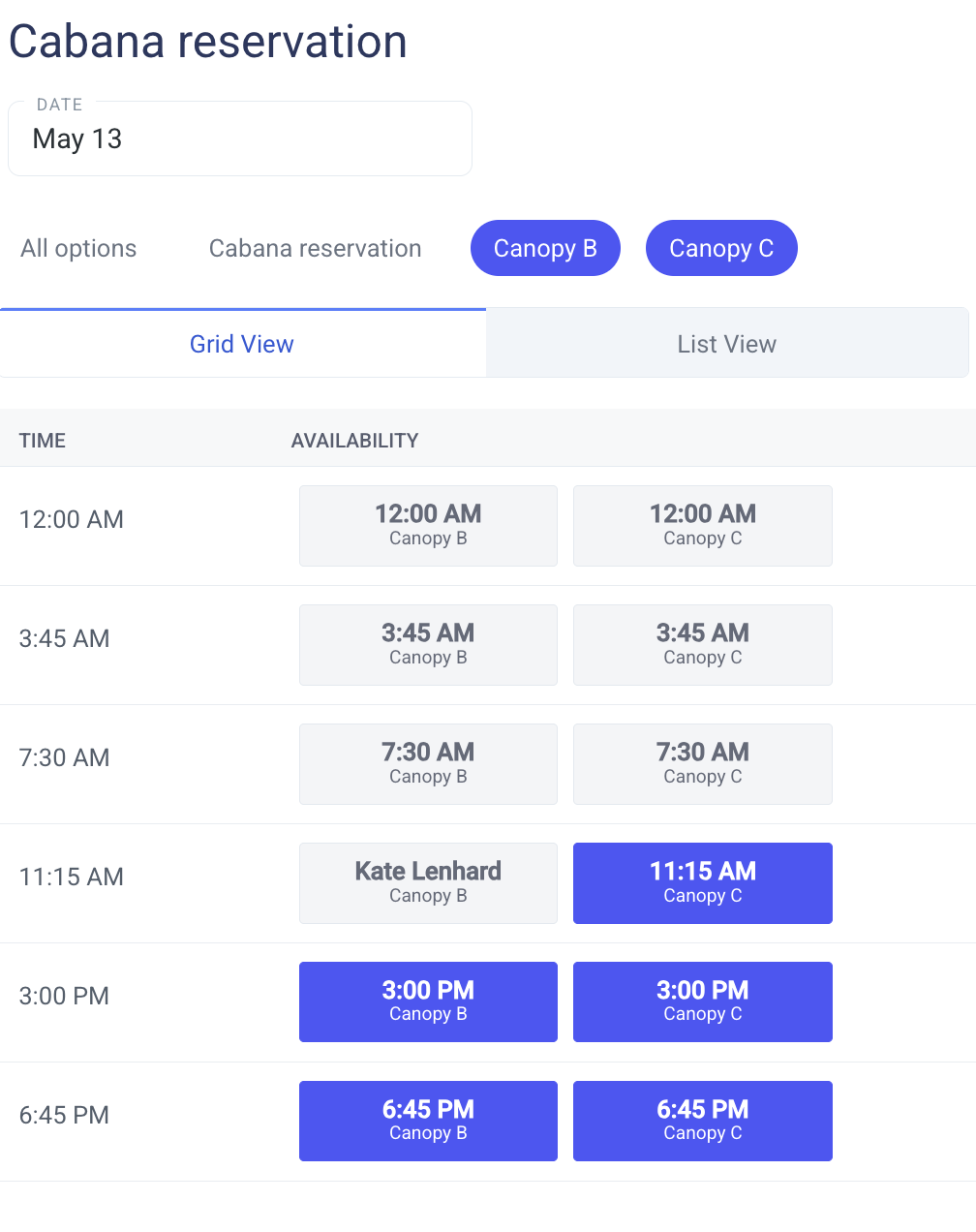
Members will be able to select a calendar date, filter to specific options, and select any blue option to book it:
Common FAQ
How do members view reservable products?
You need to share the link on your website so that members can access and book reservable products or enable them as a bookable item in your member portal
Can I limit the number of reservations that can be made?
Yes, update the Member Limits under basic details to your desired frequency. By default, Clubspot sets reservation caps at the member level - meaning a specific member can only book X number of times in a specific window. (If your club policies restrict reservations by membership, please let us know, and we can make that adjustment).
Under Advanced Bookings, you can also limit the time frame in which members can make reservations.
Can I limit which members are eligible to make reservations?
Yes. Toggle on the Member Group option under basic details, and then select the member groups that are approved to make a reservation for this product. If you do not yet have a member grouping for these people, you’ll need to create one under Membership > Member Groups.
Can I limit specific time periods?
Yes, simply add a “time block” for when the product is unavailable, and it will not show up as bookable. Time blocks can be set to recur.
Can I collect extra information in the reservation flow?
Yes - add any number of “custom questions” in the Data Collection tab