Host Mode
Host mode is a POS-view designed to allow restaurant hosts to easily manage dining reservations and table statuses during service.
Seat a Reservation
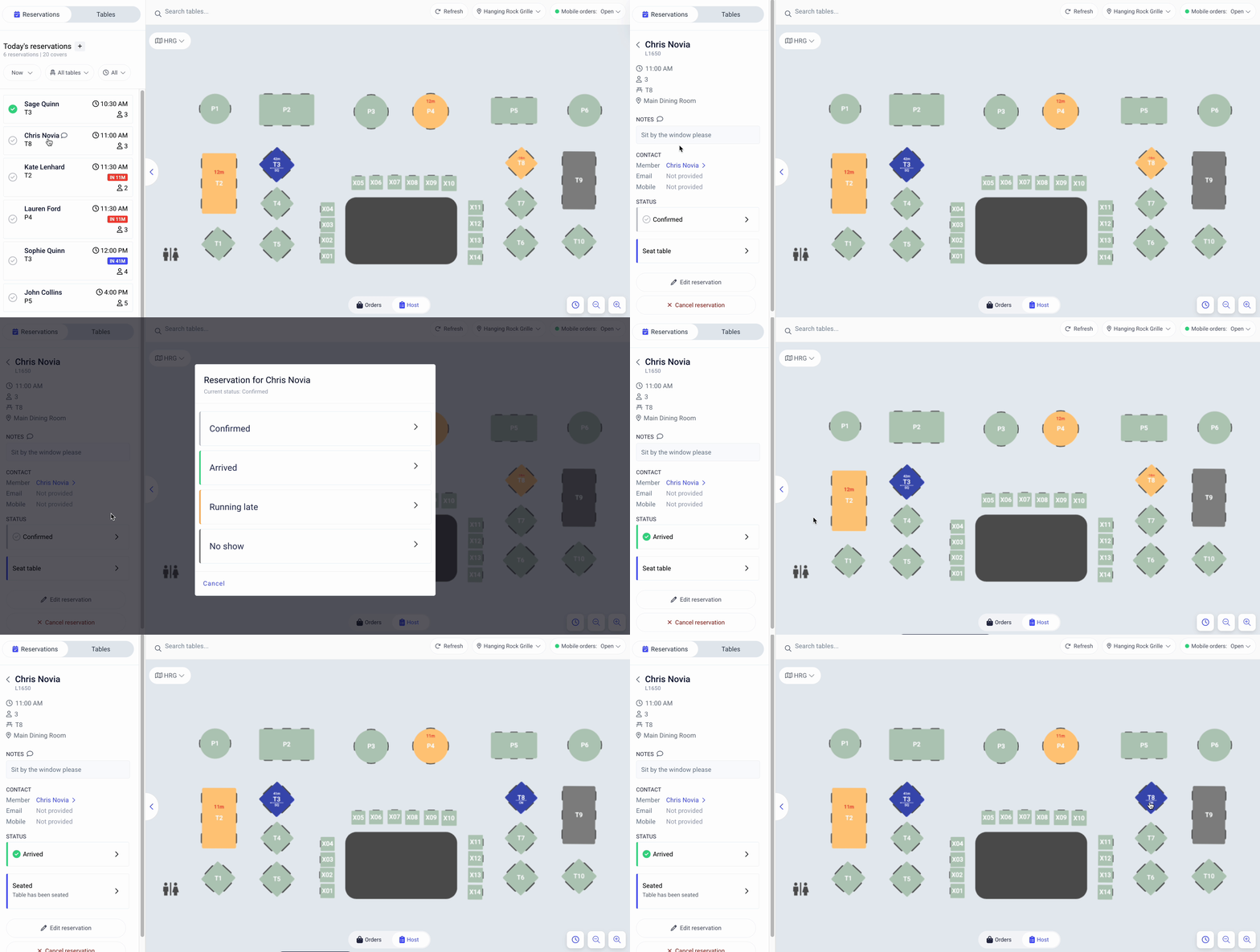
Host mode will show a list of the day's reservations alongside a current table seating map. When the party has arrived, the host can click on their reservation to update their reservation status (confirmed, arrived, running late, or no show). When the table is ready, click the 'seated' button to indicate that their meal has begun.
The table on the map will then change statuses to reflect the seating. Five color-coded table statuses can be used to easily identify available tables at a glance: Reserved, Seated, Dirty, Available, Unavailable. A progress bar will appear to visually indicate how long the table has been seated for.
Record a Reservation
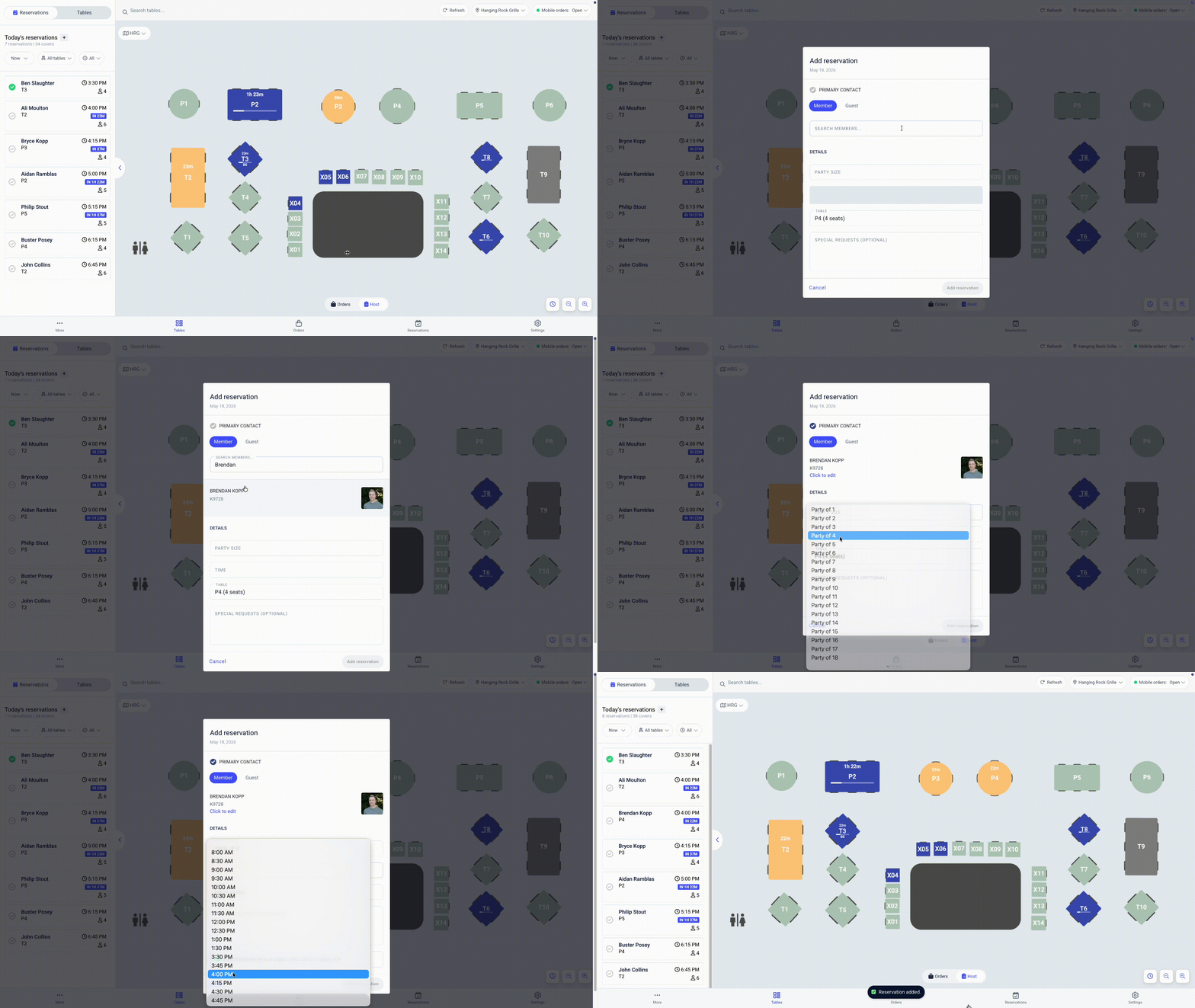
If your restaurant also takes reservations over the phone, the host can create new reservations quickly without leaving host mode. There are two ways to do so: If you click on a table in the floor plan, then click Add reservation, you'll be prompted to choose a member, party size, time of reservation, and any special requests.
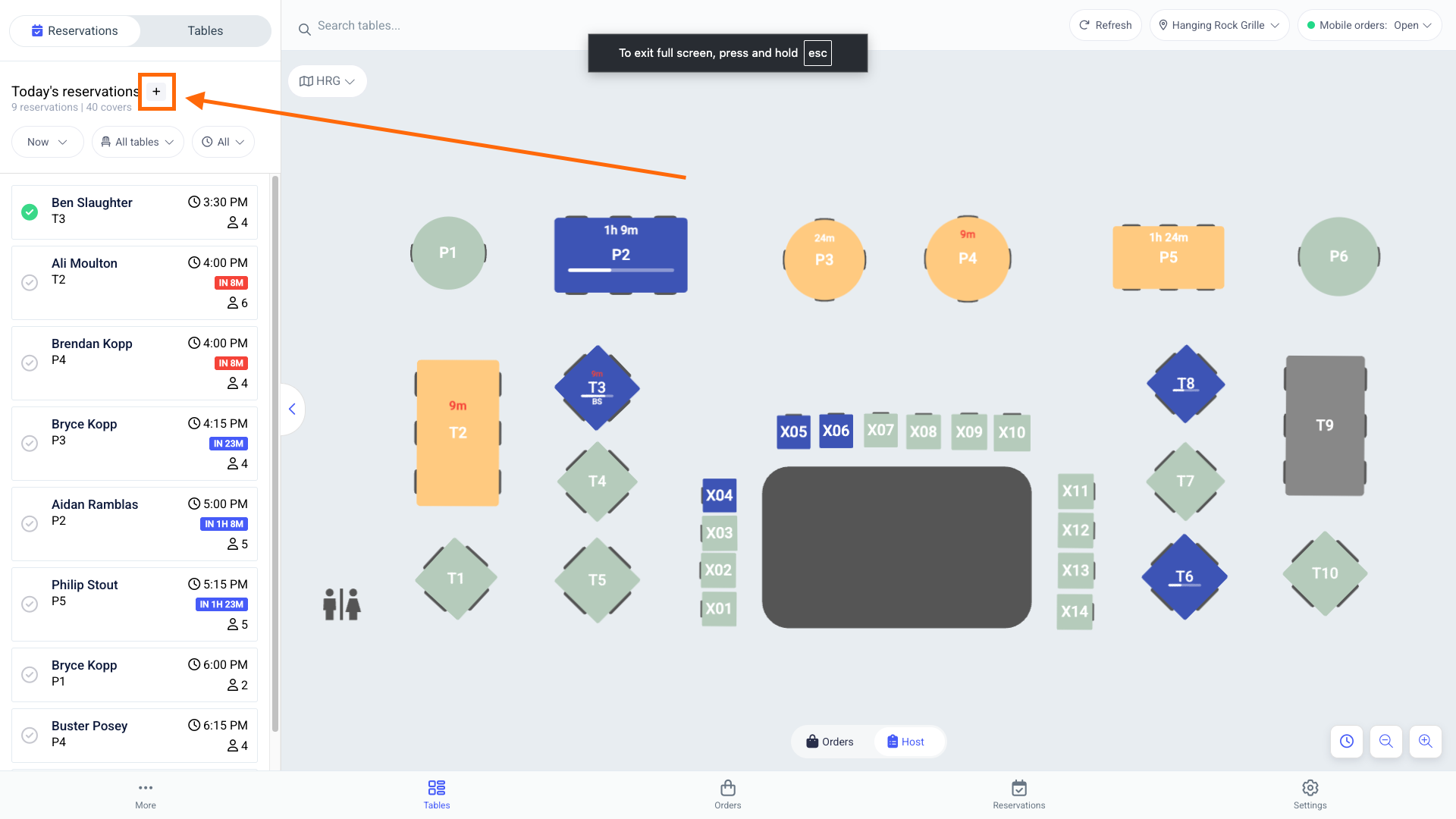
Alternatively, you can create a new reservation by clicking the “+” icon at the top of the left sidebar.
Upcoming Reservation Map
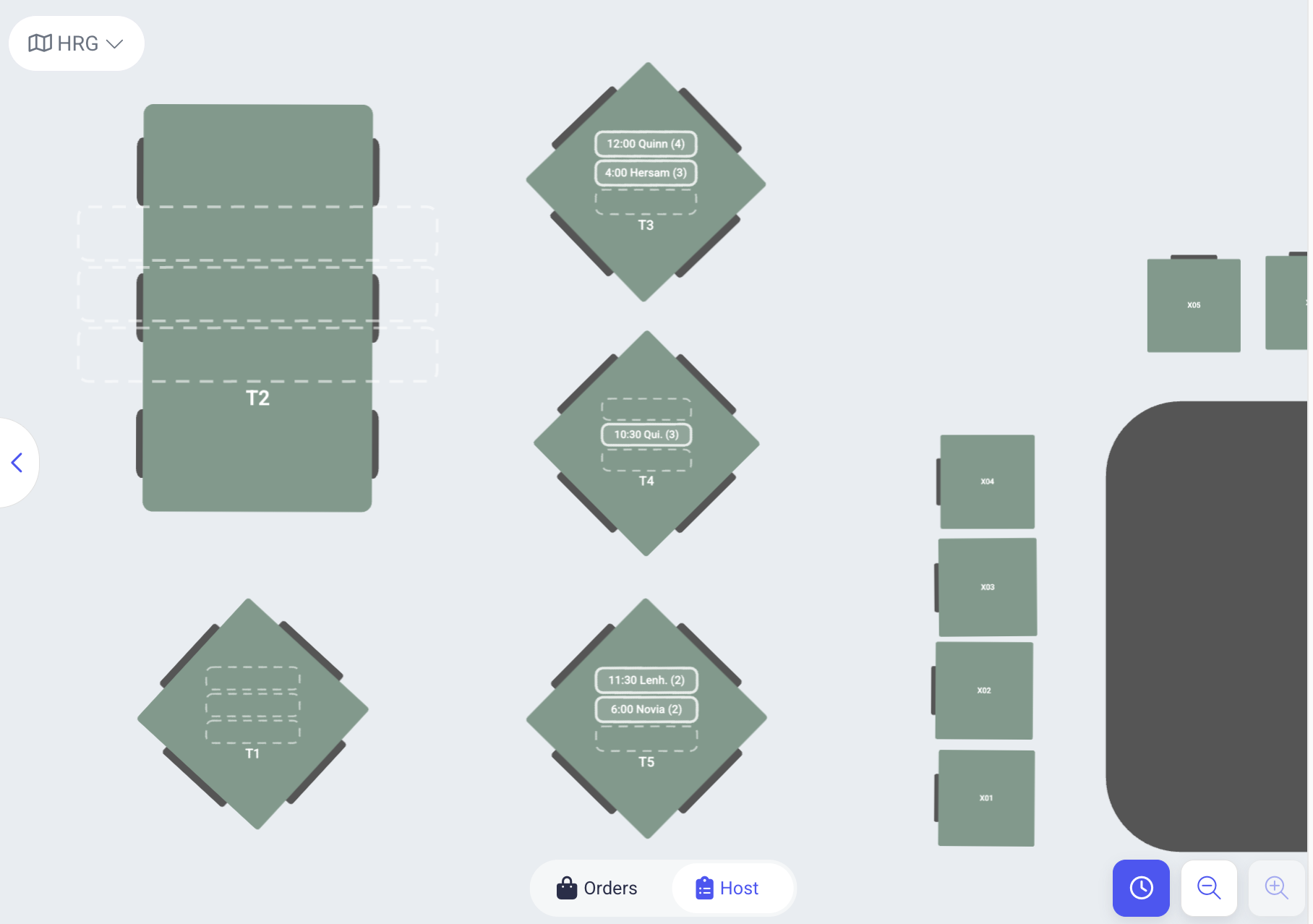
While upcoming reservations can always be found on the left reservation panel, host mode also offers a tool to see those reservations overlaid on the table map. Select the clock icon in the lower right corner of the host mode view in order to visualize the first three reservations at each table on a given day.