Dining Reservations
Use Clubspot to accept dining reservations from members (and guests). Clubspot Dining works much like popular dining reservation systems, but is tied directly to your membership database and the Clubspot Point of Sale.
Dining Setup & Configuration
Table Setup
The options that appear on the booking page are dictated by a combination of Tables, Zones, Areas, and Shifts.
Tables
Tables represent the actual seating options throughout the club. Each table has a specific number of seats and can be assigned to a single Zone and Area. Create new tables from the Dining > Tables page.
Zones
Zones represent specific sections that can include any number of tables. Zones are for internal purposes only (they are not visible to members making reservations). Zones are handy for two important use cases:
Zones dictate which tables you see for any given Point of Sale location. For instance, if you have a Point of Sale location for the Main Dining Room, you would create Zones for the Main Dining Room and link the relevant tables to those Zones. Launching the Point of Sale app for the Main Dining Room would then show you those relevant tables only, excluding tables from other Zones (eg, the Bar).
Zones allow you to turn dining reservations OFF for a specific set of tables (eg, during a private event)
Areas
Areas represent specific seating areas that members can see and choose from when making a Dining reservation. Common seating areas include:
Different locations (eg, Main Dining Room vs. Poolside Grill)
Different seating areas within a single location (eg, Main Dining Room - Indoor vs. Main Dining Room - Patio)
Shifts
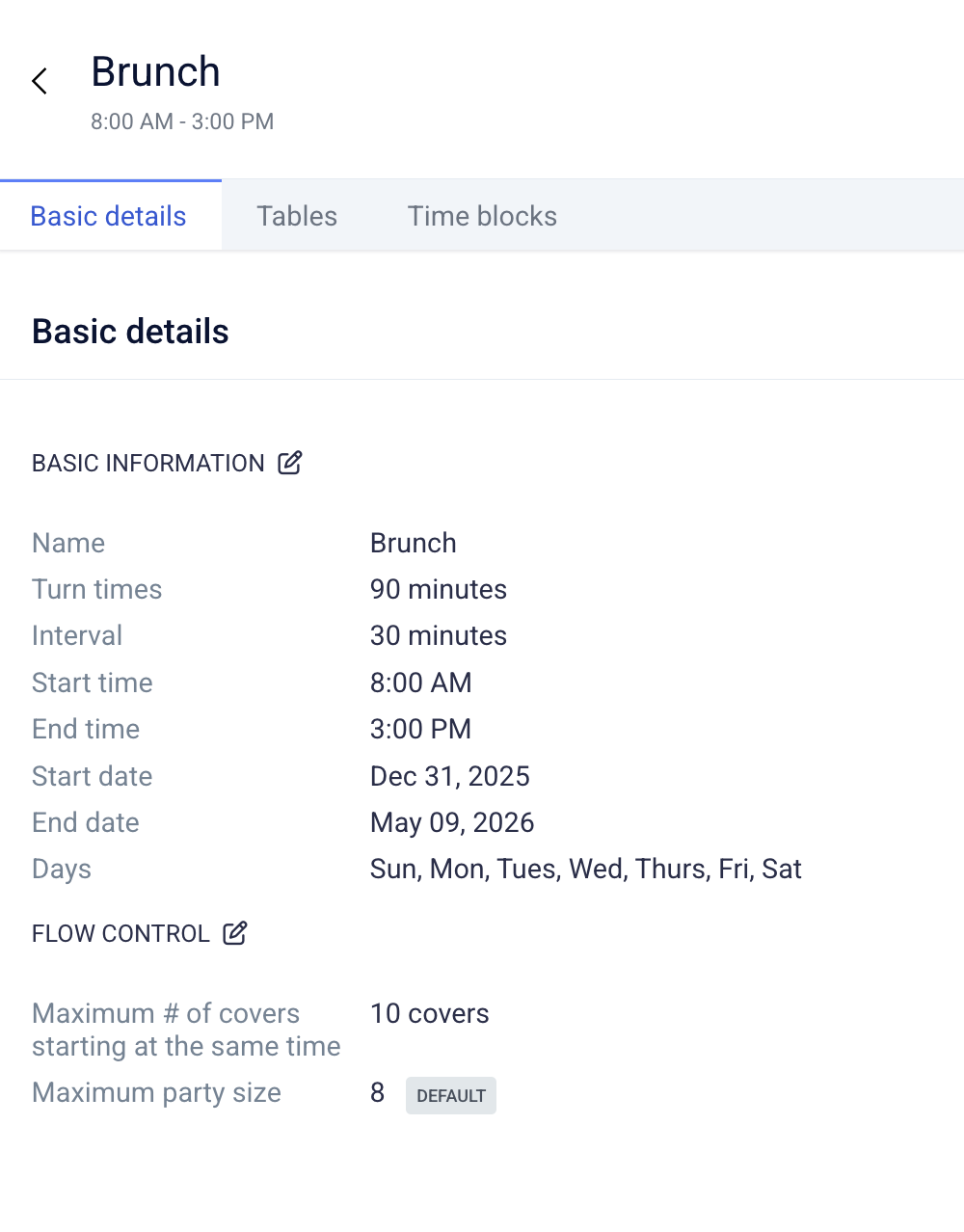
Shifts dictate which tables are available and when. They also serve as flow control to optionally set different turn times for different days of the week or times of the day.
Click + on the shift page to add a new window of availability. Set the shift name and timeframe. Once created, you can assign seating for the shift. You can add any number of tables to the shift, which in turn dictates the options members will see when making a reservation. Please note that the tables must be created before adding them to a shift.
Once your dining shift has been created, you can control when it is available. Please note that the ‘end time’ is going to represent the time the dining area is completely closed, not the last seating. This means that if you have a 90-minute turn time and you want to indicate your last seating at 9 pm, the end of your shift needs to be set to 10:30 pm to allow those diners a 90-minute seating.
If you need a dining buffer, please reach out to support@theclubspot.com, and we can apply one for you. This would give you the ability to enforce a booking restriction on the next available dining time within a certain number of minutes. Ex. You can’t book for 5 pm at 4:55 pm.
Limiting Reservations
Time Blocks
To prevent reservations from being placed at your restaurant, you can use our Time Block feature. This allows you to selectively close any of your dining areas or zones to member bookings. Time blocks are configured in a separate section of your dashboard under Dining > Time Blocks. Here, you can apply a block for any dining area for any amount of time — you do not need to block off an entire shift. The name of the time block will be internal, but the description block can be used to give members an explanation of why the time is blocked off.
If you're applying a time block to close the dining area for a private event, you may still want to indicate the number of covers you are expecting. Time blocks can be associated with a POS location to accommodate a cover-count and appear on the host mode reservation page for that day.
Flow Control
Flow control dictates the maximum number of people who can start their reservation at the same time. This limiting factor is helpful to avoid overwhelming the kitchen staff. The flow control is configured for each individual shift for maximum flexibility. To add or update the maximum # of covers that can start dining at the same time, visit Dining > Shifts > [click the shift to modify] > edit > then input your new flow rate.
As an admin, you can exceed the flow control when making new reservations, but we'll display a warning message to let you know that you're doing so.
Manage Reservations
From the admin dashboard
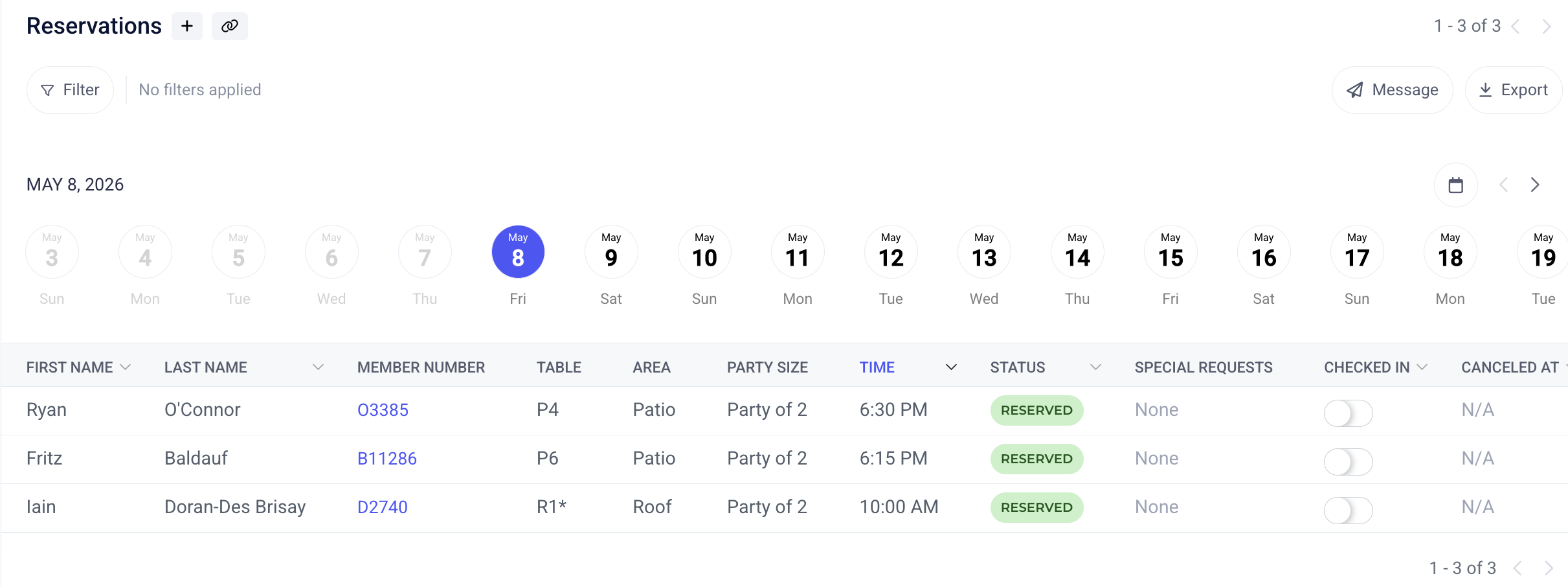
The Reservations view in the Clubspot Dashboard shows all dining reservations at the club over the time period you have selected. You can click into any reservation to view/edit details, check the member in, or cancel the reservation. Use the Date Range tool to refine upcoming reservations. You can also search and sort the reservations list.
To make a reservation as an administrator, simply click the + button. This will launch the RSVP form for you to complete the reservation on behalf of a member or guest.
From the POS
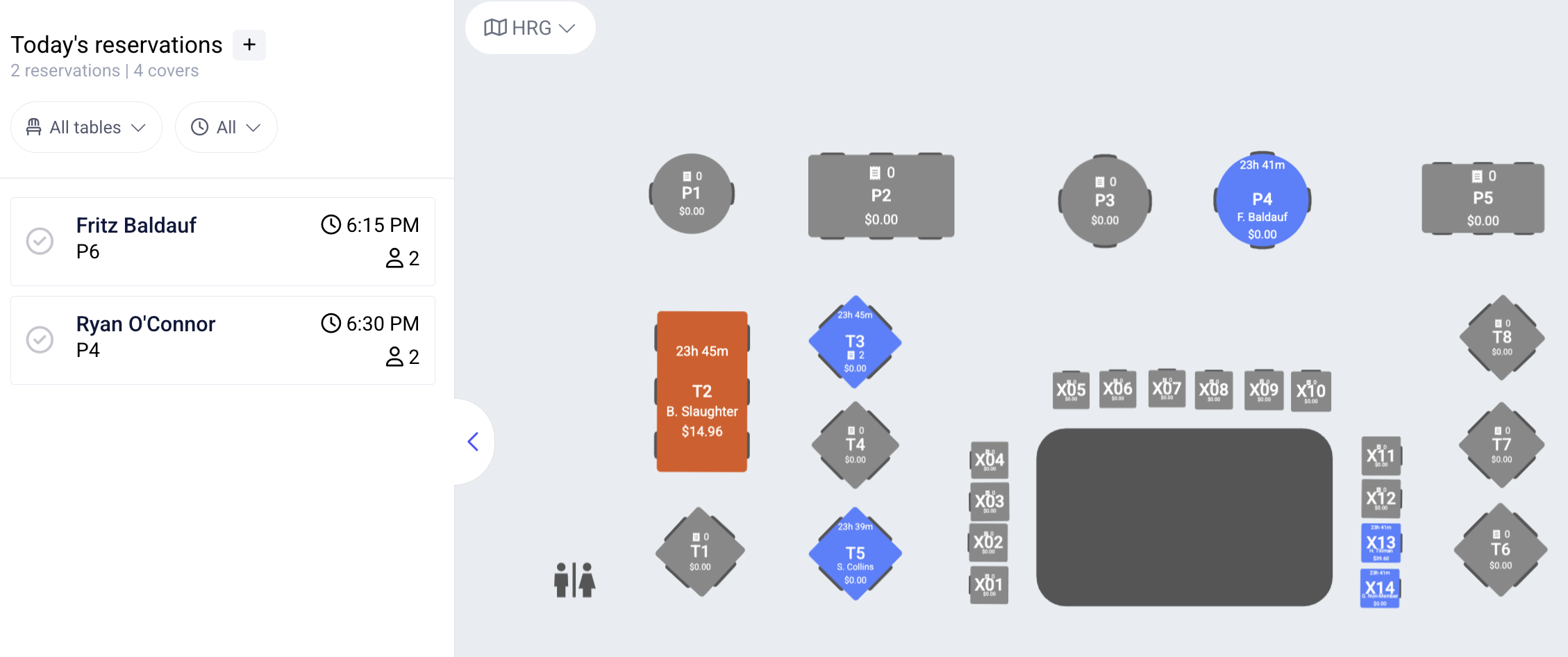
Our host mode reservation page will make it easy for restaurant hosts/hostesses to create and track daily reservations.