
Packages
Packages operate similarly to gift cards, but instead of drawing down a currency, they draw down a fixed number of units. This guide will help you set up a package.
Create a Package Product
Reach out to Support@theclubspot.com to ask us to enable prepaid packages for your club!
Navigate to Products > Products”+ new product” in the right corner
Enter the name of the item, the price, and select the type (Package) and subtype (use one of your own subtypes, or create a new one for this type of product). Entering the appropriate type and subtype is important to ensure that your new item picks up the appropriate tax, accounting, and behavioral rules.
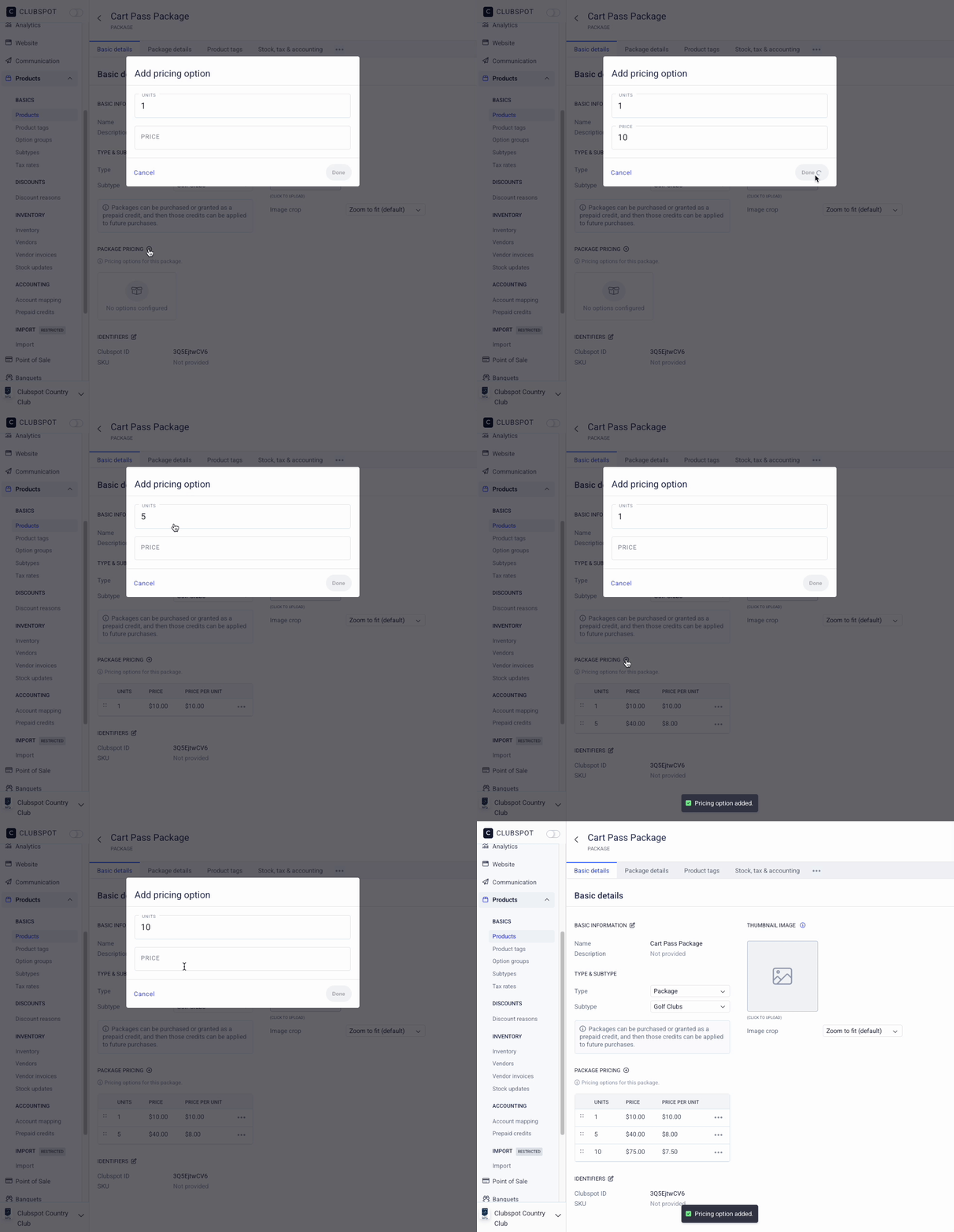
On the basic details of the new package product, you’ll see a table for “Package Pricing”. This is where you’ll configure the various price points you’d like to sell this package for, and the units in each package. These price points and unit counts will appear as options when you sell this item at the POS.
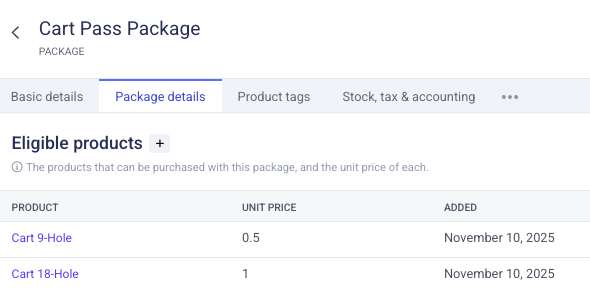
Click on Package details and click the + Eligible products button to choose which products in your existing product library can be redeemed with a unit of this package. A common example is a 9-hole greens fee and an 18-hole greens fee. Both of these two items can be ‘bought’ with ‘package credits’, but at two different values. In this example, we have a 9-hole cart rental and an 18-hole cart rental with a unit of .5 and 1. That way, when you sell a 5-unit package, the customer can redeem 10 9-hole cart rentals, 5 18-hole cart rentals, or a combination of the two.
Choose a product tag. The product tag you select for this package will determine where on the POS it is available for selection.
Configure the Accounting Rules for the package. Package accounting can be complex, so this may require a chat with your bookkeeper, and Clubspot Support would be happy to set up a call to review.
Accounting
Sales Account and Liability Account = These should be set to the same liability GL. When you sell a package, we credit this liability account to represent the outstanding packages that the club is obligated to honor when redeemed.
Expired Credits = If the customer does not redeem their package units before they expire, the credits become income instead of a liability. The GL indicated here is where we’ll record that income from an expired credit.
Liability Variance = This account tracks the difference between the package’s prepaid value and the full retail price of the item redeemed. For example, if a product usually costs $15 but your package pricing is offering it at a $10 unit cost, the $5 discount you’re creating by selling the fee at a discounted rate will be debited from the liability variance account.
Issuing a Package
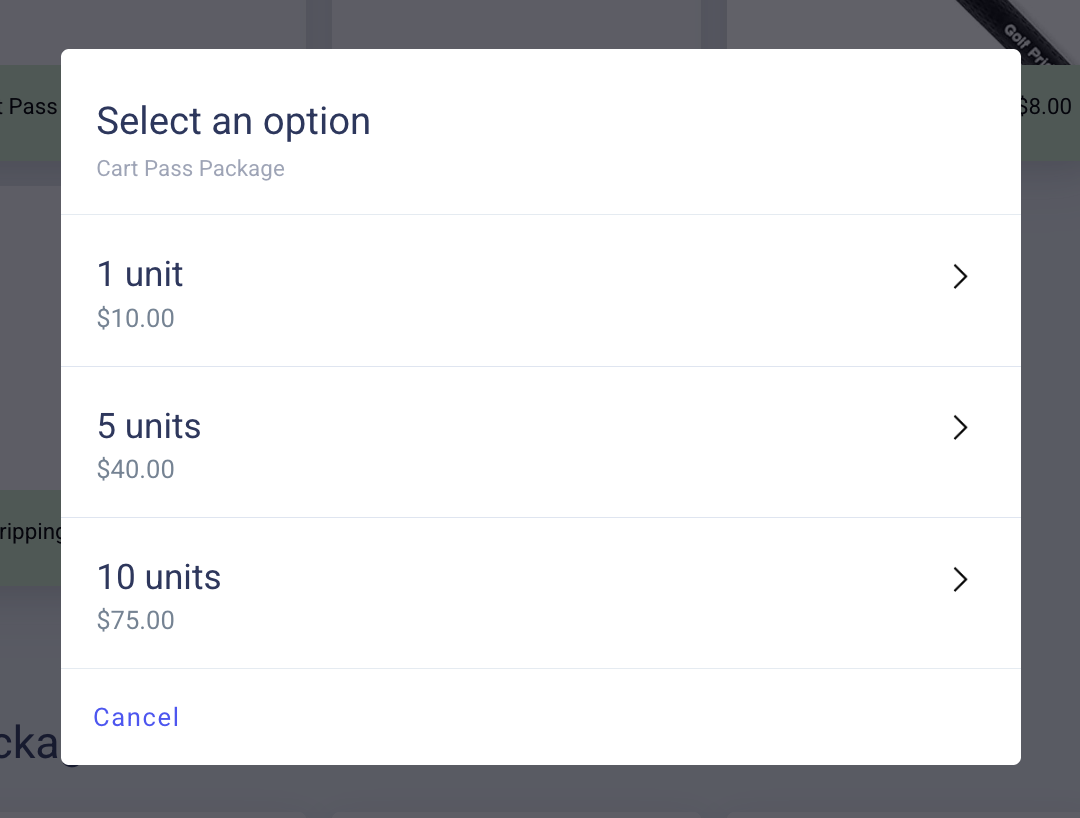
The package can be sold at the POS to any customer. The customer on the order will always be the member that these package units are associated with for redemption. If the customer is a guest, you can type in their email so that they’re sent a redemption code. Alternatively, the admin can see the redemption code from the Products > Prepaid Credits dashboard.
Offering the package via an Online Shop is an easy way for members to buy their own packages!
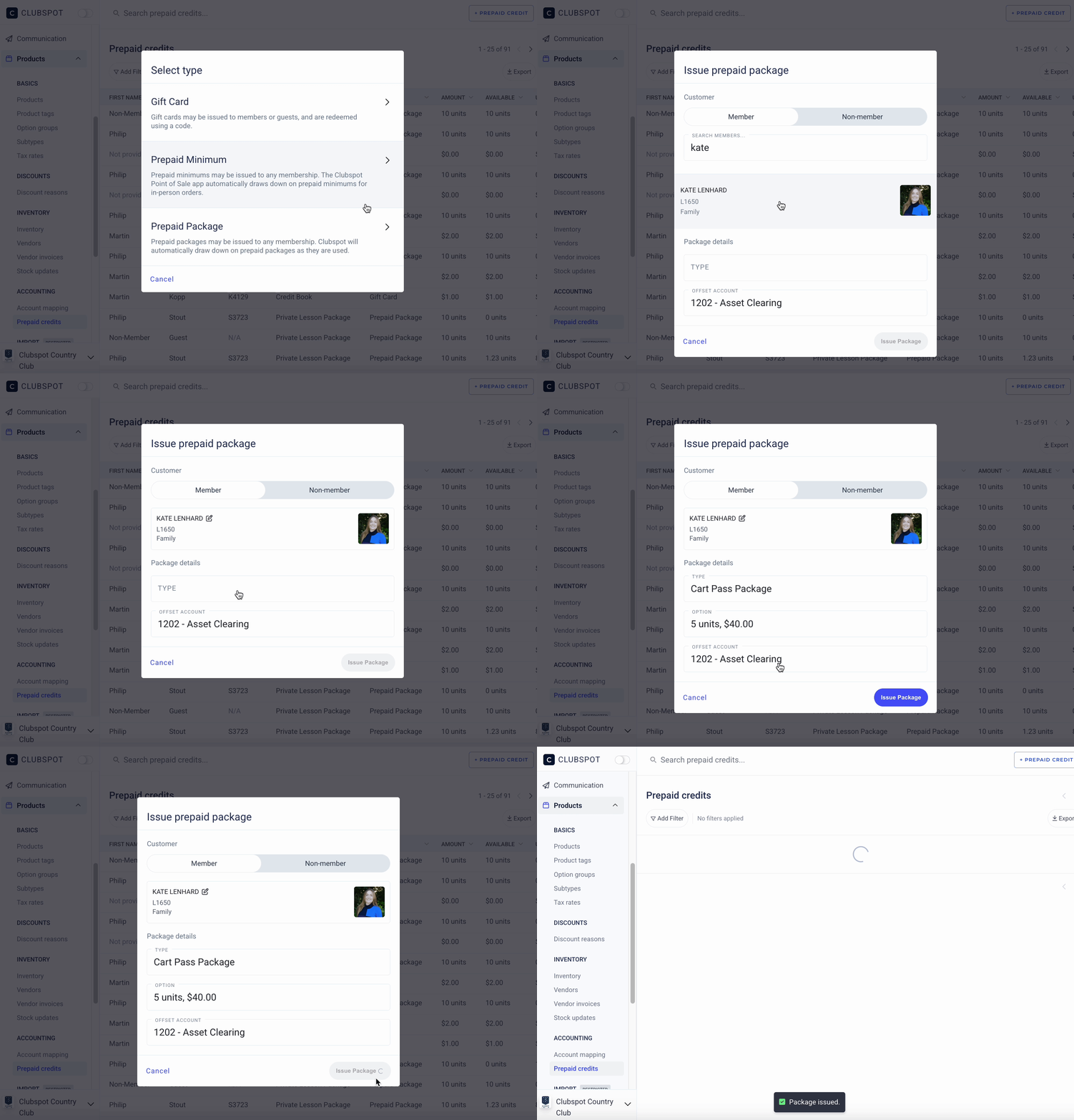
If you choose to issue a package for ‘free’ as opposed to selling it to a member, you’ll do so through the admin dashboard. Navigate to Products > Prepaid credits > and + Prepaid credit > where the type is Prepaid package. You’ll be prompted to choose the recipient and the package size. Because the package is being issued for free, you’ll also need to choose the appropriate offset account.
Redeeming a sale via Package on the POS or Tee Sheet
On the tee sheet, you’ll see a draft invoice created for any golfer who owes for their greens fees or transportation method. If one of those items is an eligible product of a package purchased by a golfer, you can use their package units to redeem that item:
The same is true for the POS with any non-golf products!