
Inventory Tracking
Inventory tracking helps your club monitor stock levels, manage product usage, and reduce shortages across your operation. This article explains how inventory tracking works in Clubspot and how to manage your inventory effectively.
Configure Stock Tracking
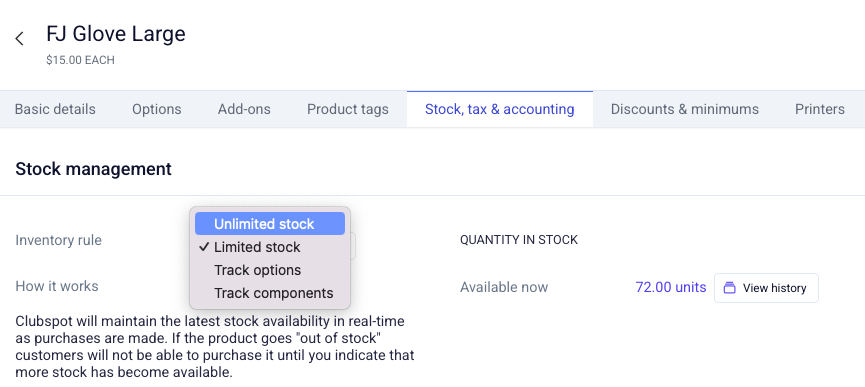
Start by selecting the product in the Products section and clicking on Stock, Tax, and Accounting. Here, choose from the dropdown to set the inventory rule for that item:
Limited Stock - Select this if the product in question is the base stock unit. A good example may be a bottle of beer.
Track Options - Generally used for merchandise or apparel, this lets you track the stock at the option level.
Track Components - Select this if the product itself has multiple component products, which are the limiting factor for its availability. You will then need to enter the component products below it, as well as how many units of that limiting product are used. As an example, you could use this feature to track the bottle behind a glass of wine sold. The glass product would be set to track components, and its components would be 0.2 of the wine bottle (set to limited stock). You can enter the unit of measurement of any limited stock product to the preferred value.
Product History
Under the Stock Tax and Accounting tab of any product that has limited stock, we show the history of the stock as it has increased and decreased. To open the overlay, click the ‘view history’ button next to the stock quantity.
Enter Inventory
When an item is set to limited stock and has no inventory (or its component products have no inventory), it will be unavailable for sale via the POS or mobile ordering. To set the stock and make these items available, you will need to enter new inventory received as well and/or adjust the quantity on hand after performing a physical inventory count.
The best place to enter inventory is from Products > Inventory dashboard.
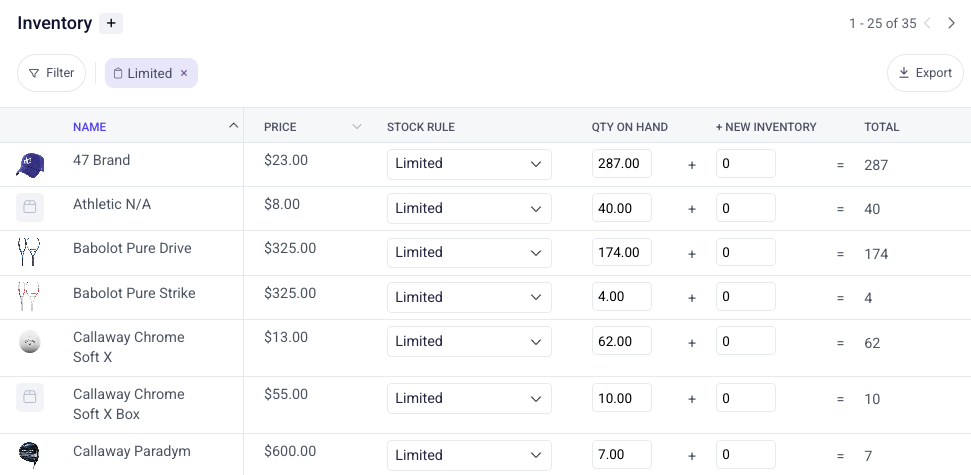
The dashboard will show you all of the items in the system that are limited stock and will also allow you to filter by subtype or tag. (Component products might not have a tag since they likely will not show up in the POS as standalone items for sale. These products can, however, have a subtype which can be helpful in filtering!)
New inventory, as well as adjusted inventory on hand, can be entered, and new prices can be blended in this dashboard.
If you’d prefer to upload inventory updated via CSV, you can click the + button to find a template that allows you to enter the new total count of stock for both products and product options that are being tracked.
Make sure when entering newly received orders, to update the + New Inventory column, and when adjusting the inventory on hand, to use the Qty On Hand column, as there are accounting differences in the case that you are also tracking inventory cost in Clubspot!
Vendor Invoices
Vendor invoices can also be used to record new inventory, and more details can be found here.
Product Countdown
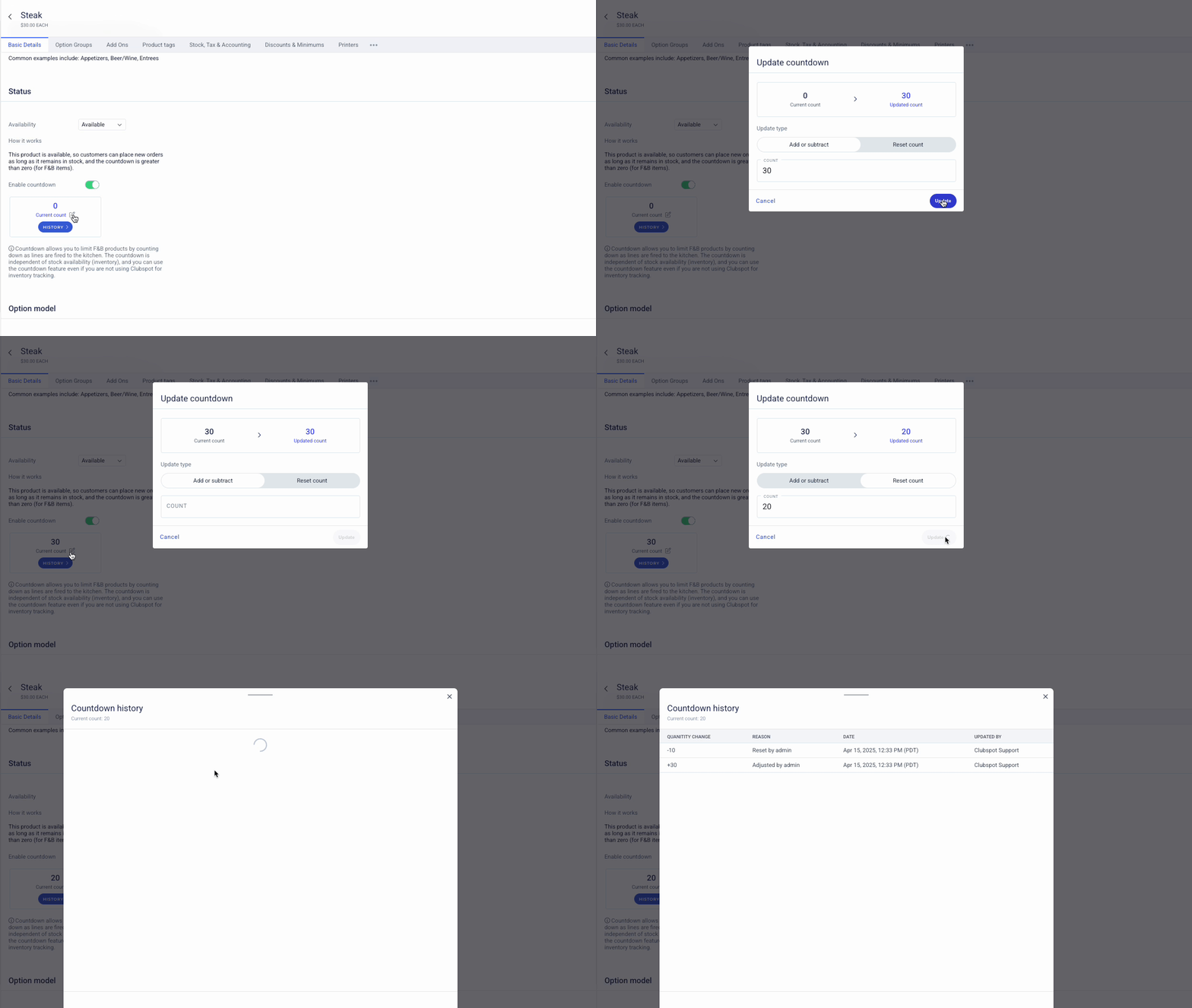
While we advise against using stock tracking for F&B products, it is common to have a limited number of items on your menu. Our “countdown” feature allows you to count down F&B items as they are fired to the kitchen. This feature operates independently of inventory tracking and can be configured for any F&B item. The countdown number can be incrementally increased/decreased, or reset entirely. The History option will allow you to view the trail of changes for this item.
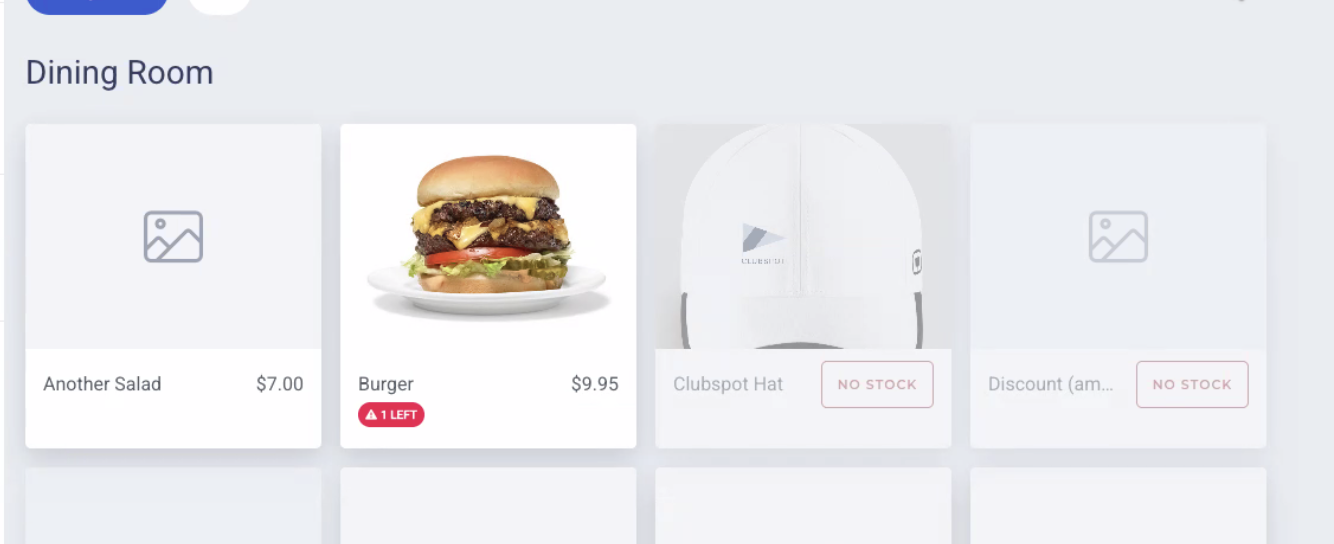
The POS calls out limited stock (under 25 remaining) for products that are using inventory or the countdown feature. If you’re using both inventory tracking and countdown, we’ll display the lower of the two numbers. As soon as an item is fired to the kitchen, the countdown quantity will decrease.
Accounting
When sales take place, Clubspot will automatically reduce the stock of an item or items, and if there is an inventory cost set, we will create a journal entry between the Inventory Asset account and the Cost of Goods Sold account for that product. The same holds true for adjustments of inventory on hand. If, for example, the actual pour for a glass of wine turned out to be slightly heavier than the estimated via track components, you may have to adjust the actual quantity on hand. When you do so (for example, indicating that there is one bottle on hand instead of two), we will create a journal entry as we would for the sale of a full bottle.
The inventory cost for any item determines the value of that journal entry so it is important to keep an accurate cost setup for each item in the system. In the case that you have new inventory added into the system that has a different price, you are able to blend that cost when entering it. If no blend is selected, Clubspot will continue using the same per-item price. Inventory entered into the + New Inventory section will not create a journal entry in Clubspot, as this entry should have been recorded when the product order and invoice were recorded in the system used for accounts payable (usually QuickBooks). If you do not want Clubspot to create these entries, simply make sure that the inventory cost for your items is set to zero.