Mobile Ordering
Clubspot supports an end-to-end mobile ordering experience for members and staff. This includes automatic notifications, mobile order status updates, a seamless ordering experience, and enhanced tools for staff to view and manage mobile orders directly from the Point of Sale.
Enable Mobile Ordering on a POS Location
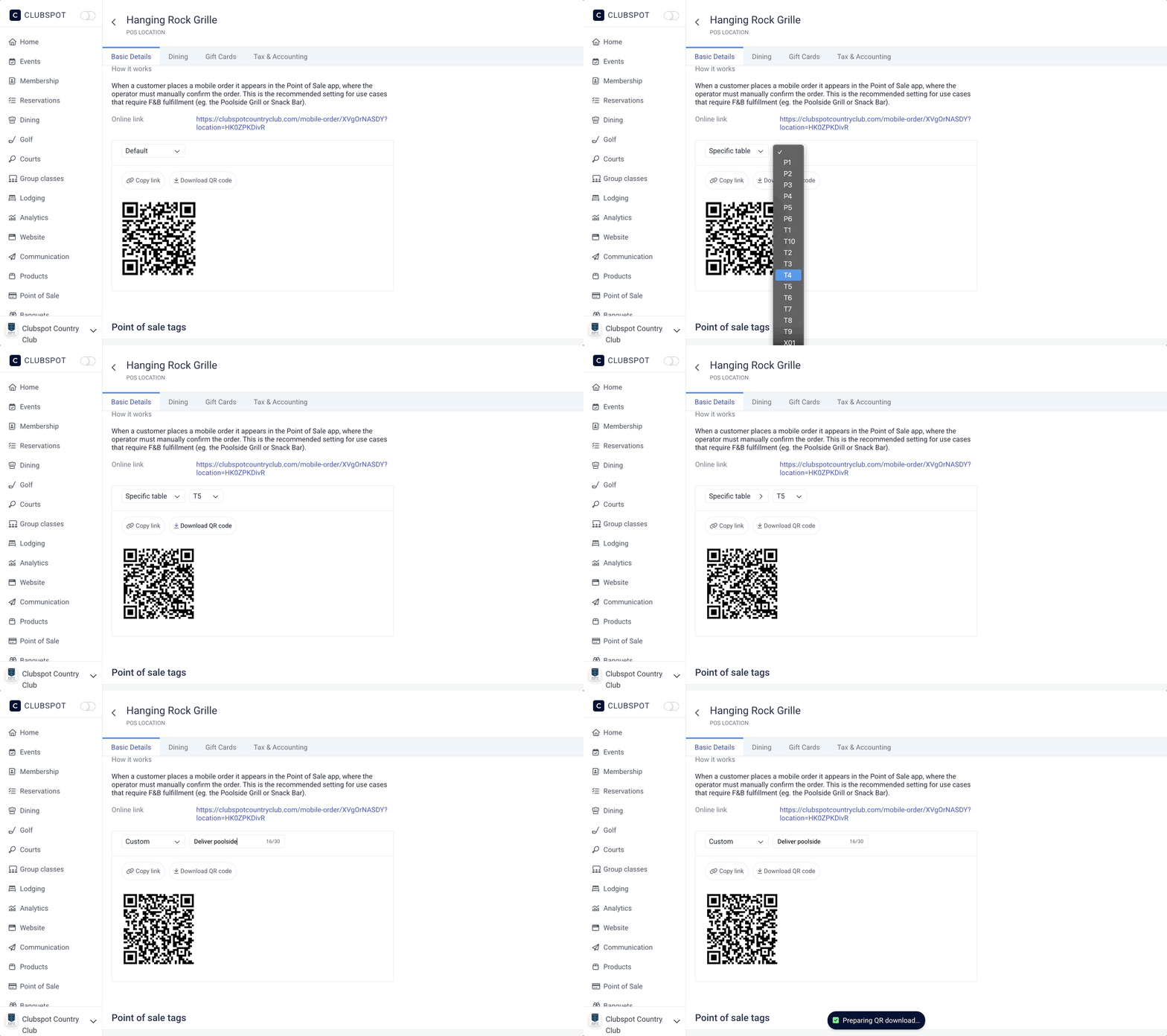
To support the Mobile Ordering feature, go to Point of Sale > Locations > scroll to Mobile Orders
Set the Order Flow to Manual. In this mode, the POS operator must manually accept the order after the customer places a mobile order. This is the recommended setting for use cases that require F&B fulfillment (eg, the Poolside Grill or Snack Bar).
If necessary, set a custom note to appear on the member-facing mobile ordering page. For example, "Please pick up all orders at the window."
Schedule Ordering
If you'd like to restrict mobile ordering to specific hours and days of the week, establish a schedule. This will allow Clubspot to automatically close the POS location to new orders outside of this schedule.

If you do not set a schedule, mobile orders will be available for submission at any time.
Pause Ordering
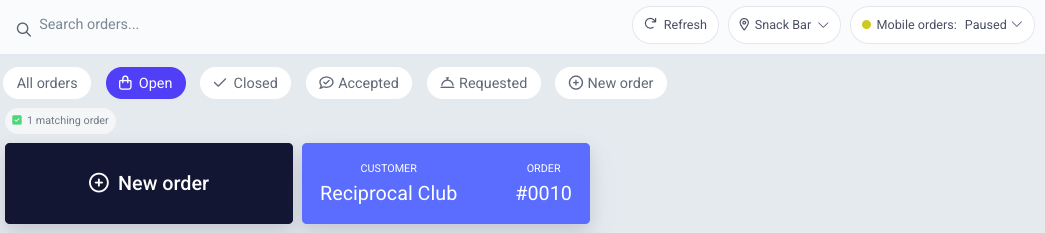
If you need to spontaneously stop ordering, the POS interface has a pause mobile ordering button that you can use to institute flow control:
Operator Experience:
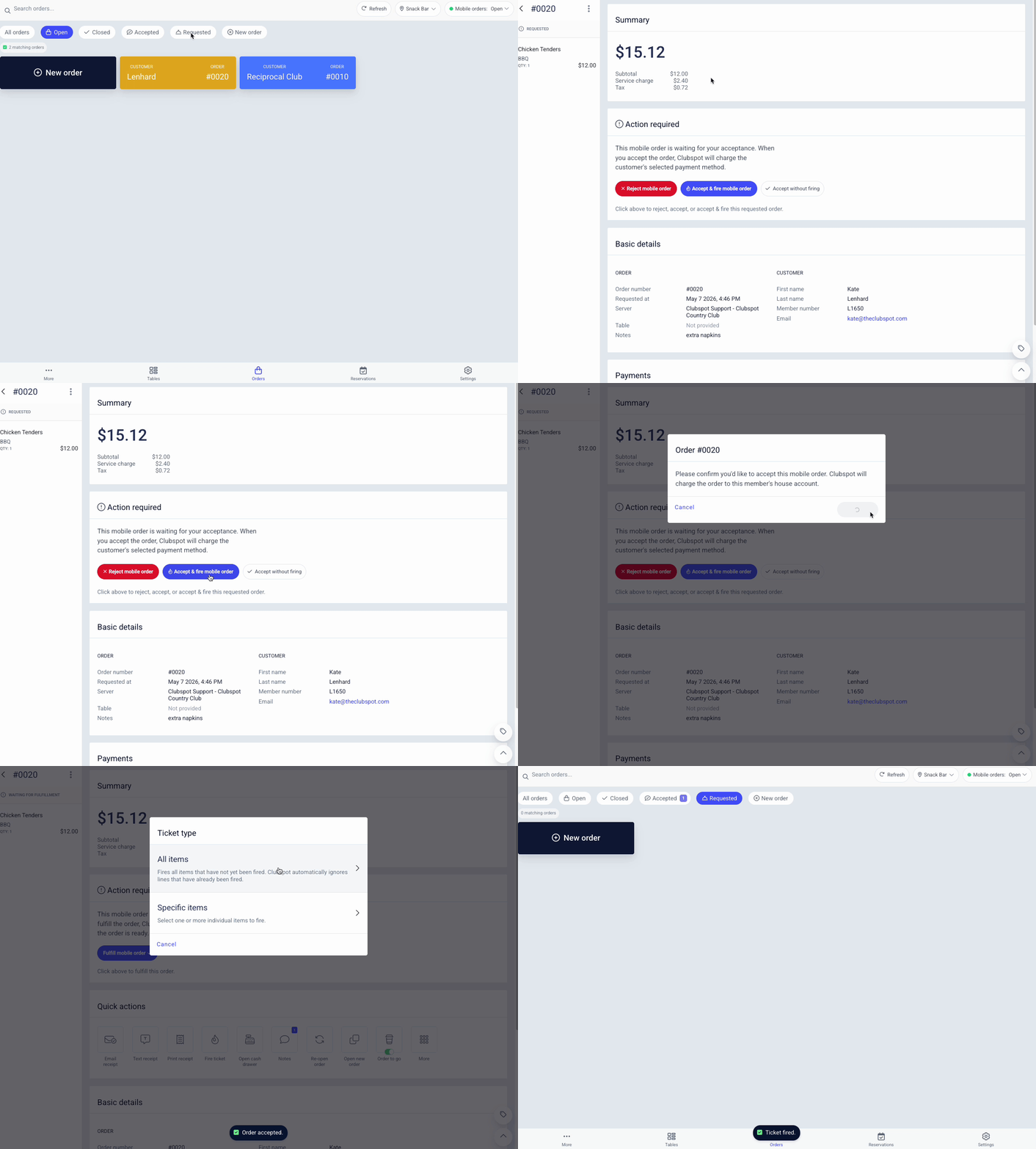
Once a mobile order is placed, the order will show on the POS as a yellow 'requested' ticket. Staff can accept or reject mobile orders in real-time from the POS Location. Accepting an order is equivalent to closing a tab. The order will then move to the accepted Orders tab.
Once the Order is ready, click fulfill mobile order. You'll have the option to notify the customer that it is ready.
Reject an Order
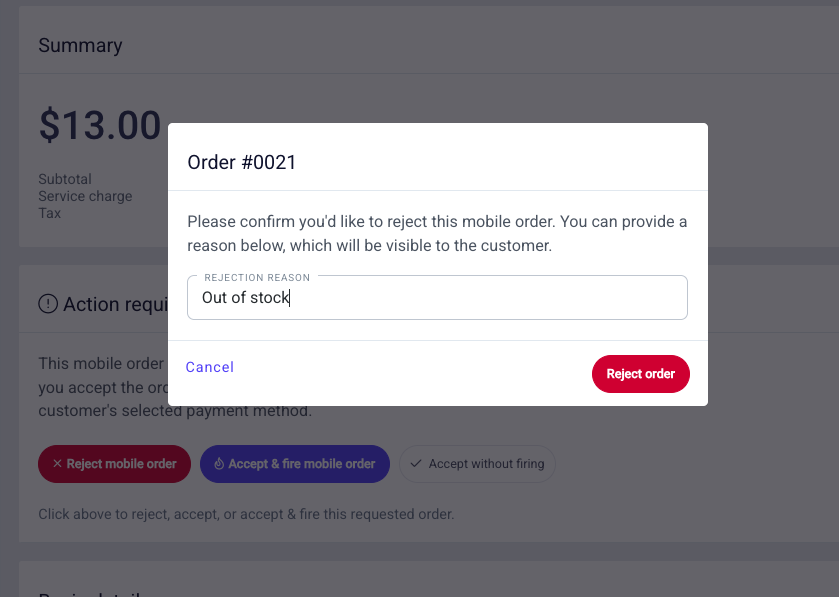
If you need to reject a mobile order, click on the “reject mobile order” button. You’ll be prompted to enter a reason for the rejection, such as “out of stock” or “kitchen closed”, etc. Please be aware that this reason will be shared with the customer who placed the order.
Member Experience:
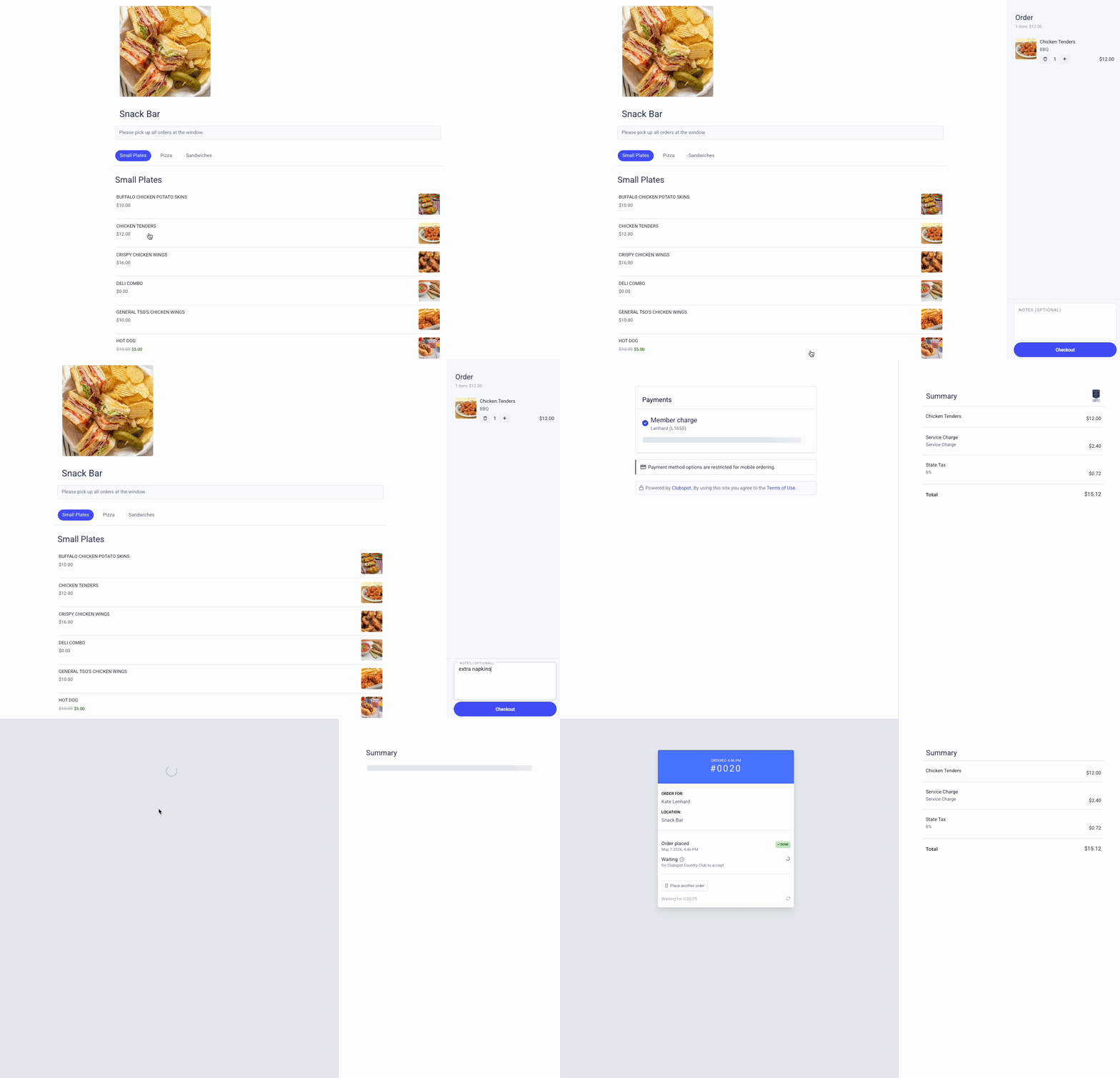
The POS location has a unique mobile-ordering link that can be shared on the club app, website, or in direct communications. Once on the page, they'll be able to click to add any items to their order (including any modifiers and notes!)
In manual flow, all orders must be paid via house accounts, so this will be the only acceptable payment method at checkout.
Notifications
Clubspot will automatically notify the customer of status updates via push notification, text, and email. The screenshot below shows the member's experience of receiving a push and text message when their order is ready to pick up.
Mobile ordering also supports email, text, and push notifications for the “order submitted.”
The members can always track the status of their mobile order to see if it is 'waiting', 'accepted', or 'ready for pickup.'
QR Code
The location page’s mobile ordering section automatically generates a link or QR code. You have the option to generate more specific QR codes that are associated with a specific table or custom note. This gives you the ability to print a QR code specific to “Table 7”, “Hole 9”, or “Beach cabana 10”. When an order is placed using this specific QR code, the table/note will be assigned to the POS order, giving you the ability to deliver the order to a specific location.