
Member Billing Overview
This guide explains how to understand membership balances, view (and issue) invoices, manage upcoming charges scheduled for a member’s next invoice, set up auto-pay, and more. To get started, click on the membership you want to manage, and then click the Billing tab.
Invoices & Statements
Invoicing basics
Invoices are a way to group individual line items that members purchase at the club into discrete billing runs. For instance, Bar and Restaurant charges, plus purchases from the Pro Shop during the month of February may be grouped together on the March 1 invoice, alongside dues.
It is possible to have multiple unpaid invoices at any point in time. In this case, the total balance due will incorporate all of these invoices (minus any credits on the account).
Whenever an invoice is finalized, Clubspot automatically emails the invoice to the billing email on file. These emails are sent automatically, regardless of the member’s paperless preferences.
Statements
Statements provide the current balance on an account and show the history of credits and debits leading to that balance. Note that the Make a Payment button can be accessed from both the statement and the invoice and will always prompt the member to pay their full, current balance.
Invoice & Statement Timing
Dues schedule
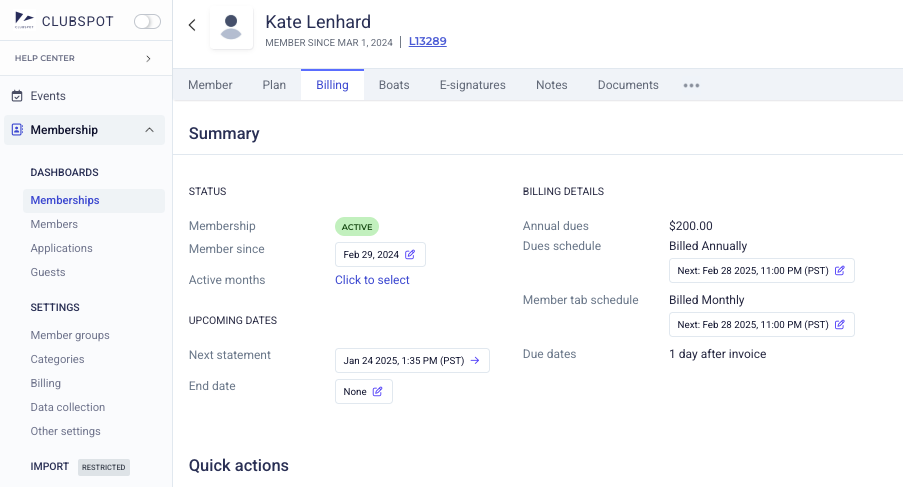
The membership dues schedule for any membership can be found under the Billing tab. The dues schedule will indicate the next invoice date for dues to be billed. Any membership add-ons and facilities that are under a membership’s plan will also be billed on this schedule.
Tab schedule
The membership tab schedule will indicate the next invoice date for any other charges to be billed. Commonly these will be F&B charges, event signups, or any other item that is added to a member’s tab. Invoices are only issued if there are new charges to bill for. If a member has a monthly tab schedule and has not added anything to their tab in the prior month, they will not receive an invoice or an email for that invoice.
If a tab invoice is scheduled within 24 hours of a dues invoice the two will be combined and will be sent out at the time of the dues invoice. This ensures that members do not get separate invoices in the same day.
Statements
The invoice and dues schedule determines when charges post and impact a member’s balance. Clubs however can elect to notify their members via a statement rather than the direct invoice. This allows you to post multiple invoices to members over a month and only email them a single statement summarizing all of them. Statements serve as a reminder for payment in that case that there are no new charges to bill for but a member has a balance on their account that needs to be paid to the club. Statements are sent on a membership’s statement schedule but are only sent to members with either new charges in the prior month or that continue to have a balance from prior months.
If you are currently emailing invoices to members and would like to switch to emailed statements, please reach out to support@theclubspot.com and we will be happy to switch you over!
Billing settings
Autopay
Enabling autopay is a simple, 2 step process:
Add a payment method on file (eg. card, or bank account).
Turn autopay on.
Members can do this easily from the Billing tab in their account. As a club administrator, you can also add payment methods and manage autopay settings on a member’s behalf.
By default, autopay will charge the payment method on file the moment a new invoice is generated. For instance, if invoices are scheduled for the 1st of the month at 9 AM then the payment will likewise be executed on the 1st at 9AM.
Delayed autopay
Clubspot also supports delayed autopay, which means the system will wait a preset number of days after the invoice is issued prior to charging the payment method on file. For example, you might want invoices to go out on the 1st of the month, but want to wait until the 25th to charge members who have autopay enabled. If you would like to enable delayed autopay for your club, please contact support@theclubspot.com.
Paperless preference
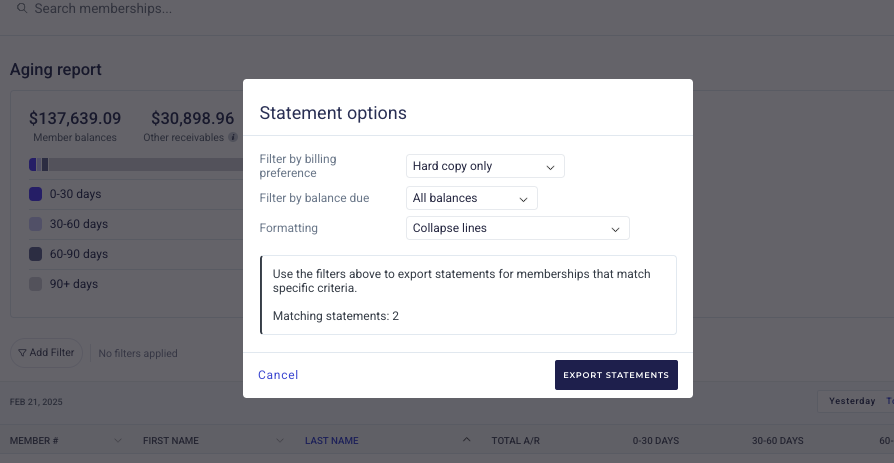
Both club administrators and members have the ability to toggle Paperless on or off. The paperless preference in Clubspot is simply a flag indicating whether or not the member would like to receive a hard copy in addition to the standard email invoice. In other words, a membership with Paperless disabled will still receive an email invoice. In addition, any invoices generated for that membership will be flagged with the “hard copy” preference.
The Paperless flag is really useful because you can filter the Aging Report > Print Statement export by Paperless preference, then bulk export only those invoices tied to memberships that want to receive a hard copy.
Billing contact & address
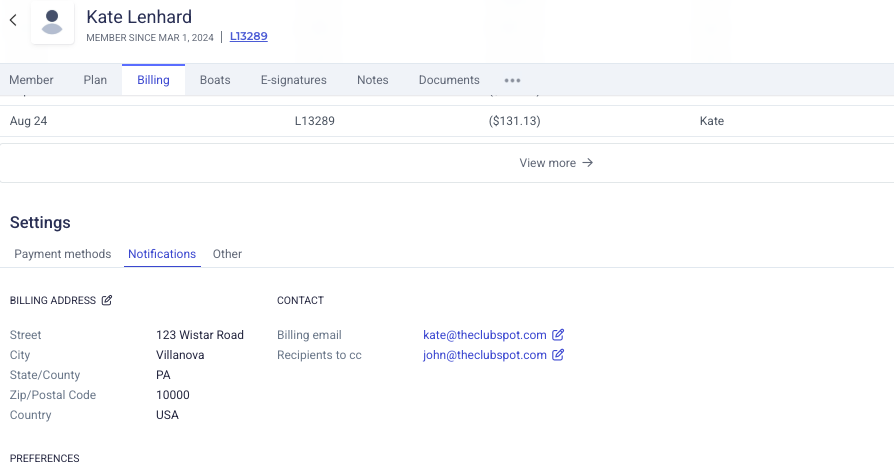
Scroll down almost to the bottom of the “Billing” page, until you see the “Notifications” section. Here, you can click on the blue Billing Email and enter a new email address - this is separate from the email communication list, and can be useful if members prefer bills be sent to their assistant, spouse, etc who maybe are not members of the club. You can also edit a member’s billing address here. This is the address that will appear on Membership invoices for this account.
Membership balance
Overview
The Membership Balance section shows the current amount due on a membership. If the member has prepaid prepaid any dues you will see a net credit in the balance section.
Click on the History of Credits/Debits tab to view a full accounting of all credits and debits to this membership’s balance over time, along with a running balance all the way to today. You will see that payments reduce the balance, while invoices increase the balance.
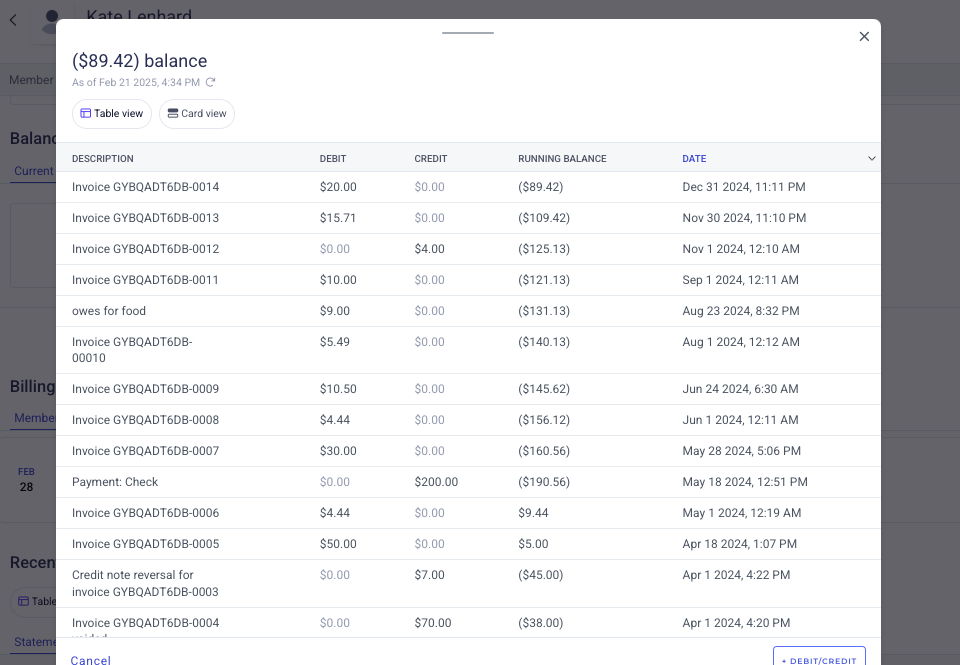
Members have access to the same view from their account.