Accounting with Quickbooks
Clubspot is built to integrate directly and seamlessly with the world’s most popular accounting platforms. We provide an automatic sync connection with Quickbooks Online, and we fully support Quickbooks Desktop via IIF downloads.
Quickbooks Online
Clubspot has a direct (auto-sync) integration with Quickbooks Online, making this our preferred platform for ease of use. Once your Quickbooks Online account is connected and mapped correctly, we can enable an auto-sync so there is no importing or exporting required. Clubspot will automatically push data to Quickbooks to keep your accounts in sync.
Connect Quickbooks
To connect your Quickbooks Online account, navigate to Reporting > Quickbooks, and then click the Enable More Features button.
You will be redirected to Quickbooks, prompted to provide your QBO login credentials, and asked to select the account you would like Clubspot to connect to.
Import your accounts
As soon as you link your Quickbooks Online account, Clubspot will automatically sync your existing chart of accounts into the Clubspot dashboard. Each account in Clubspot is mapped 1:1 with the corresponding account in Quickbooks, making it easy for Clubspot to push data to Quickbooks.
Enable auto-sync
Once you begin making sales, Clubspot will wait until you have accumulated about a week’s worth of transactions before sharing an export of the journal entries within Clubspot for you to review. This ensures that data is only pushed to your Quickbooks account once you have had time to map your products to the correct accounts and verify the journal entries Clubspot creates.
As soon as your account mapping is complete and you are comfortable with the way the journal entries look, it is time to enable auto-sync from Clubspot to QBO. We typically recommend a nightly sync, but we can configure any cadence you prefer.
Please contact support@theclubspot.com when you are ready to enable auto-sync for Quickbooks Online.
Quickbooks Desktop
While Quickbooks Desktop does not support an automatic sync, Clubspot makes this integration easy with specially formatted IIF files that can be uploaded directly into your Quickbooks Desktop account. For this reason, we support many clubs running the Desktop version of Quickbooks.
Import your accounts
Clubspot provides an import to seamlessly load your existing chart of accounts from Quickbooks Desktop into Clubspot. Please contact support@theclubspot.com for the file template, or for assistance with this import - we’re happy to help!
Download IIF files
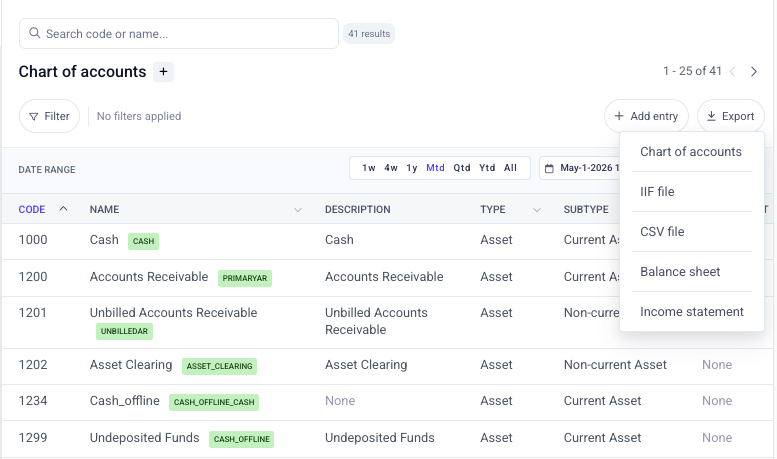
When you are ready to import data into Quickbooks Desktop, navigate to Reporting > Chart of Accounts. Select the date range you would like to export, and then click the Export button. Select the IIF export option, and wait for your file to download. You can now import the IIF file directly into your Quickbooks Desktop account.