Splitting & Merging POS Orders
Splitting checks is a common request, especially for larger parties. Clubspot POS makes it easy for your staff to quickly and accurately divide orders -- or combine them when needed.
Splitting by Item
Open the POS action menu (via the three dots in the upper left corner, or the more tile on the payment screen) and select the split order tile. Next, create a tab for each of the people who will be paying for a portion of the order.
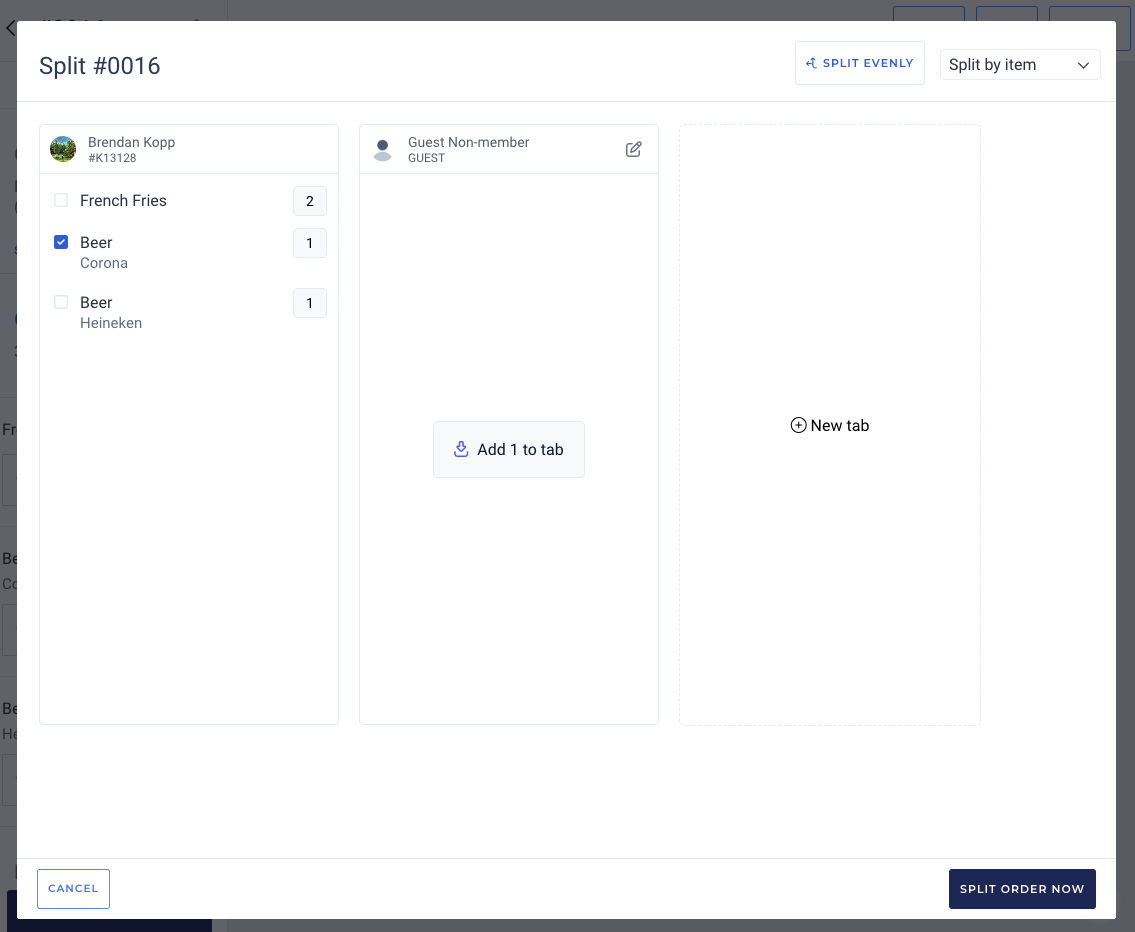
When splitting by item, you have the ability to select any number of items that you would like to separate and, in a single bulk action, move them to a new tab. To do so, check the boxes of all items that you would like to move, then tap on the tab you would like to move those items to. Click the split order now button to divide this order into several sub-orders, which can all be closed out to different customers.
Splitting individual lines
If an item was shared amongst multiple diners, you can split individual lines evenly and assign a fraction of the item to each tab. Start by checking the lines you’d like to split, and then tap “Split Evenly” in the top right. The Point of Sale will ask how many ways you would like to split the line.
For example, you have a single line item for French Fries, with a quantity of 1. You want to split the French Fries line into two lines (each with a quantity of .5). Select the French Fries line, and then tap Split Evenly. When prompted, tell the POS that you would like to split the line 2 ways.
The French Fries line is now replaced by two lines. Select one of them, and then tap on the split you’d like to move the line to.
Split by Amount
Open the POS action menu (via the three dots in the upper left corner, or the more tile on the payment screen) and select the split order tile. Next, create a tab for each of the people who will be paying for a portion of the order.
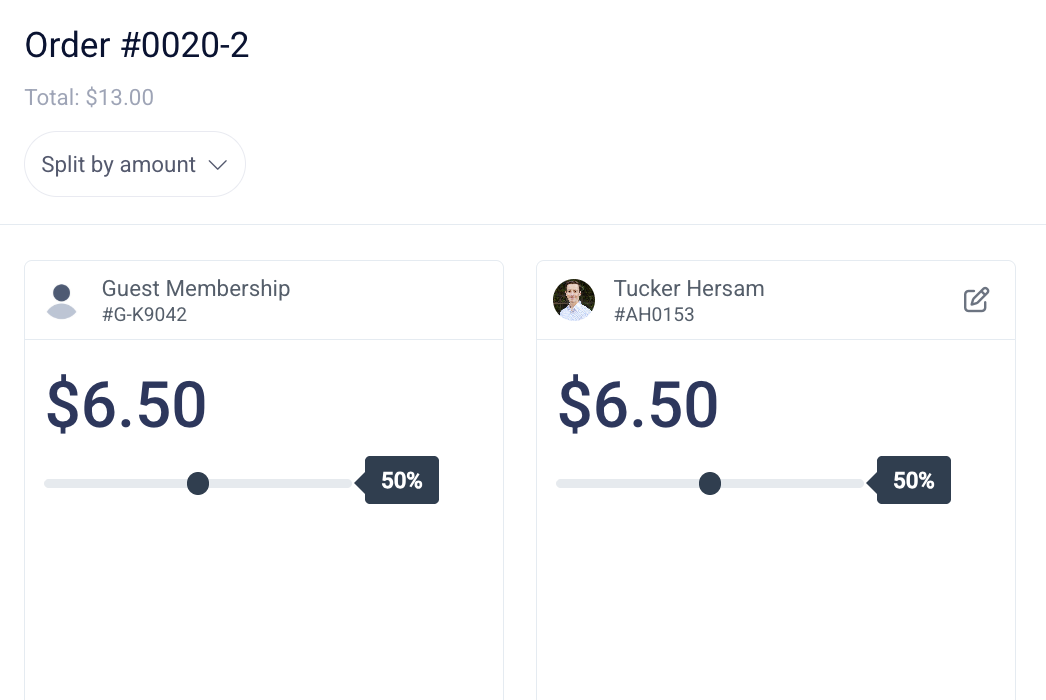
To split an order evenly, as opposed to by item, just select the dropdown in the upper left corner of the page and change it to “Split by amount.” By default, the tab will be divided evenly across the number of sub-orders you've created. You can use the sliding toggle to adjust the proportion of the bill. You can also type over the dollar amount to set a fixed portion.
Printing receipts for sub-orders
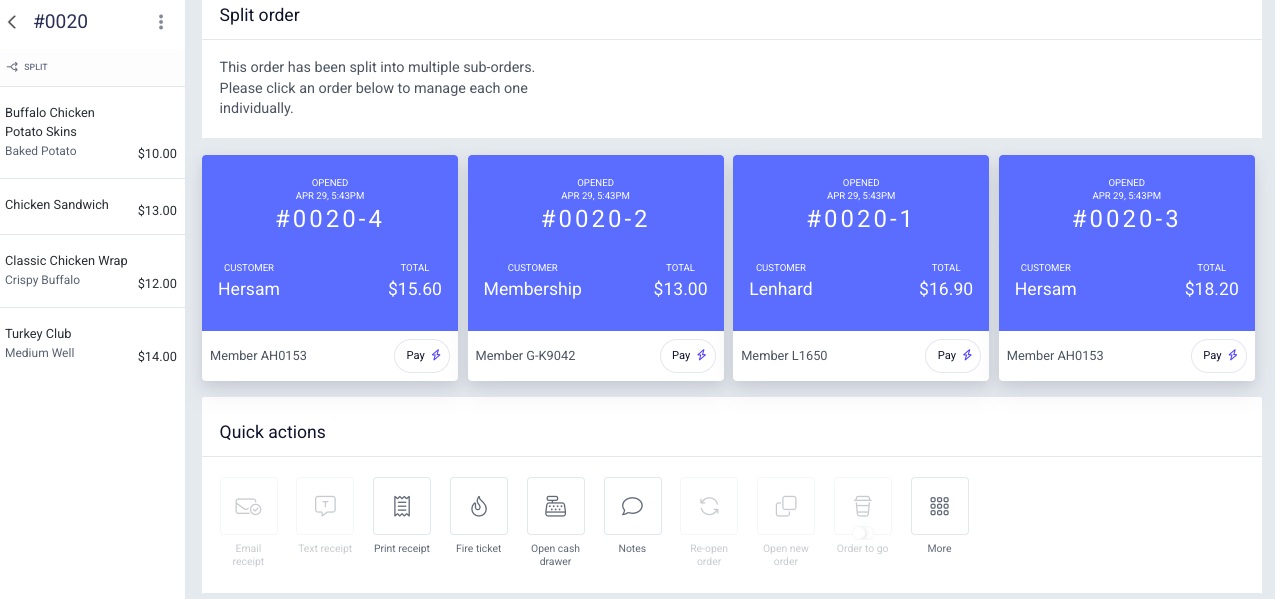
If your parent order has been split into multiple sub-orders, you'll then need to print the receipt for each of these sub-orders to present to each customer. While you could click into each sub-order and print the receipts individually, you can also print them simultaneously via a shortcut.
To print in bulk, simply click the print tile from the quick action menu when looking at the parent order after you've split it into sub-orders:
Merging Orders
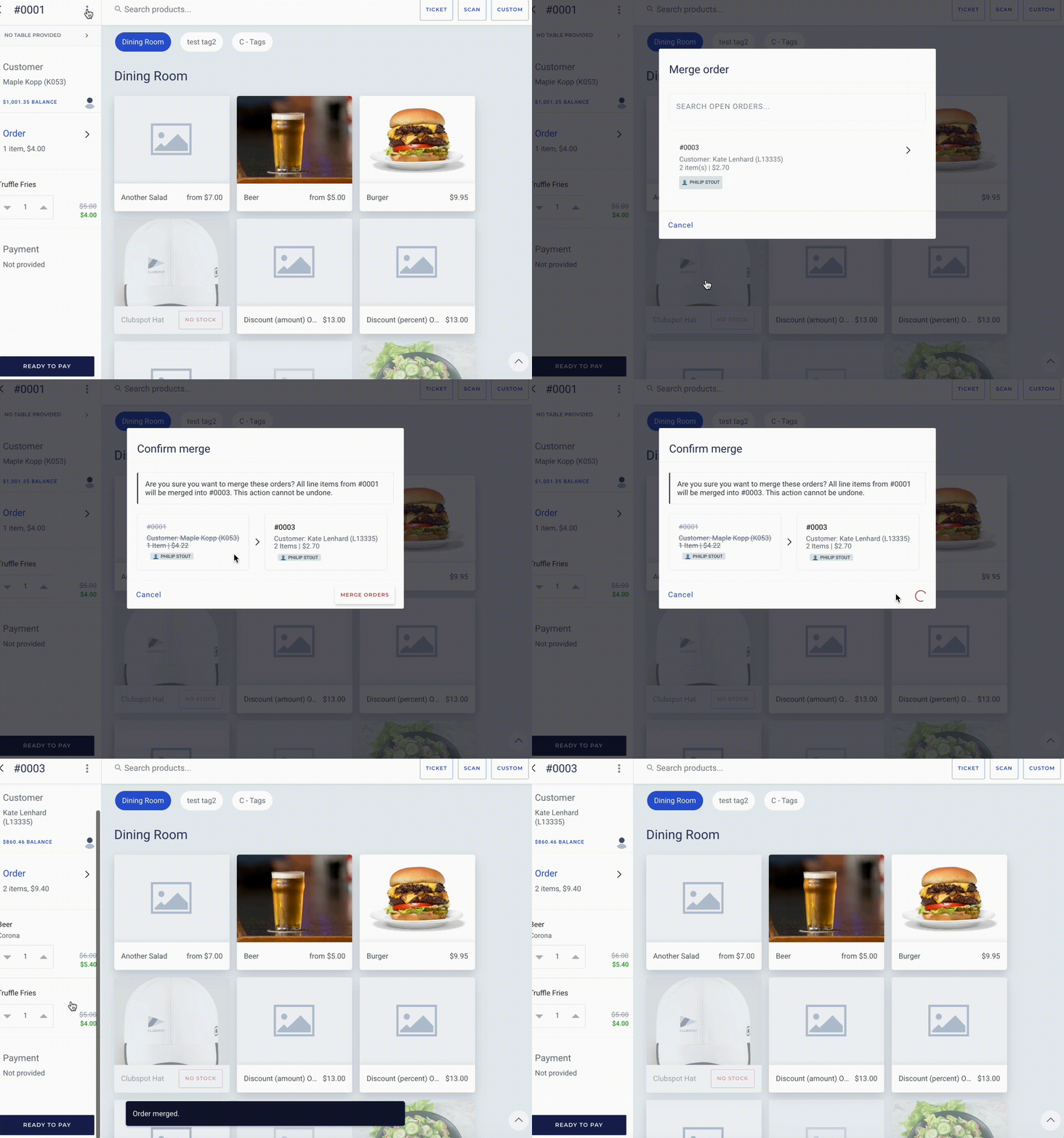
The merger order functionality allows you to combine one order into another, to close them out as a single order. To initiate the merge, click on the order that you’d like to merge (this order will no longer be open after it is merged into the order you’d like to proceed with). Then find the three dots on the Order screen. Choose Merge Order and search for the order that you’d like to merge this into. Once confirmed, the initial order will be greyed out and will clearly display “merged into order ###”.