
Refunds & Reversals
As a club administrator, you can reverse charges and separately refund payments for members and non-members alike.
Reverse a sale on a member’s account
A reversal allows you to reverse or undo a sale. Reversing a sale ensures that the revenue and tax for that sale are also reversed.
The first step to initiate a reversal is to locate the line item, or line items, that you would like to reverse. To do so, navigate to the member in question and select the previous or next invoice that contains the charge. Once you have found it, choose ‘reverse lines’ and select the items in question. Then choose the blue ‘reverse # lines’ button at the bottom of the page to reverse them on the invoice.
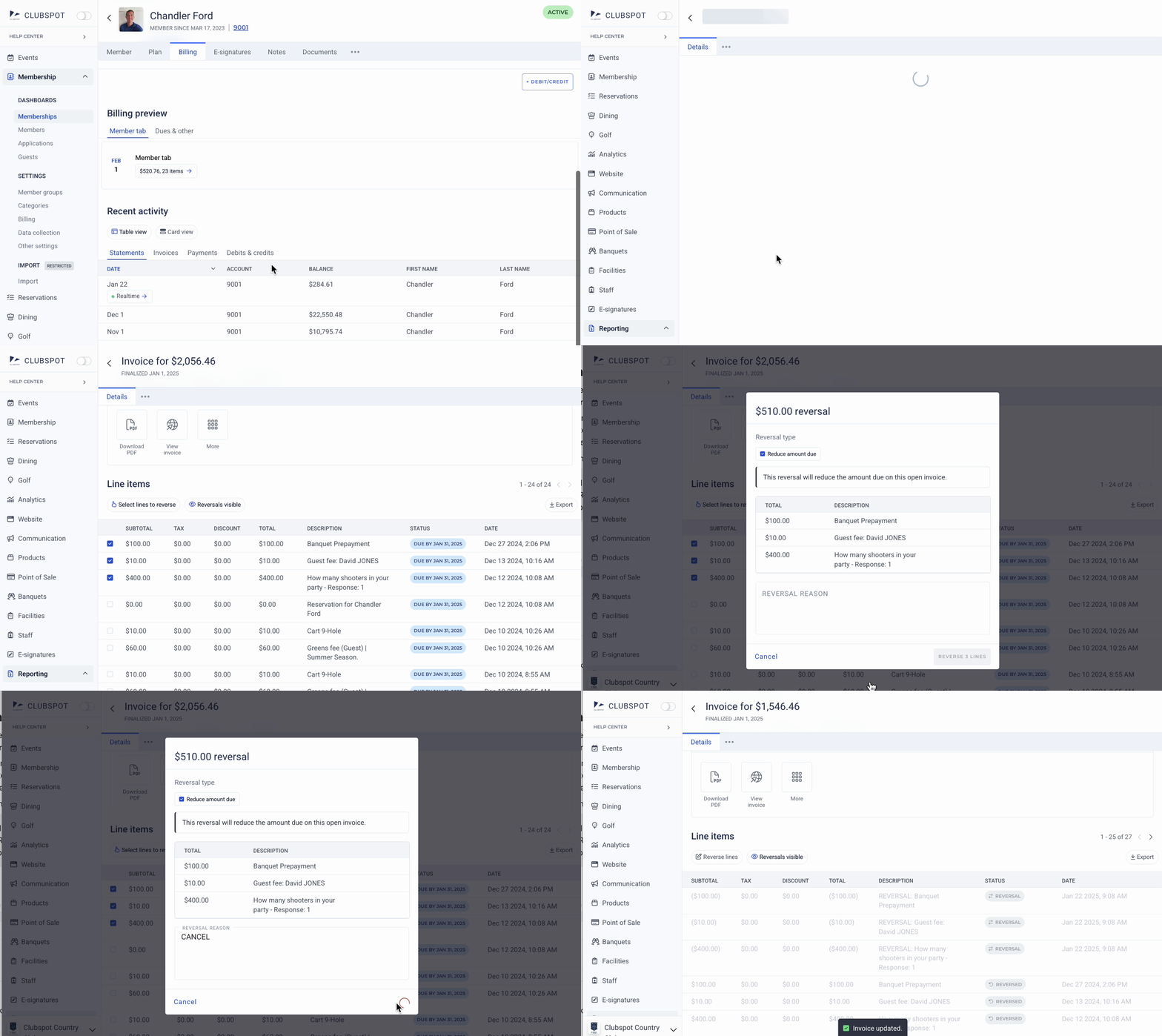
Reversing a line item works the same way for open or paid invoices. The item will be credited to the member's balance. If the invoice is unpaid, you can also void the entire invoice to more quickly reverse all of its line items.
FYI: If the sale you need to reverse is a POS order charged to a house account in need of correction, you can reopen that order. Reopening an order provides the flexibility to charge that same order to a different member, as well as to modify the order before closing it again.
Refund a member's balance payment
When you reverse an item on a member’s tab, it will not put funds back onto their payment method. Instead, that will credit the member’s balance.
In the case that you also need to return funds to a member’s payment method, navigate to the payments section and select the payment you would like to refund. This will allow you to refund the balance payment made by the member. Refunding a balance payment will increase the balance on their account.
Refunding a balance payment will NOT reverse the charges that the member had initially intended with that payment. If you need to both reverse the charges AND return the funds, then you will need to reverse the sale and subsequently refund the payment.
Refunds for direct purchases
If a payment was made upfront for a purchase (not via a house account charge), then you do not have the ability to issue a reversal separate from the refund.
Start by finding the payment you want to refund. You may search for the payment under the Orders tab, or navigate to the Billing tab for a specific membership that you would like to refund and find it in the “Payments” section. Once you find the payment, click on it to expose the refund option. When refunding a payment made against an order or invoice, Clubspot will automatically reverse the line items on that order or invoice.
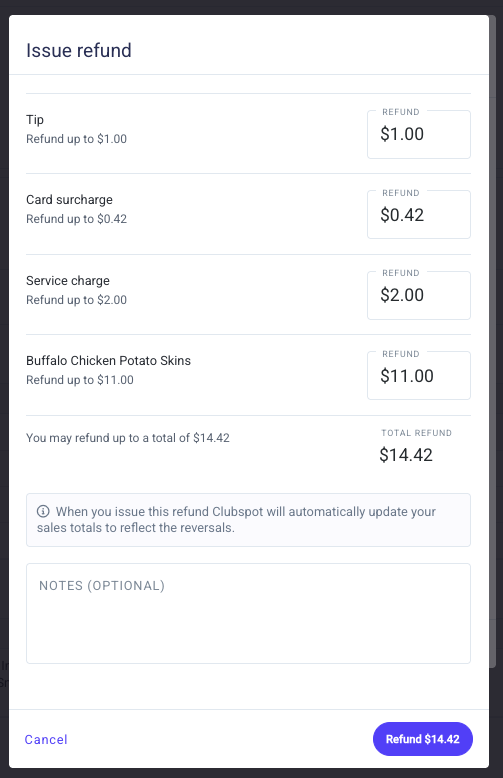
Unlike a refund for a balance payment, refunding a direct purchase will ask you to indicate which items on that direct purchase to refund.
Refunds for Offline Payments
Offline payments that are recorded through Clubspot (cash and checks) can be refunded by selecting the payment and clicking Refund. This will adjust the member’s balance accordingly. It is important to remember that Clubspot will not send money to the member in any way, so refunding an offline payment will not result in an automated refund for the member unless you return the money or write them a check. Refunds are helpful when an incorrect amount is entered or a payment is applied to the wrong membership and needs to be corrected.
Payments made directly for orders or invoices will automatically select the line items for that order or invoice when a refund is performed. This ensures that refunds for specific orders or invoices will reverse the sales for those items. Refunds on member balance payments, unassociated with a specific charge, will not reverse any sales credited to revenue accounts. Reversals can be triggered for specific items separately.