
Enabling Autopay
Auto-pay allows you to pay club invoices automatically, with a payment method on file. This help center article will walk you through the steps of enabling Auto-pay.
Add a Payment Method
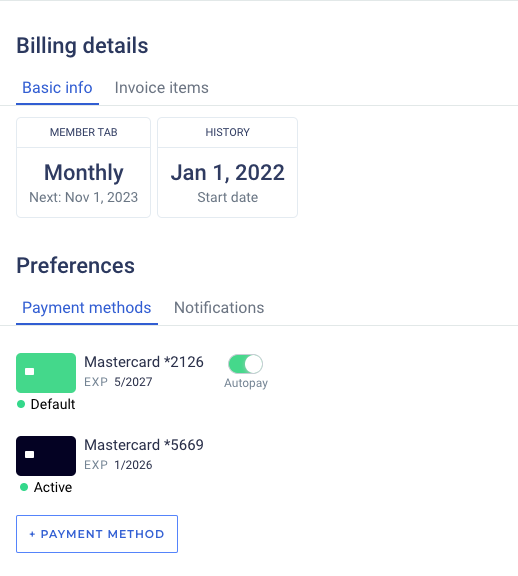
The first step to enabling Auto-pay is to add a payment method to your account. To do so, log in to your club account and navigate to your Billing tab. Scroll down to the bottom and then select + Payment Method. For detailed instructions on adding specific payment methods, please see our guide for adding a payment method. If you have more than one payment method on the account, you can select the method to make it the default. Auto-pay will always charge the default method on file.
Enable Auto-pay
Flip the toggle on your default payment method to turn Auto-pay to ON. If you have multiple saved payment methods, you can click into any of the non-defaults to set them as the new default payment method, and then enable auto-pay.
Enabling Auto-pay will not immediately pay your current balance. If you have a balance at the time of enabling autopay, please make sure to select Pay Now to pay those immediately. If autopay fails for any reason, you'll be alerted via email.