
Membership Applications
Members can submit an application at the /apply link to your domain. This link can be found under the Membership > other settings section of your dashboard, and it can be shared directly or linked via your website. Once received, applications can be managed as follows.
Overview
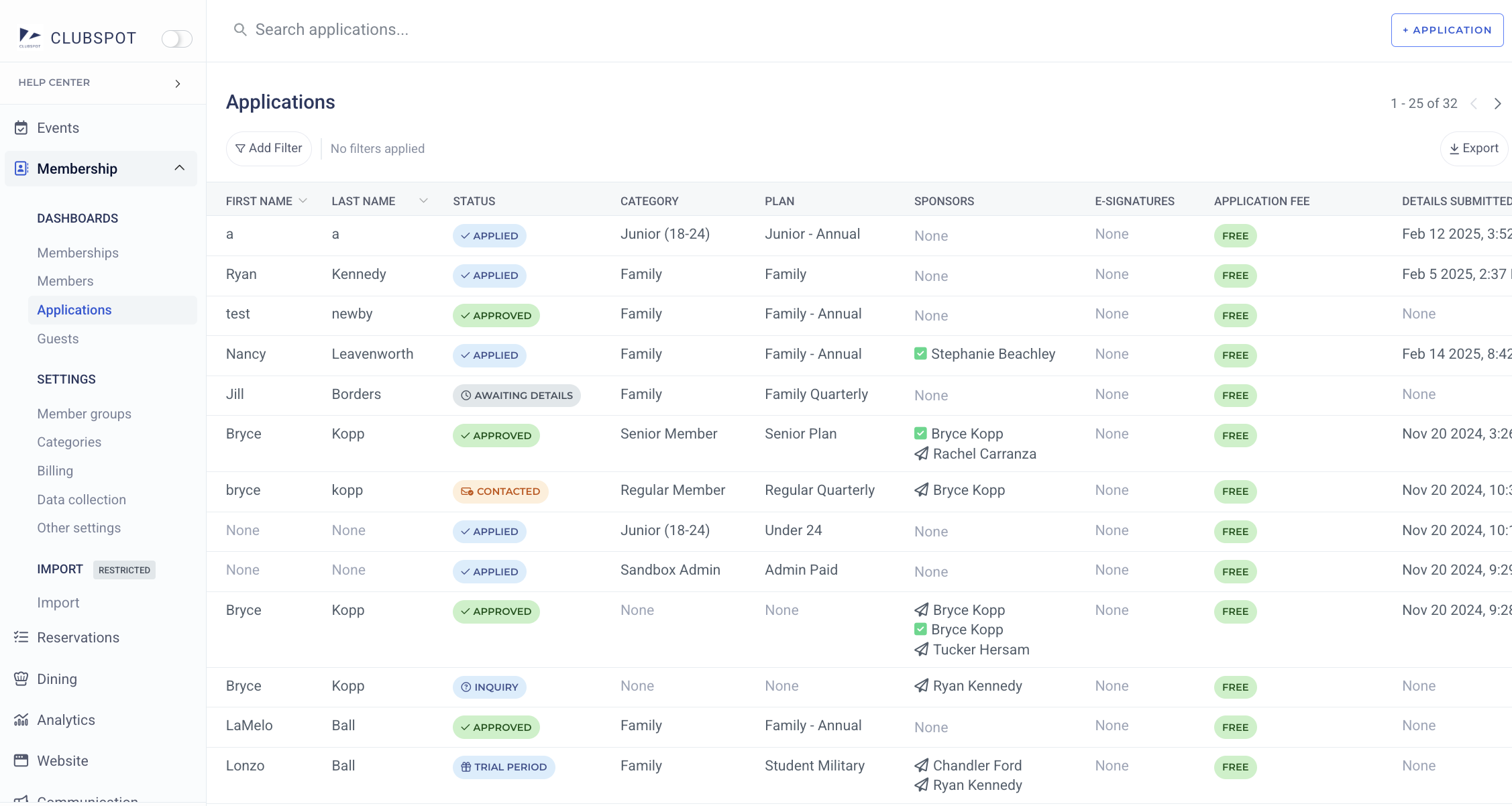
You can view all Membership Applications by clicking on the Membership tab > Applications.
Application details include:
First / Last Name
Status (Applied, Recommended, Awaiting Details, Approved, or you can create a custom status!)
Category & Plan (based on membership categories created and available for applicant)
Sponsors (with the plane icon indicate those that have been sent, and the checkbox indicating those that have been completed)
E-signatures (if any are attached to the application)
Application fee (’free’ if none are attached to the application)
Edit/Manage the Application Status
If application type is not set to open enrollment, admins are able to add custom application statuses and can filter by these new statuses
If an application has a custom status set and then the custom status is archived, you will not be able to filter by that custom status but the application will still have the custom status
Edit/Manage the Application Type
Go to the Membership tab and click on Other Settings. Here you will be able to manage the way you accept new members. Options include:
Open Application (allowing prospective members to find and submit an application)
Open Enrollment (allowing new members to sign up for membership on their own)
Open Inquiry (allowing prospective members to submit their name and contact information)
By default, the inquiry form only collects contact information. If you’d like to program additional custom questions on the inquiry, please reach out to support@theclubspot.com
Open Invite (only admins can send an invitation to an applicant for completion)
Add/Remove Application Questions
Navigate to the Membership tab > Data Collection
Scroll down to “+ Custom Field” and click
Enter the name of the custom field and click “Create”
Click into the custom field, scroll down to “Applies to”, and indicate if you want this data to apply to: Applicants, Members, Applicants & Members, or Sponsors. You can also limit this field to only show up for Primary members, or all members of an application.
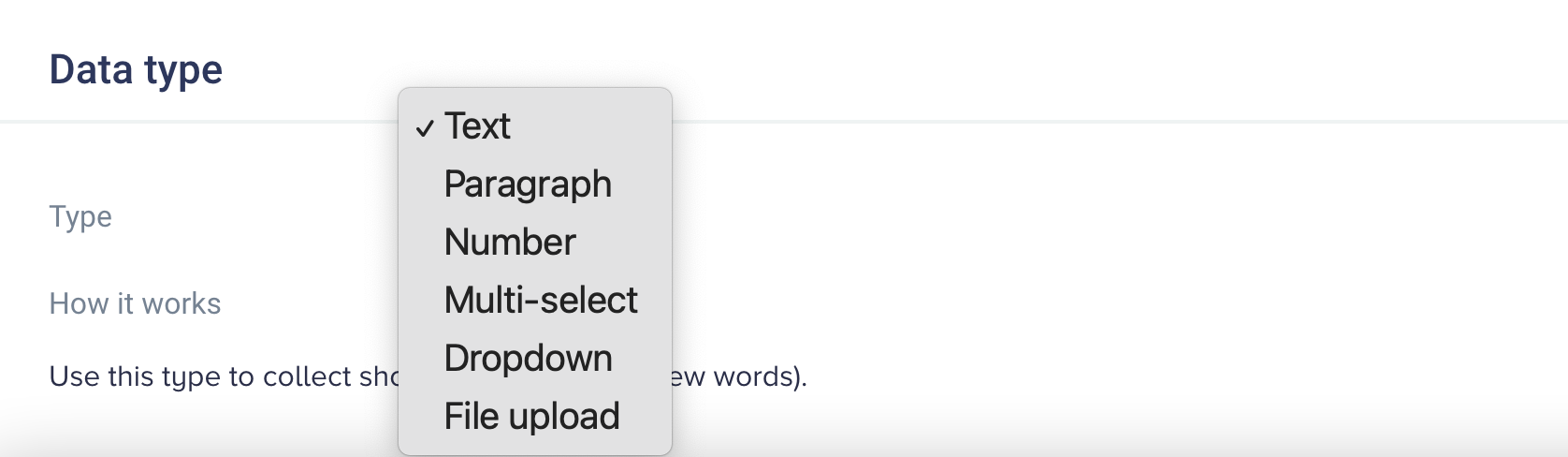
Change the data type and options for dropdown/multi-select fields under the “Data type” header
By default, we will require the applicant to share a date of birth. If you’d prefer not to collect that information, please let us know at support@theclubspot.com, and we can disable that field requirement.
Sponsor Forms
Many application processes require information from sponsors or proposers. Like the application, the questions on the sponsor form can be configured under Membership > Data Collection. Once you’ve received an application and are ready to send your sponsorship form to their sponsor, navigate to the application’s Status page and click + Sponsor.
Confirmation Email
If you’d like to customize the email that is sent to potential members after their application submission or inquiry submission, please contact support@theclubspot.com