E-signatures (waivers)
Clubspot makes it easy to collect legally-binding online signatures from participants and/or members. Please note that we charge a small fee for each waiver we send on the club’s behalf. You can see our pricing page here.
Upload a template
The first step to collecting online signatures is to upload a template for the document you want people to sign. Navigate to your club dashboard and find the E-Signatures tab, click on Templates, and then “+ upload template”. You’ll be asked to name your waiver and upload the Word Document from your device. Click the blue upload button when you’re ready to upload.
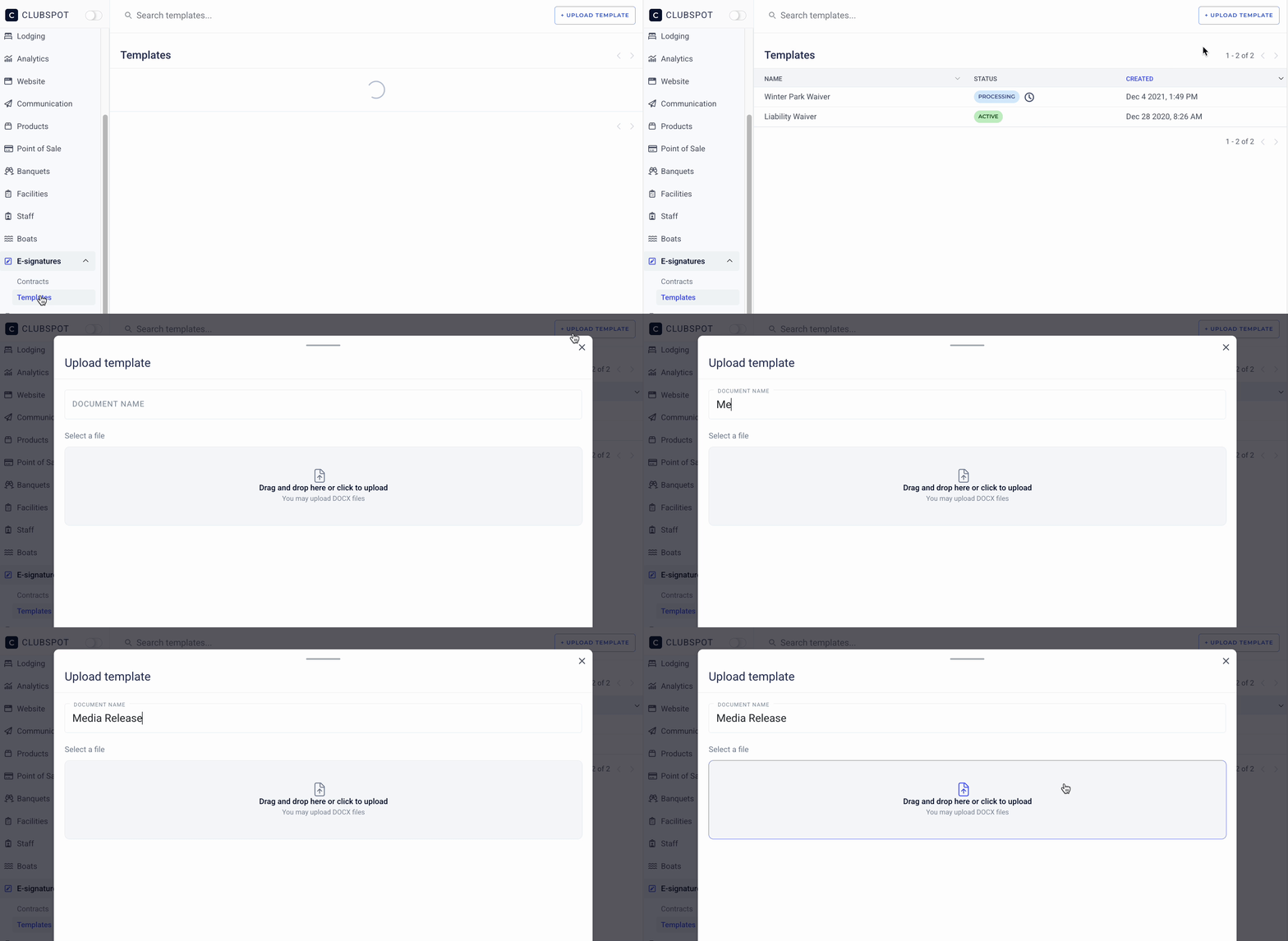
Your uploaded template will say processing under status. Once we receive the waiver and upload it using our third-party service, E-Signatures, the status will change to active. Please allow one business day to complete this process. However, if the waiver upload is urgent, please email us at support@theclubspot.com and we will do our best to expedite this process.
Formatting a waiver
Please be mindful when uploading documents that only the user will be able to sign the contract — there should not be any signature fields required for a club admin or third party, as they won’t be able to sign the form.
For best results, waivers should require very few customer-inputs and instead simply collect a signature at the end. If you do require information to be submitted (ex. health/medication info), we would advise you to structure it as a data collection field that is prompted when registering in Clubspot. This allows the data to be tied to each entry in Clubspot, which means it can be managed, exported, and accessed easily from the platform. This also ensures that parents do not end up entering the same data twice- once in Clubspot, and once in the waiver.
Testing your waiver
If you would like to test your waiver, click on the template name and then the three dots next to Basic Details. Here you can choose “send individual contract” and fill in your own email under the recipient details. Then click “Send Contract”.
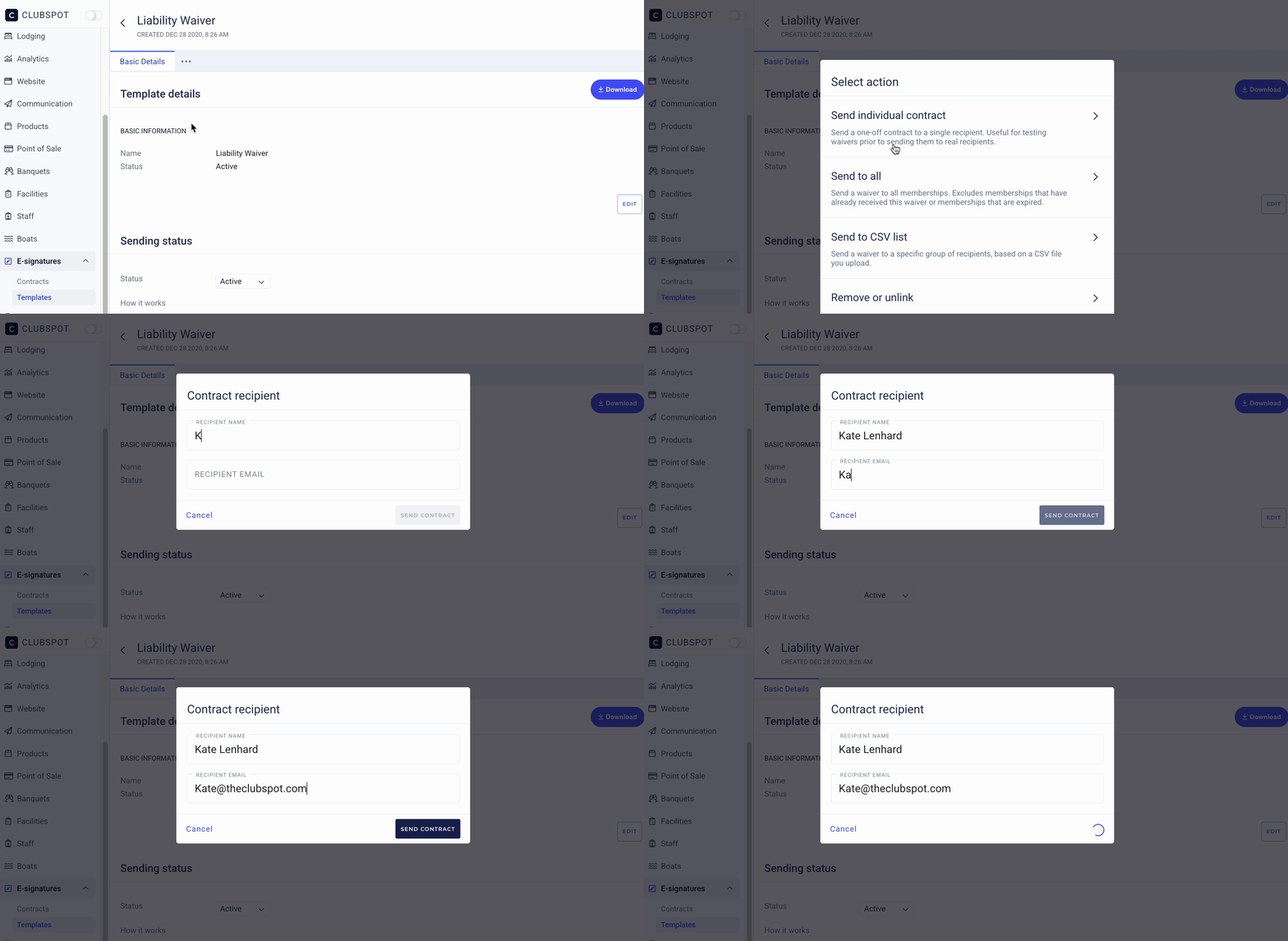
Please note that you will only see the option to send an individual waiver from the primary club dashboard, NOT from a regatta or camp dashboard.
Linking a waiver with events
If you want to link your waiver to a specific camp, regatta, or event, navigate to that Event dashboard and click on E-Signatures. Then choose Templates and “add a template”. You can choose an existing template or upload a new one from here.
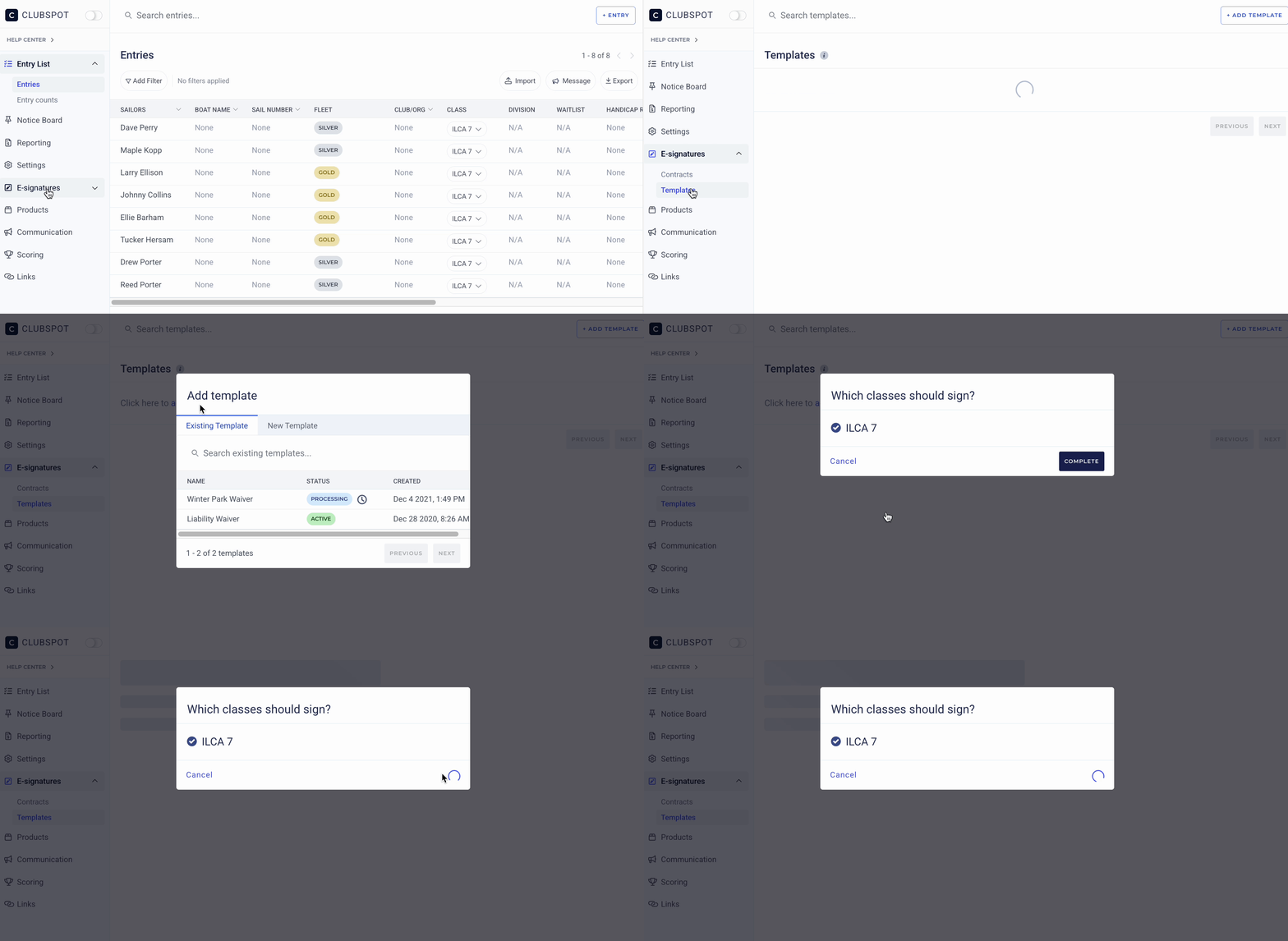
Once a waiver has been associated with an event, it will automatically be sent to participants upon completion of their registration. We do not offer the option to sign the contract directly in the registration flow because it would open the door to have signed contracts on an abandoned cart (orphaned contracts not tied to a registration); it would be confusing to see those signed documents but then not have a completed registration for them. For this reason, we send those contracts via email once the registration is actually confirmed.
Send a Bulk Waiver
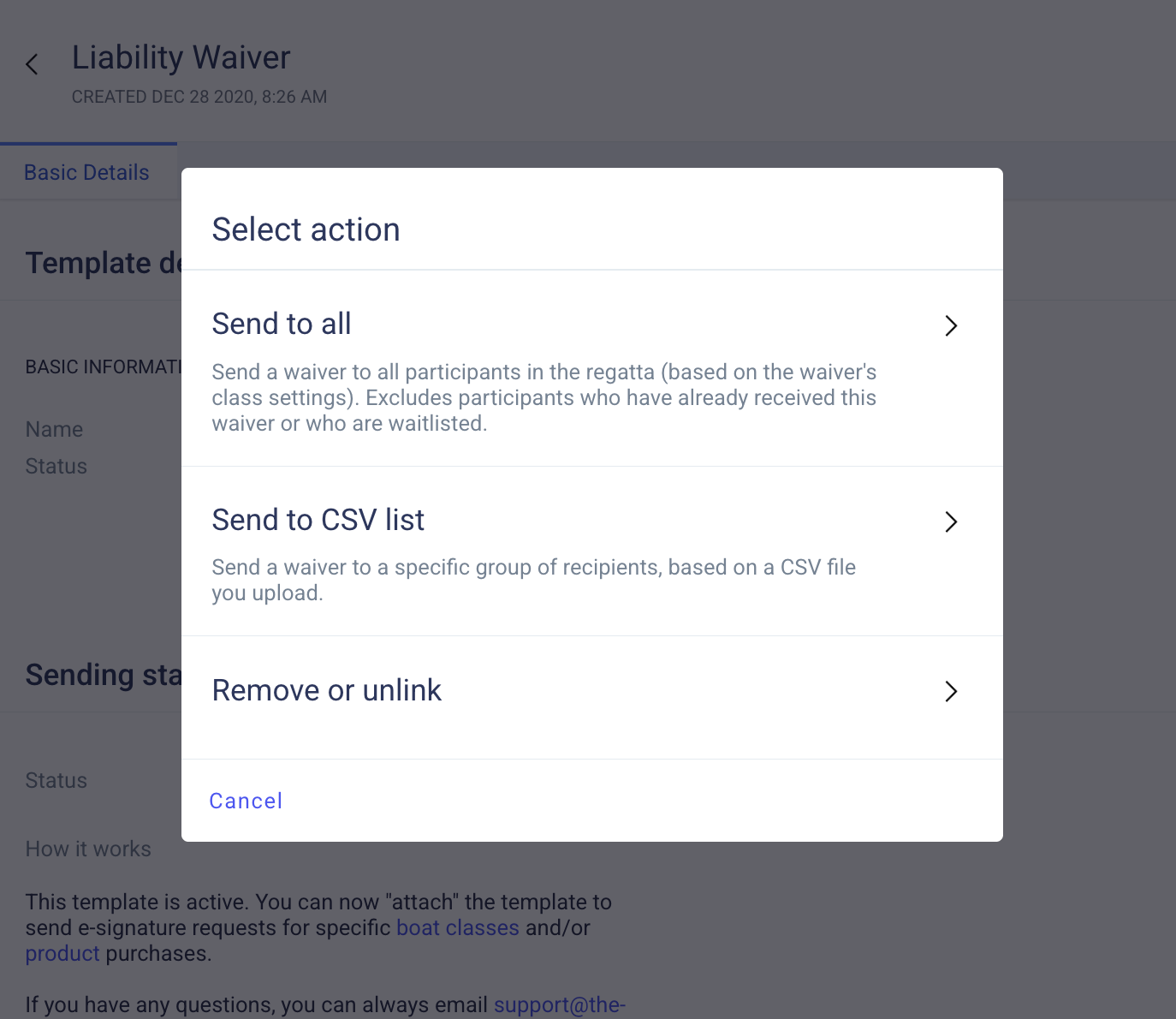
If you need to blast a new waiver out to your event participants, you can do so by navigating to the event’s dashboard, then choosing E-Signatures > Templates, then choosing the waiver and clicking the three dots next to Basic Details and choosing Send to All.
Wavier Reminders
Waiver reminders are emailed after 2 days, 4 days, 8 days, 16 days, and 32 days of being incomplete. You can also send a manual reminder from the dashboard.
To send a manual reminder, click on the respective incomplete waiver and then click the three dots to the right of “missing signature” and click “re-send contract.”
Cancel/withdraw Waivers
To remove reminders for any incomplete waivers, you can go ahead and cancel any pending signature requests that have not been completed. That will stop the auto-reminders from asking for signatures!
Go to the respective event > E-signatures > Contracts
Click into a participant with an incomplete waiver and click WITHDRAW
Click WITHDRAW to remove the waiver for that participant
Waiver status will update to Withdrawn
Custom Placeholder Values
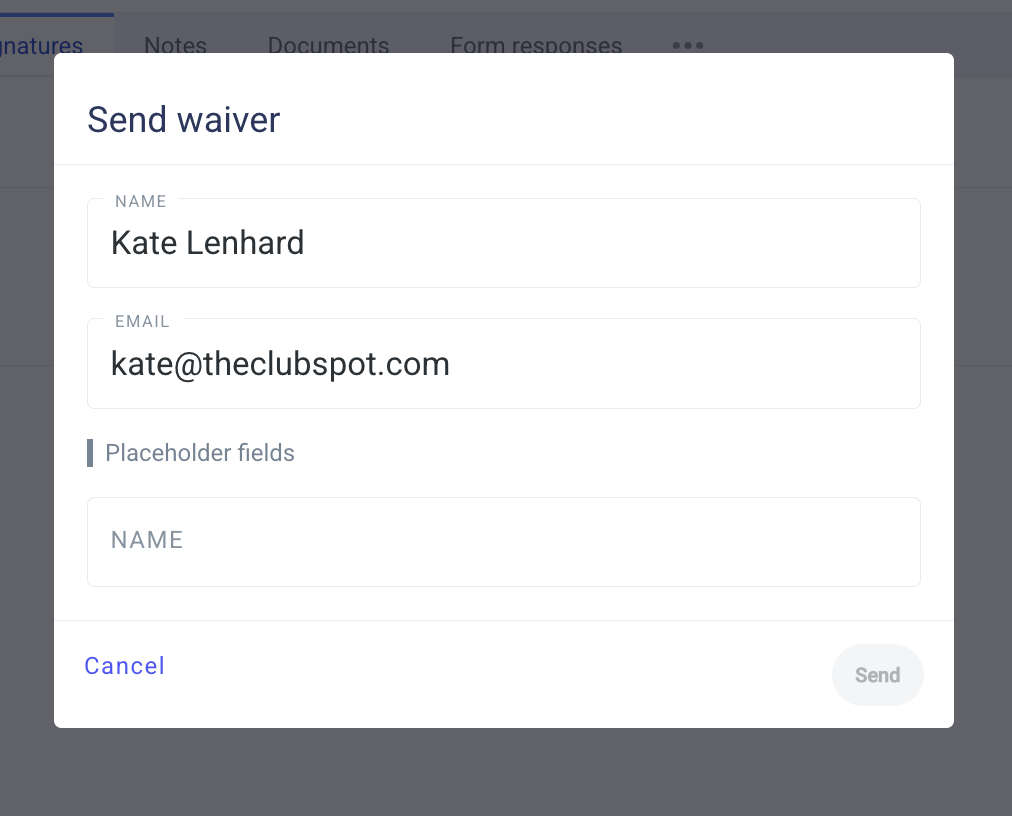
Individually-sent contracts can support custom placeholder values. For example, you might be coordinating a banquet event where you’re sending a contract to one recipient but want to pre-fill data such as the name, price, date, etc. When issuing the contract the admin will have the opportunity to populate those placeholder fields: