Batch Billing
Batch Billing Editor
In addition to the file-upload format for batch billing and charging, we offer an in-line tool called the Batch Billing Editor. This table allows you to assemble a list of charges or payments within the Clubspot platform. You can add members and products to this list without looking up their member number or product ID, which can help speed up the process!
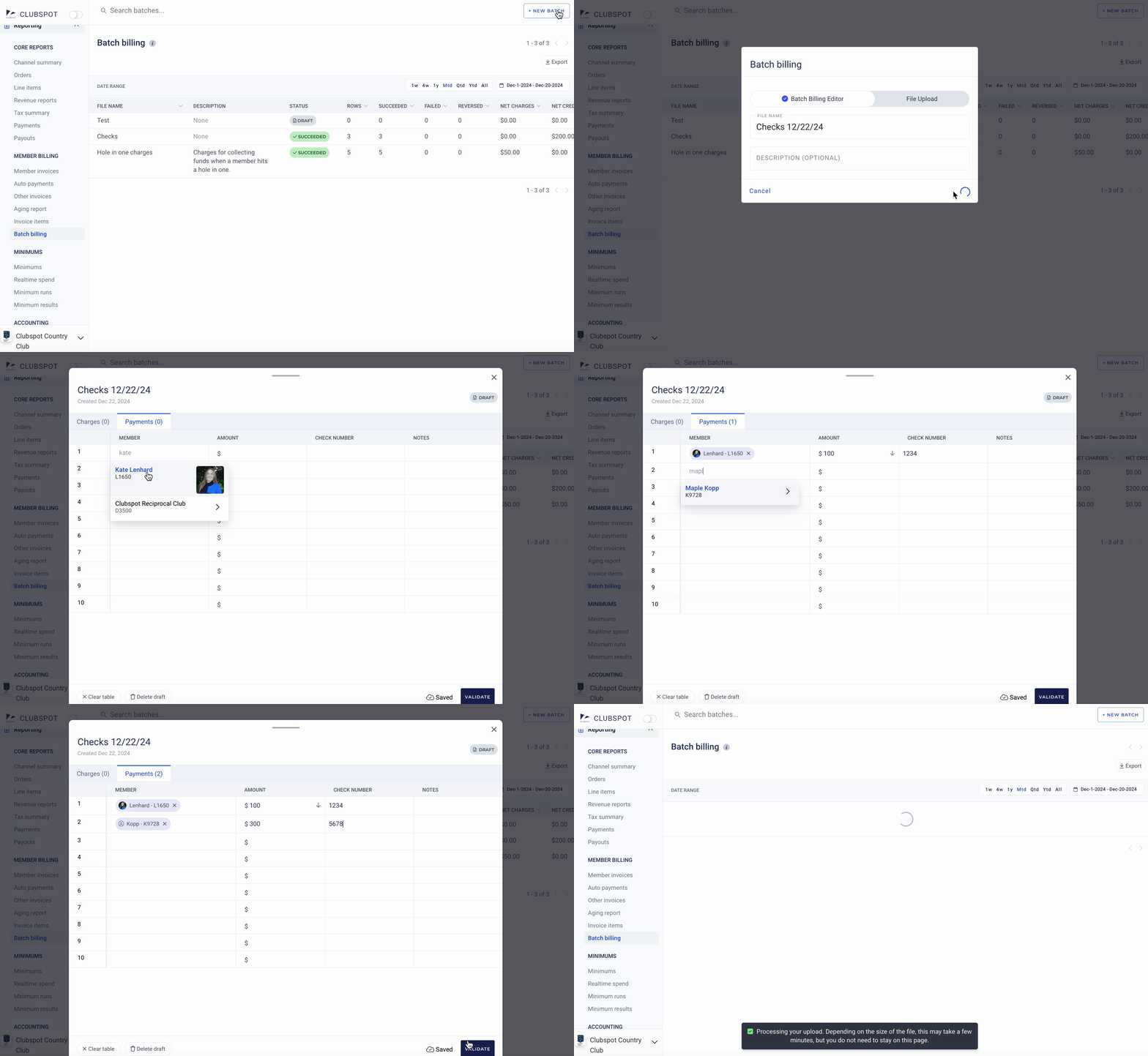
We can support backdated batch billing in the batch billing editor and file upload — reach out to support@theclubspot.com to request that we enable that option on your account.
Charges
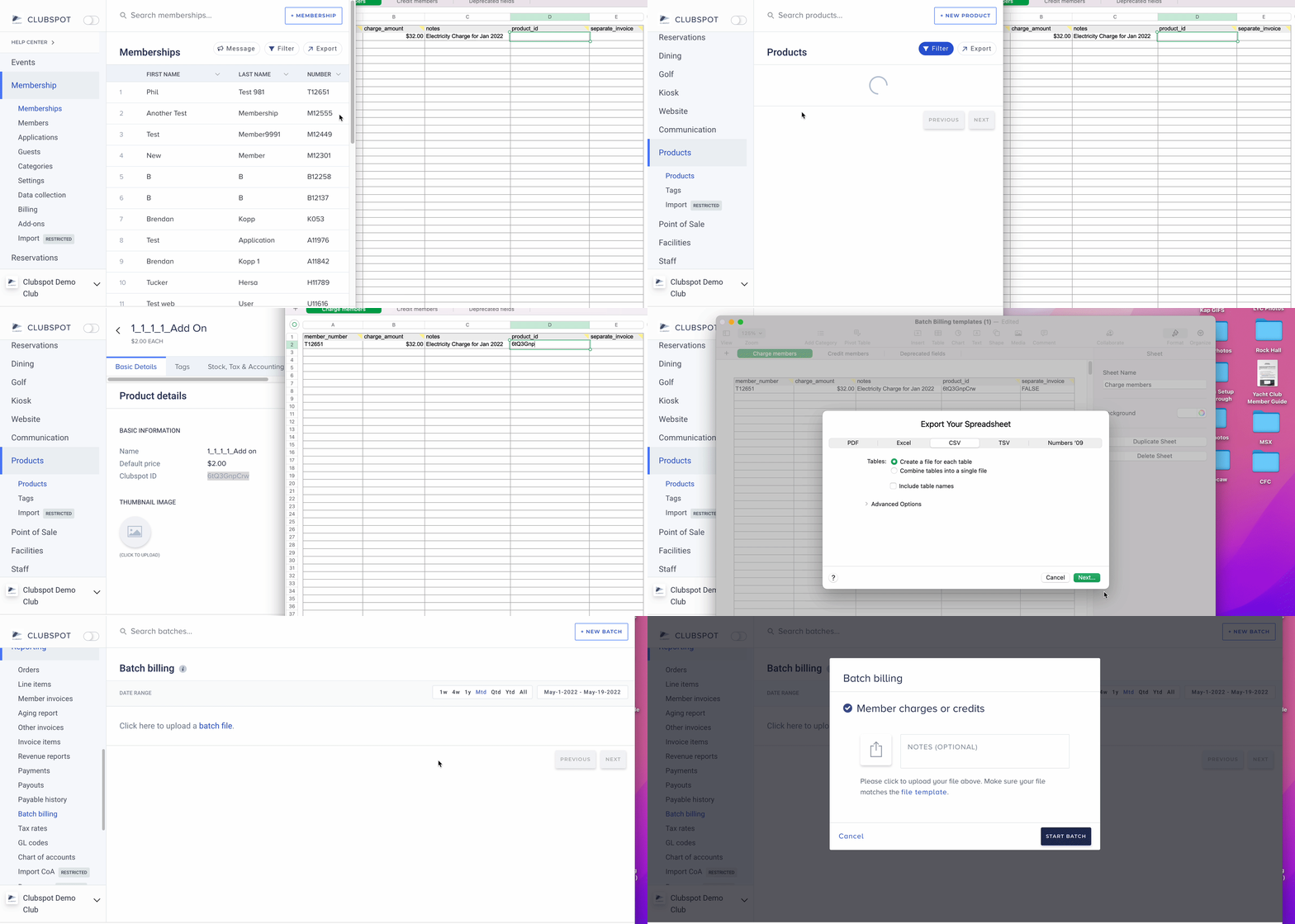
To generate a file to charge members, you will need to know the following information:
The product(s) you want to bill for. You can create a product in the Products section of the dashboard, if one does not already exist.
The membership numbers that you would like to bill.
The billing amounts.
Upload template
Once you have these details, you can create a batch file to upload in Clubspot. Processing this batch file will allow you to charge all of the memberships in bulk.
Below is an example. Batch files must fit this specific template to be imported. Please keep header rows exactly the same - if a column is not used, leave it blank. Reach out to support@theclubspot.com if you have any questions!
member_number | member_number | notes | product_id | separate_invoice | send_email |
|---|---|---|---|---|---|
2837 | 12.78 | Electricity Charge for Nov 2022 | xxxxxxx | TRUE | FALSE |
C123 | 50 | F&B Minimum from January | xxxxxxx | FALSE | FALSE |
Column headers
member_number: This is the membership number that the charge will be placed against.
charge_amount: This is the PRE-TAX amount. If you specify a product that has (exclusive) tax, Clubspot will automatically calculate taxes on top of this amount.
notes: Notes will appear as the description of the charge on member’s invoices.
product_id: This is the Clubspot ID for that product. Assigning the product ID ensures that the proper tax and accounting treatment is included for this batch. You can find the product ID from the Products section.
separate_invoice: Indicates whether to put the charges toward the next invoice, or create new invoices immediately for these charges. Set this to TRUE if you want to create a brand new invoice (out of cycle) for this charge.
send_email: If separate_invoice is true, this additional column indicates whether to email the member about the new invoice. Set this to TRUE if you want to immediately email the newly created invoices to members. This value is ignored if you’re not using separate invoices (if separate_invoice is FALSE or unset).
Payments
To generate a file to apply member payments, you will need to know the following information:
The membership numbers for which you would like to apply payments.
The payment amount.
(Optional) - check numbers, if you are crediting the accounts to account for check deposits you have just made offline.
Upload template
Once you have these details, you can create a batch file to upload in Clubspot. Processing this batch file will allow you to credit all of the memberships in bulk.
member_number | credit_amount | check_number | notes |
|---|---|---|---|
K536 | 100 | 9013 | Check deposit June 8 |
C123 | 34.78 | 1234 | Check deposit June 8 |
Column headers
member_number: The membership number dictates which account the payment should be applied to.
credit_amount: The amount of the payment.
notes (optional): Notes are for the administrator to indicate what the credit was for.
check_number (optional): The check number, for reporting purposes, if the credit is the result of a check payment by the member.
Uploading the file
Once you have your batch file ready, export it as a .csv file (comma separated values) and will be able to upload it to Clubspot. Navigate to Reporting>Batch Billing section of the dashboard, select “+ new batch” in the top right corner, and upload your file.